When editing a published article, you can choose to move the article to a draft state and make the changes. This allows you to retain the page in case the page link has been shared.
Path: Content Studio > My Content > Three-Dot menu
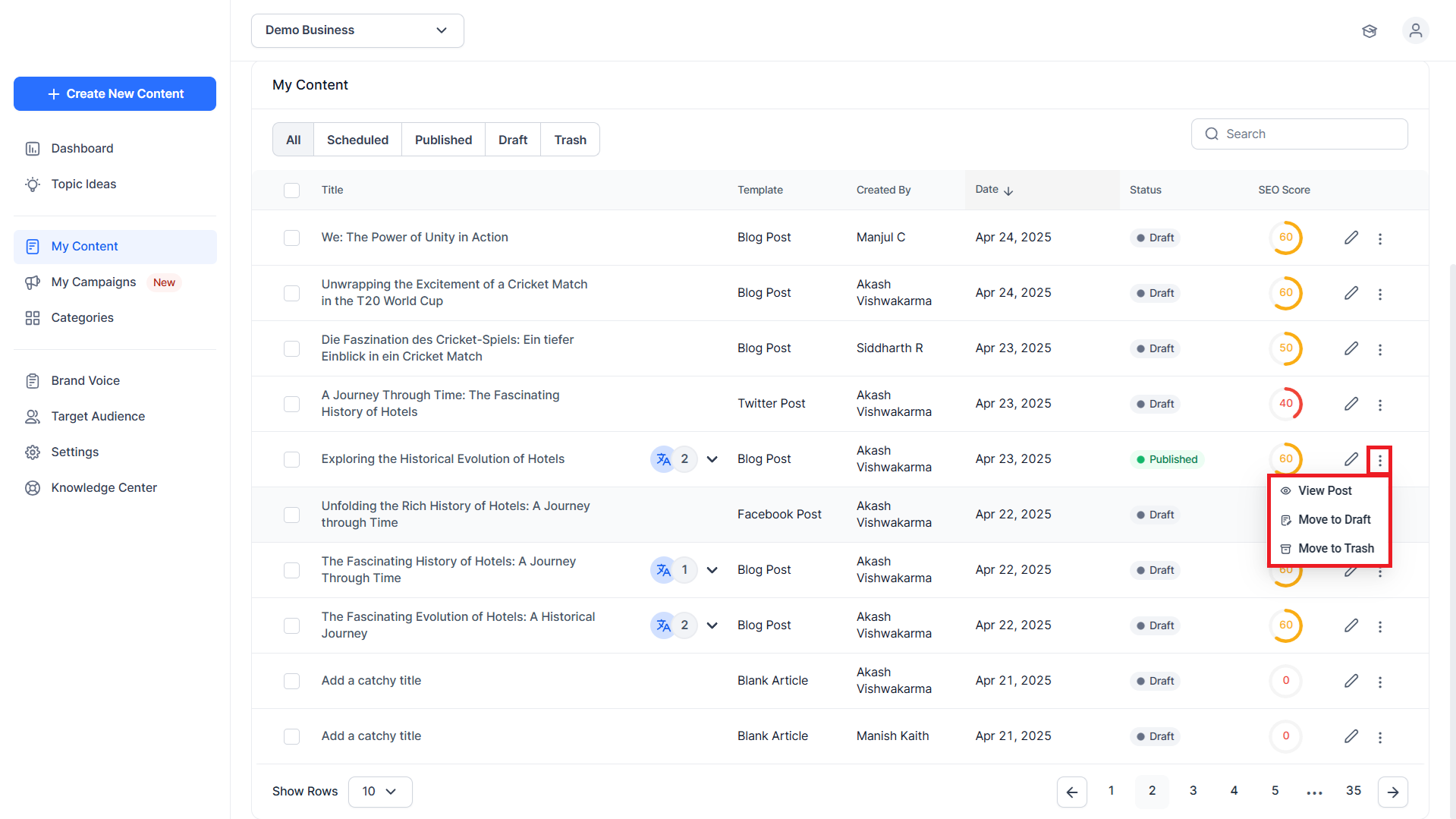
Step 1: In the ‘My Content’ section of Content Studio click on the three-dot menu corresponding to the published article you would like to move to Draft.
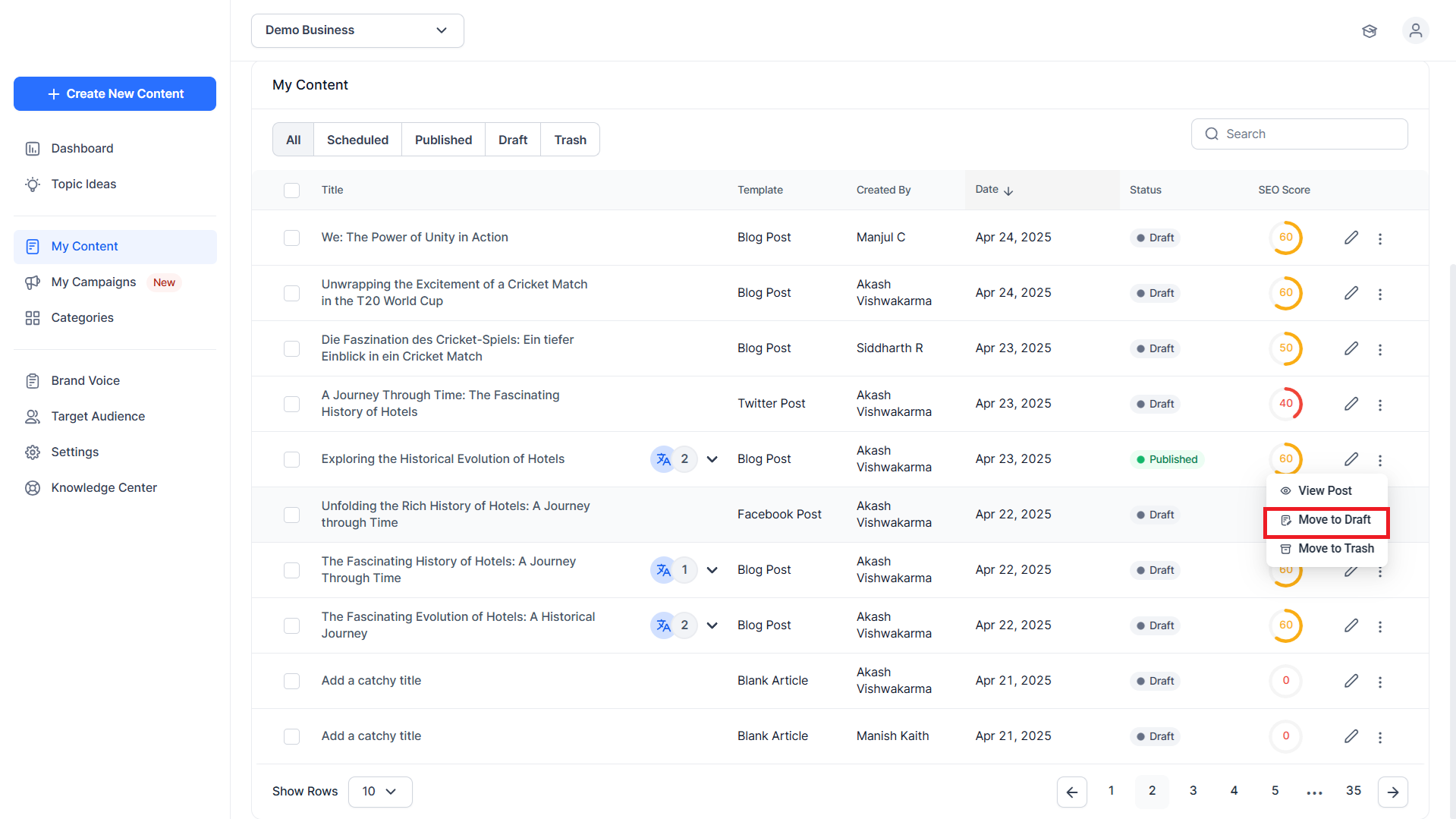
Step 2: Click on ‘Move to Draft’.
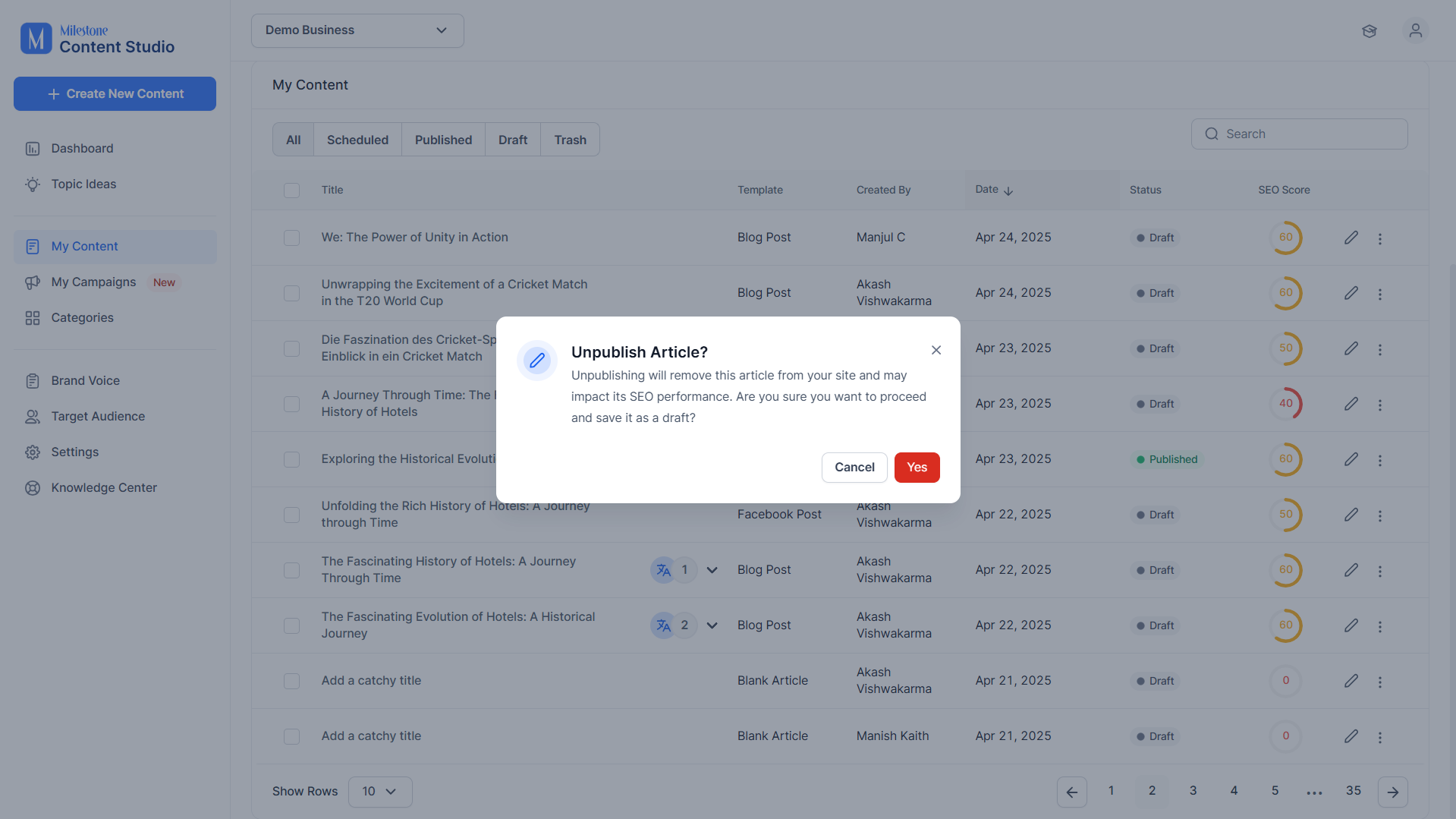
Step 3: Please note that performing this might impact SEO performance temporarily. If you wish to continue click on ‘Yes’.
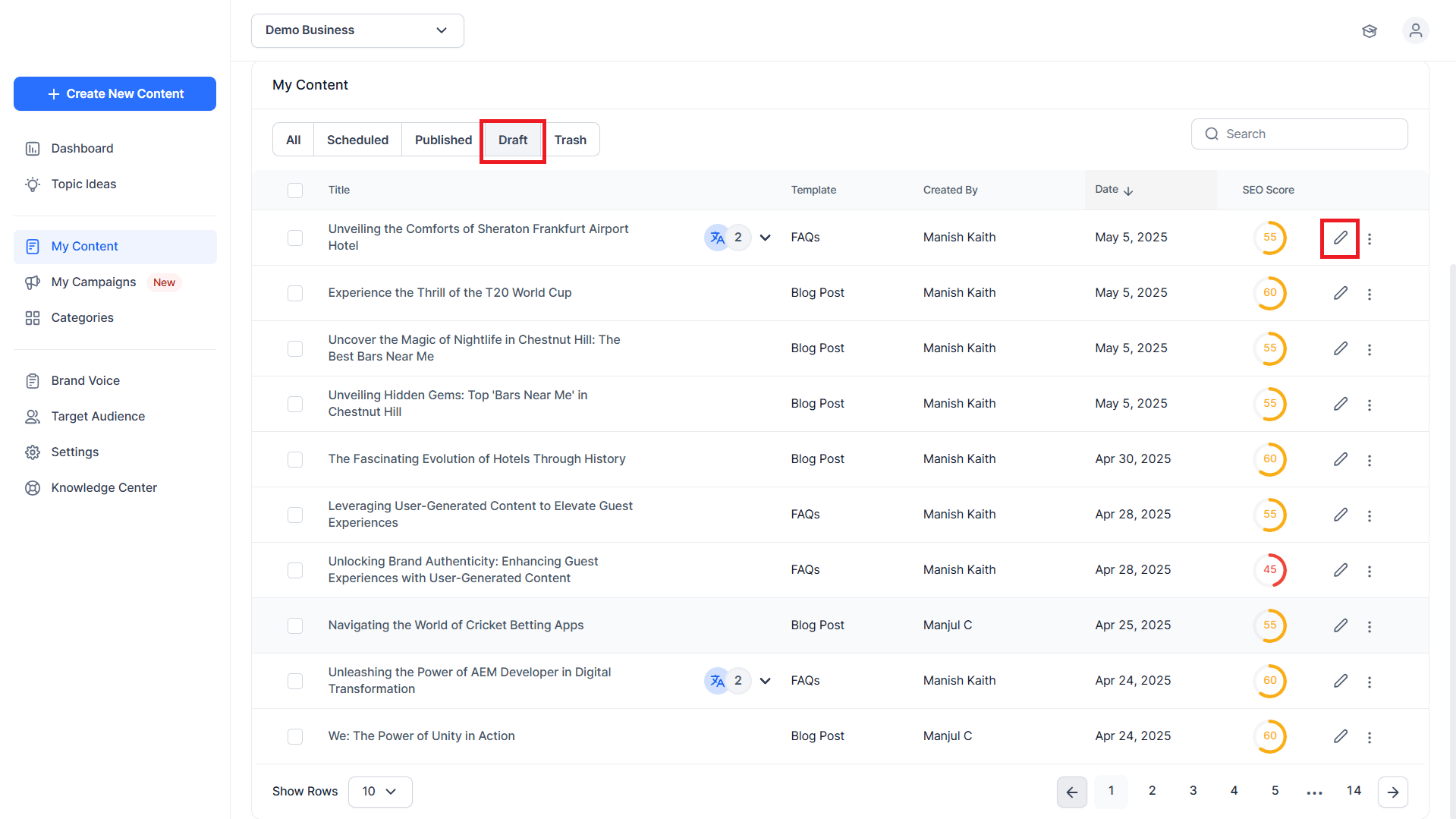
Step 4: In the ‘Draft’ folder, click on the ‘Edit’ icon corresponding to the article you want to update.
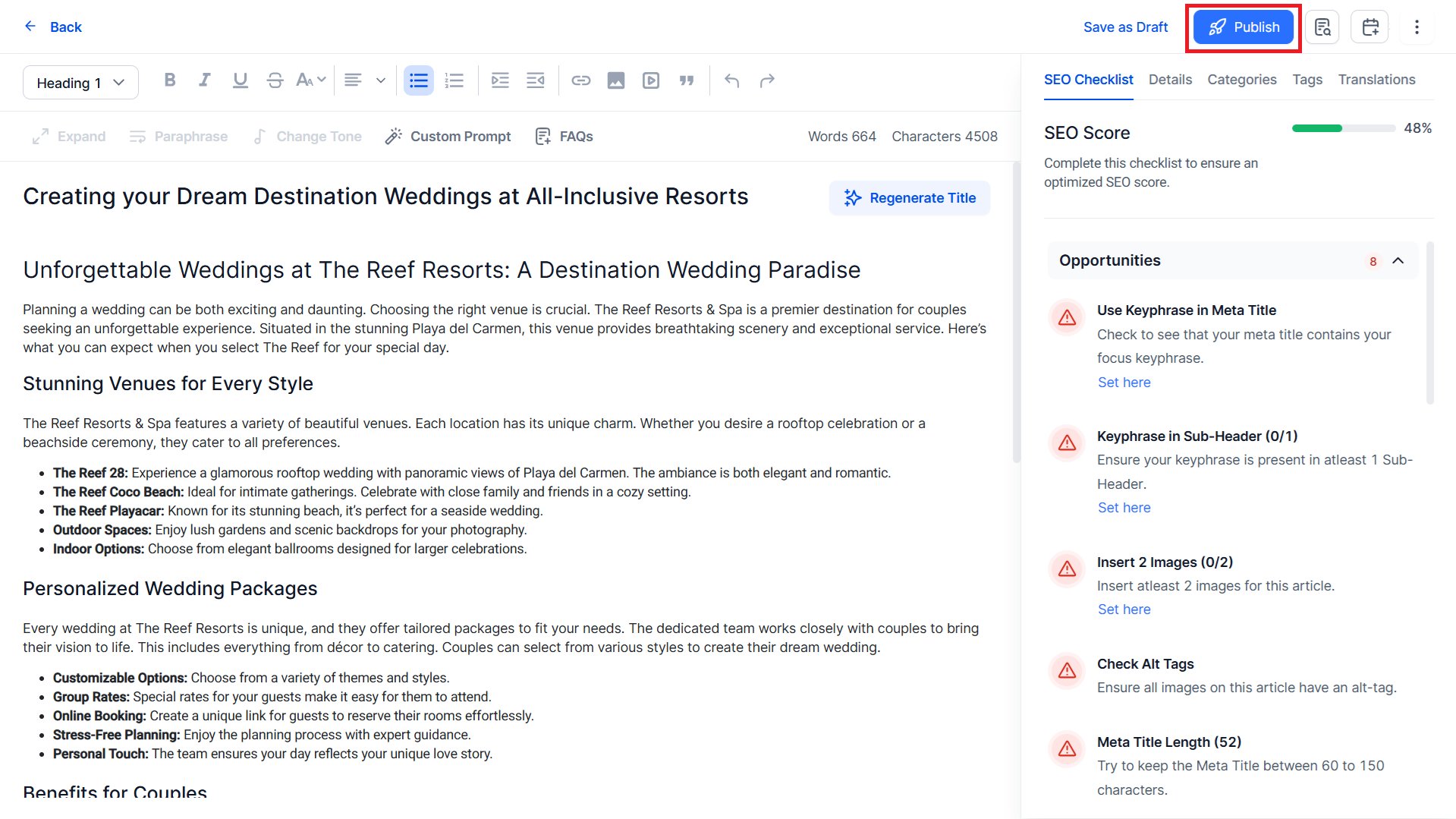
Step 5: Once you have made the changes, click on ‘Publish’.
Was this article helpful?
That’s Great!
Thank you for your feedback
Sorry! We couldn't be helpful
Thank you for your feedback
Feedback sent
We appreciate your effort and will try to fix the article