In some cases, when you are trying to bulk upload data to Milestone Presence Cloud, it can fail. Here are a few things you can do to ensure your data uploads successfully.
Refresh Bulk Upload
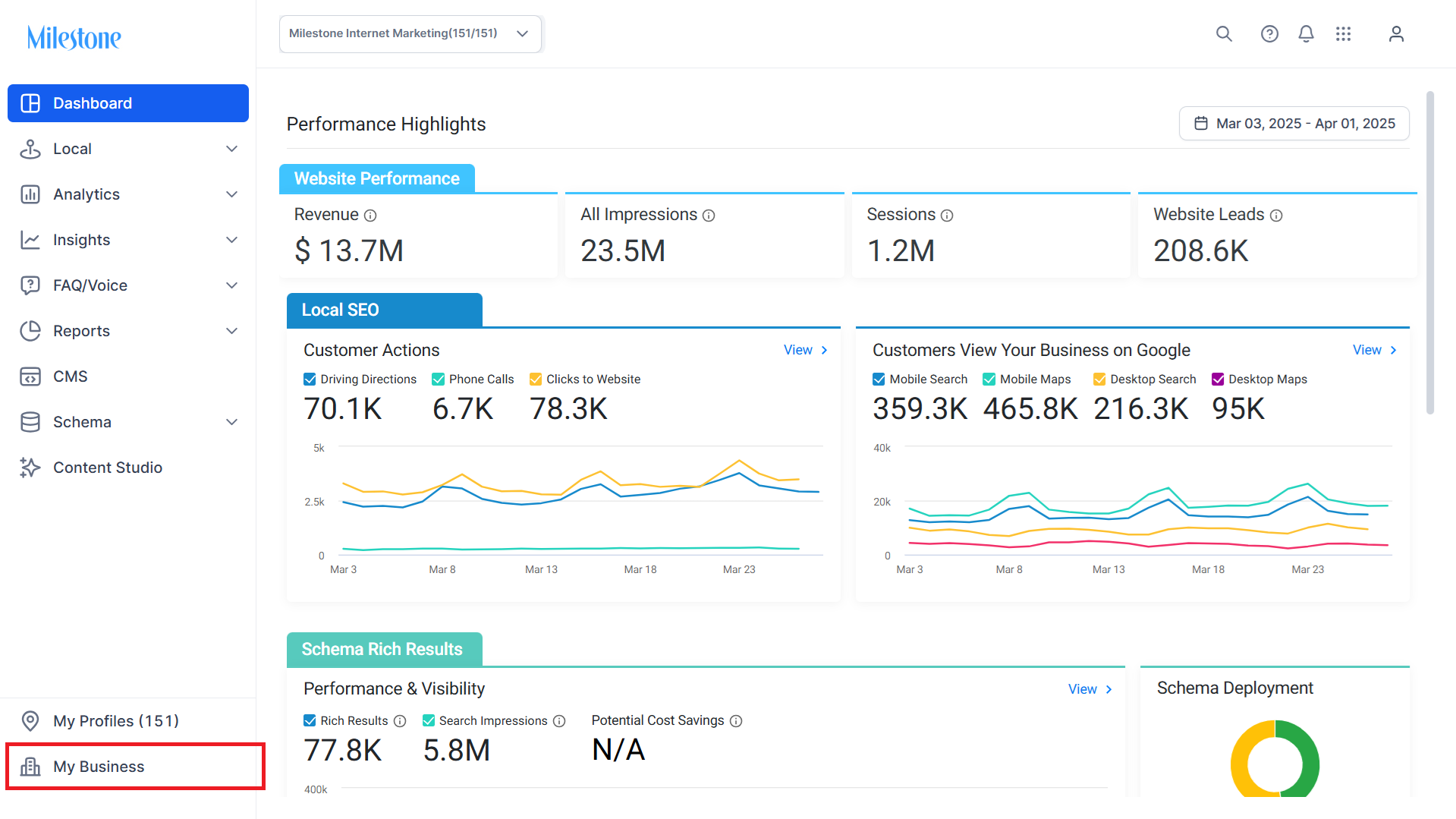
Step 1: Click on ‘My Business’ at the bottom of the left navigation panel.
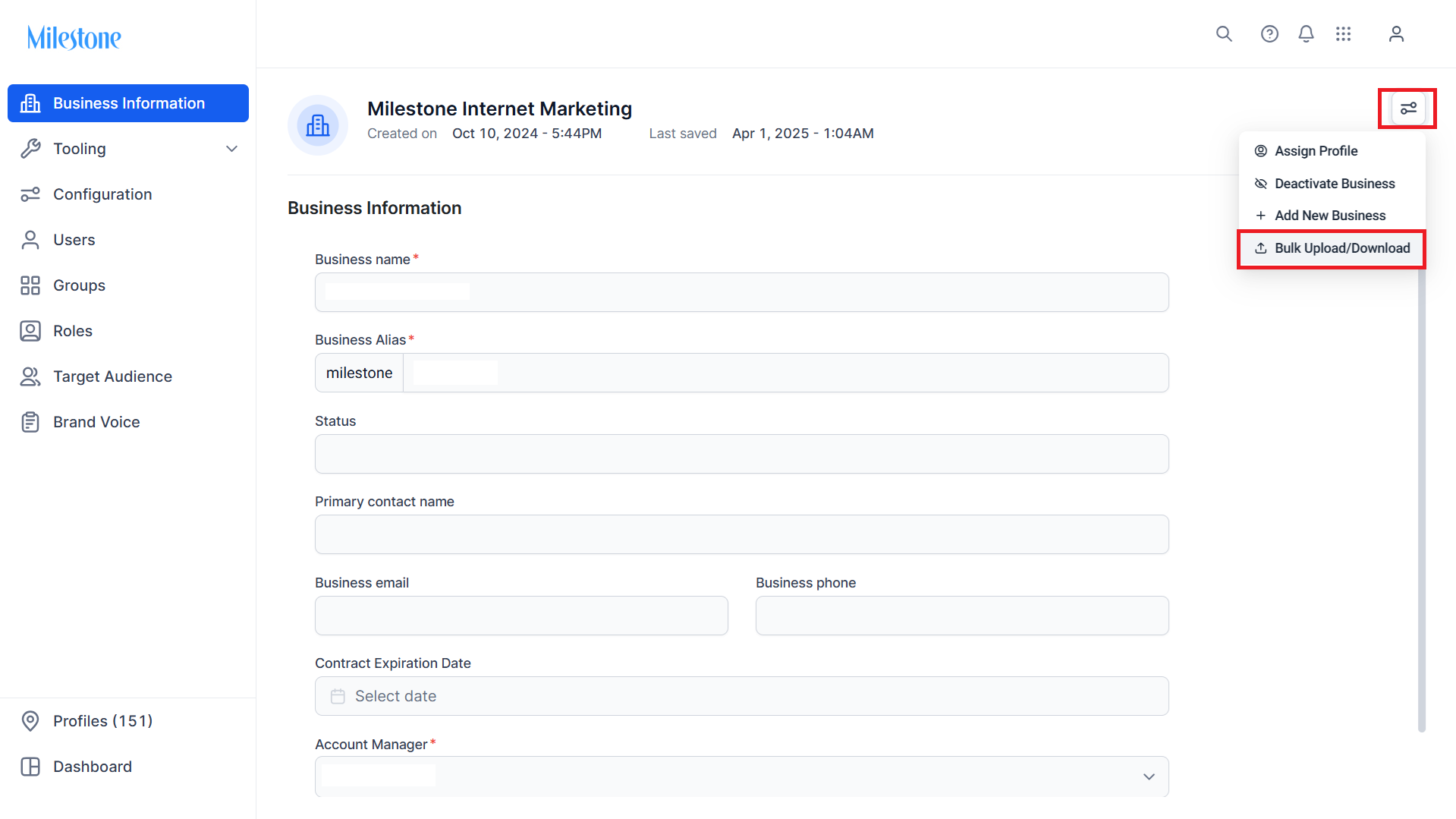
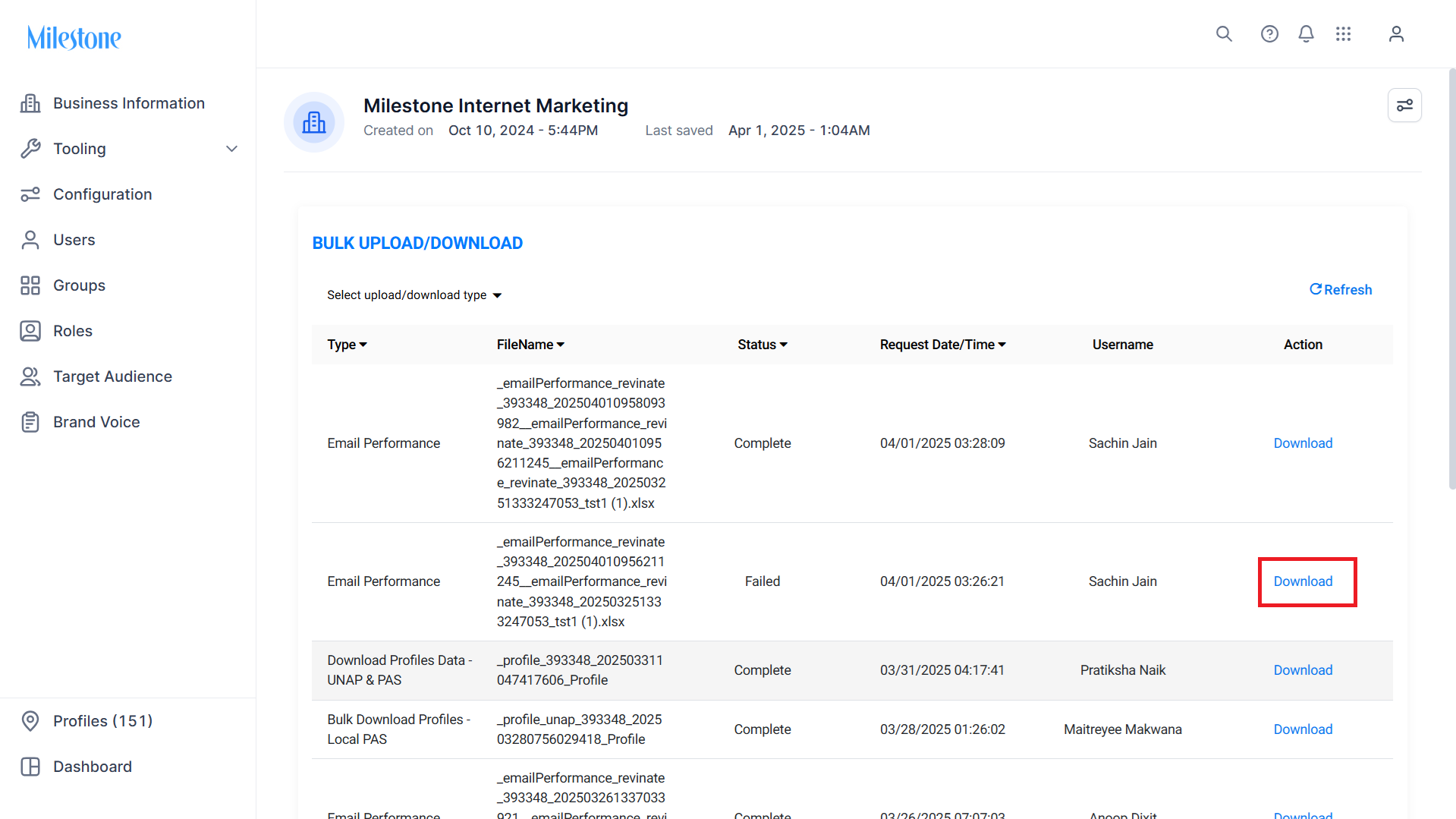
Step 2: Click on the options icon at the top right of the ‘Business Information’ section and click on ‘Bulk Upload/Download’.
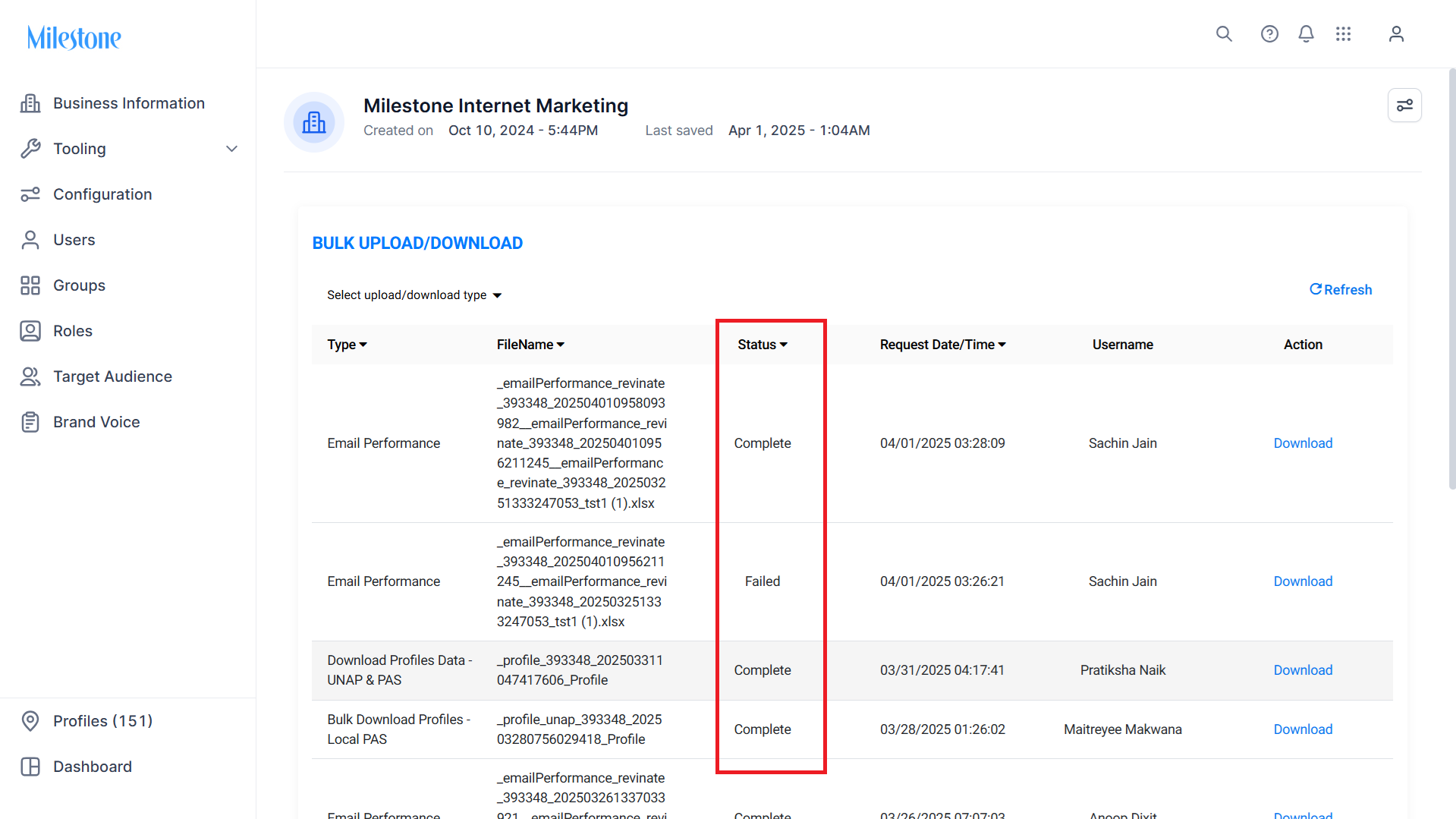
Step 3: In the ‘Bulk Upload/Download’ section, the ‘Status’ column displays whether the bulk upload operation was ‘Complete’ or ‘Failed’.
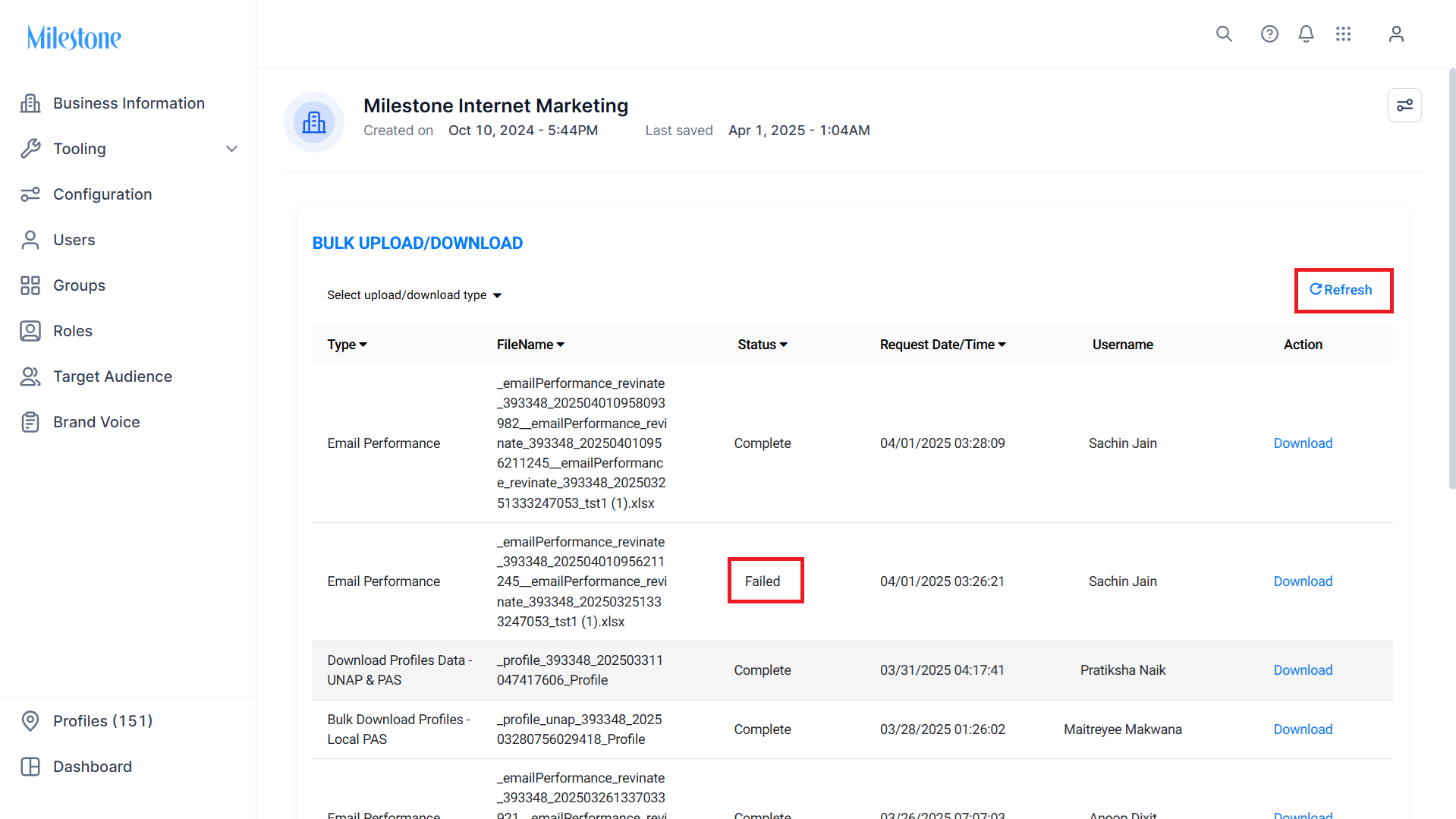
Step 4: If you see an operation has failed, click on the ‘Refresh’ button to refresh the status. This can sometimes be rectify this issue.
Download Sheet with Error Report
Step 1: Download the file that failed to upload by clicking on the ‘Download’ option in the ‘Actions’ column.
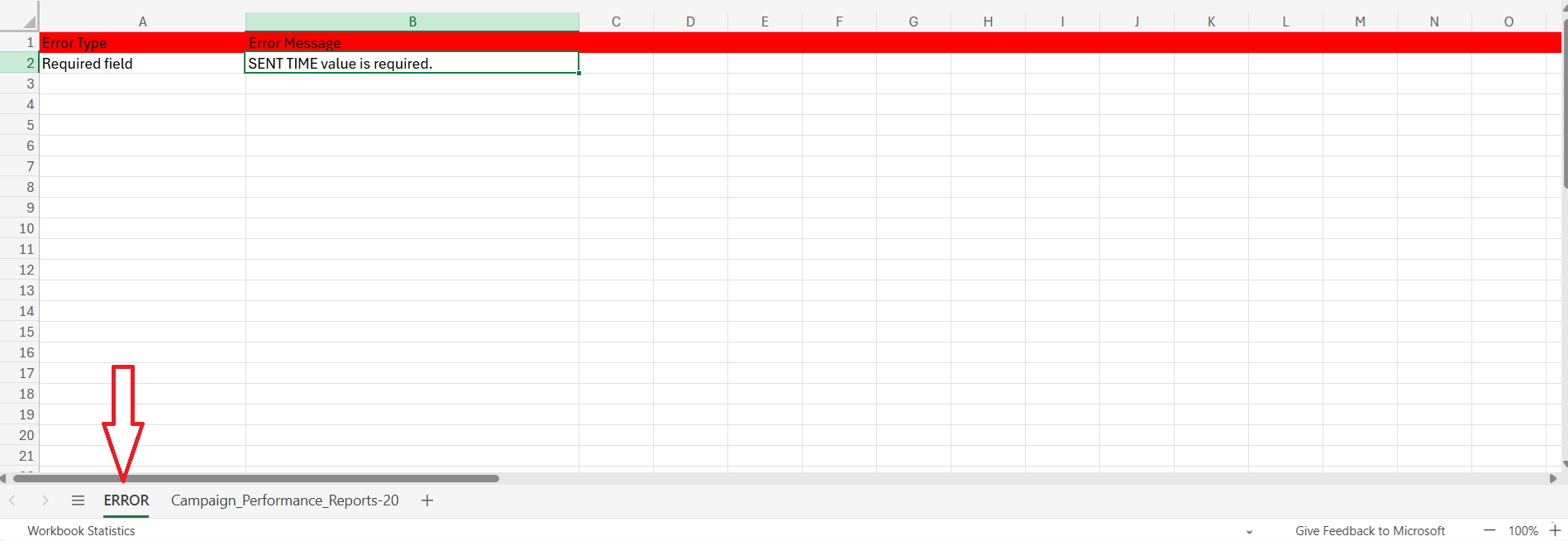
Step 2: Open the file. The spreadsheet will contain a new sheet named ‘ERROR’ this sheet displays the ‘Error Type’ and ‘Error Message’.
Step 3: The ‘Error Message’ column is the rightmost column and will be highlighted in red. The error in the data fields will also be highlighted in red. Find the error in the main sheet and rectify it.
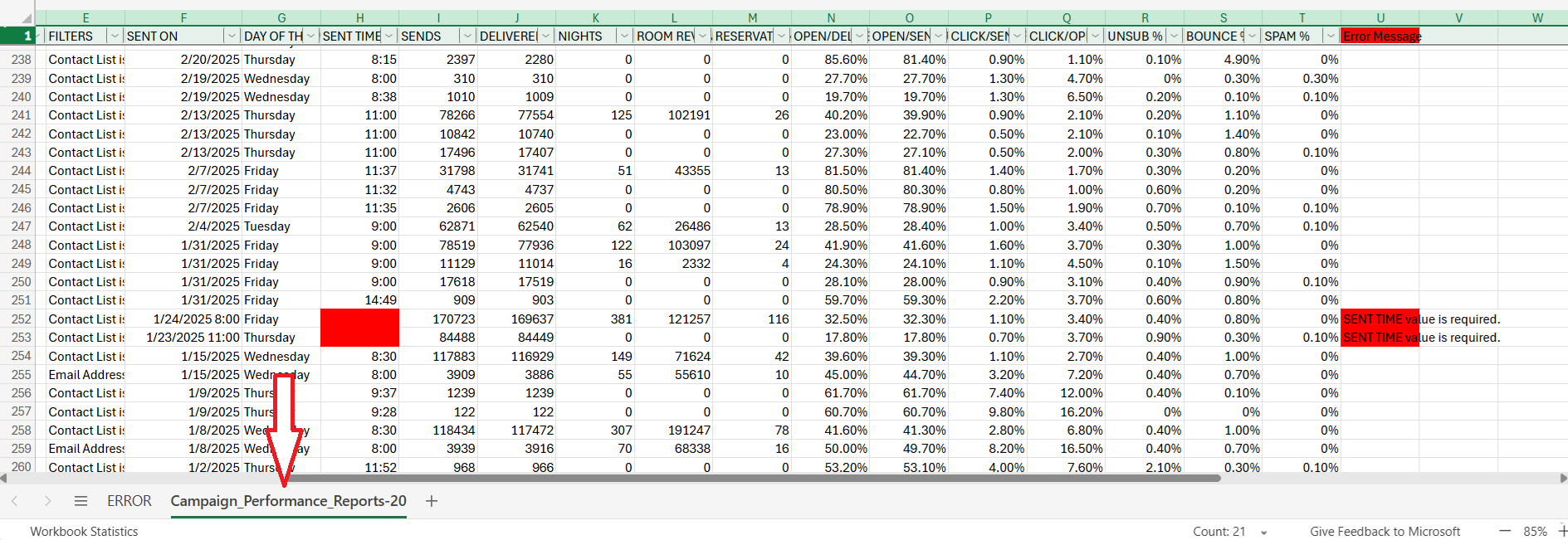
Once the errors have been rectified, save the file and upload it again.
Was this article helpful?
That’s Great!
Thank you for your feedback
Sorry! We couldn't be helpful
Thank you for your feedback
Feedback sent
We appreciate your effort and will try to fix the article