Please note that the Milestone Schema Manager Connector will need to be installed by the AEM System Administrator.
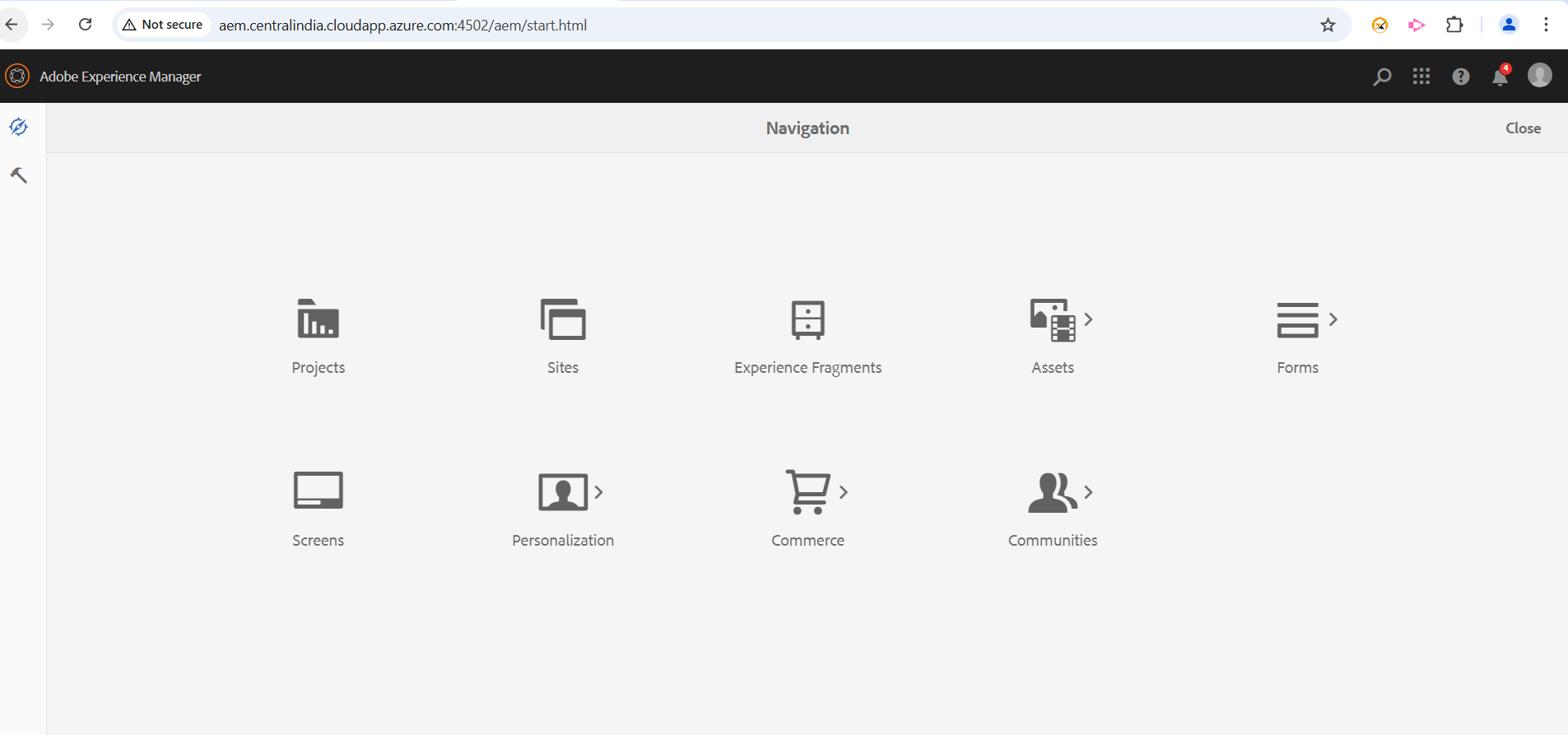
Step 1: To start installing the Milestone Schema Manager Connector go to the ‘Navigation’ section.
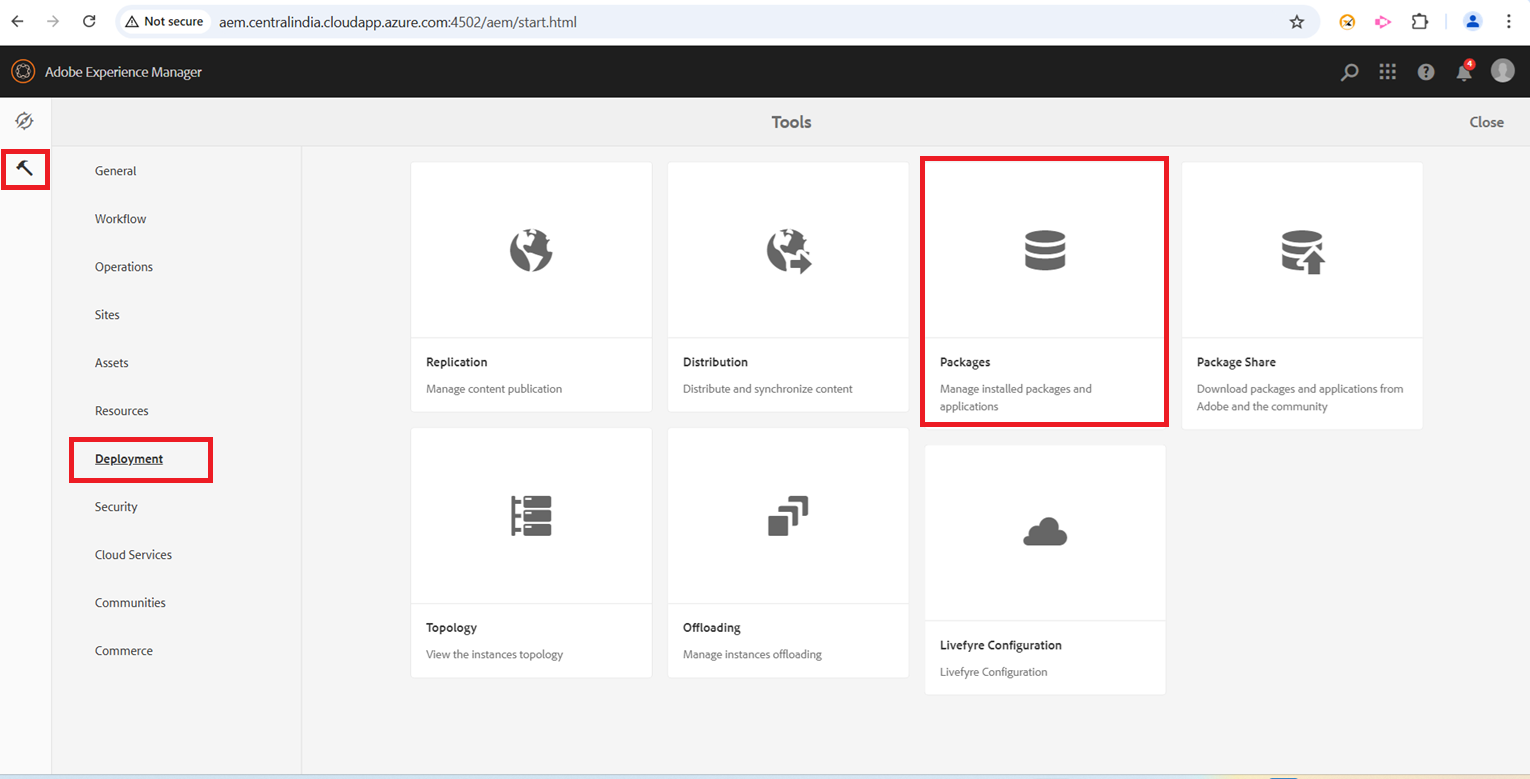
Step 2: In the left navigation panel select ‘Deployment’ and then select ‘Packages’.
Step 3: Download the Milestone Schema Manger Connector package.
https://mimschema.blob.core.windows.net/aem/milestoneschema.all-1.0.0.zip
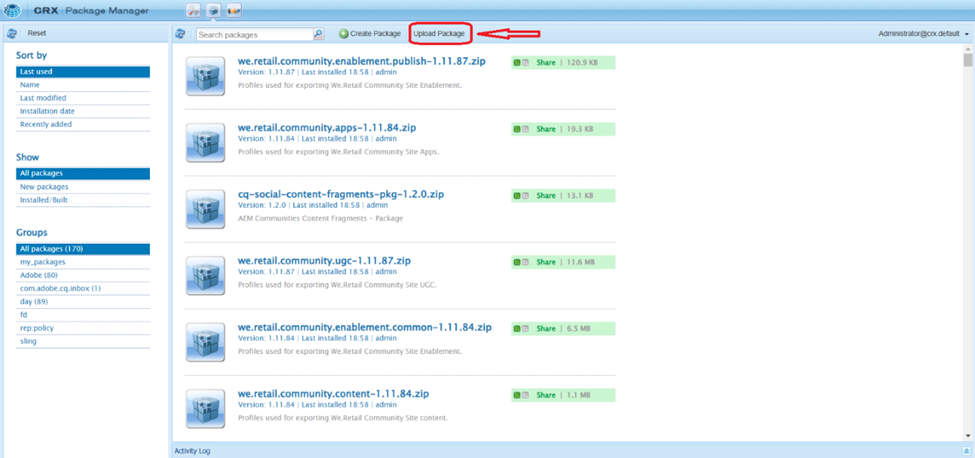
Step 4: In the Package Manager section of AEM upload the Milestone Schema Manager Connector package.
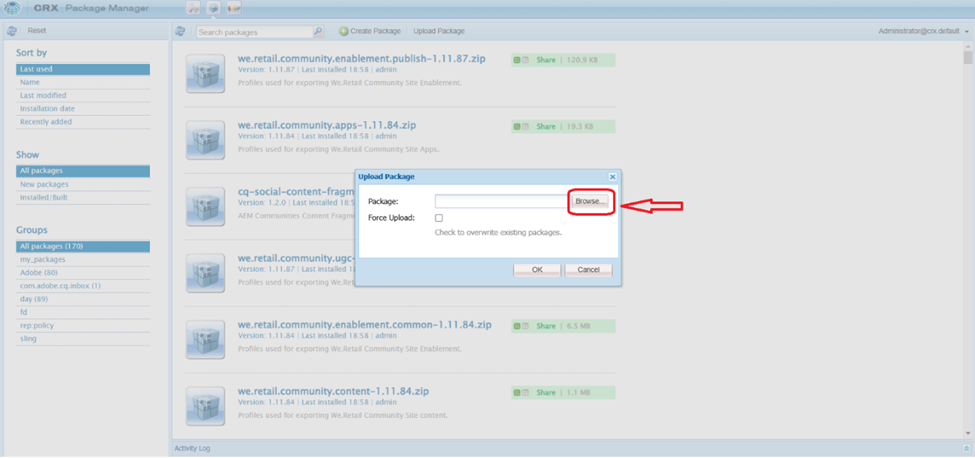
Step 5: Click Browse to locate the package file on your local system.
 Step 6: Select the Milestone Schema Manager Connector and click on ‘Open’.
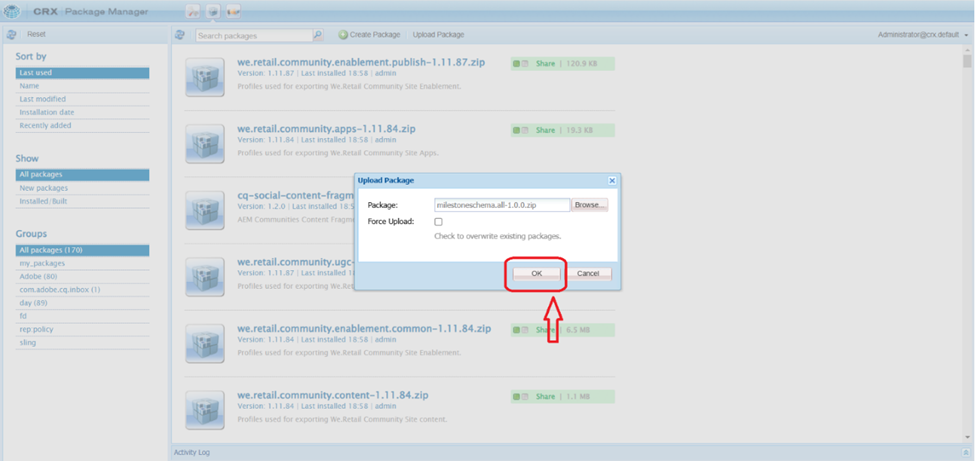
Step 7: Click on ‘Upload’ to upload the Milestone Schema Manager Connector package.
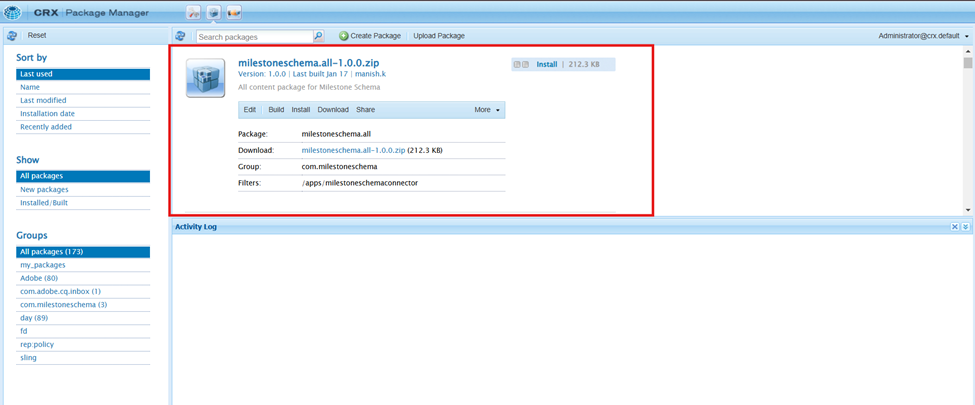
After a successful upload, you will be able to see the package.
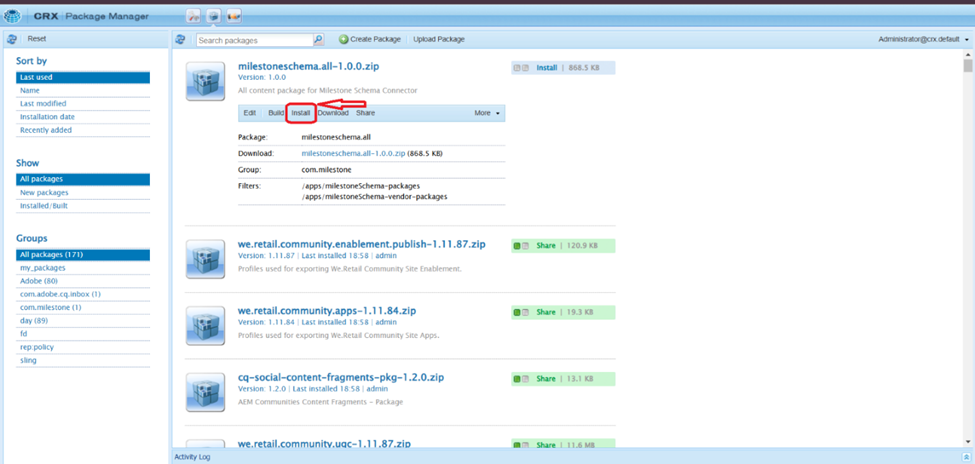
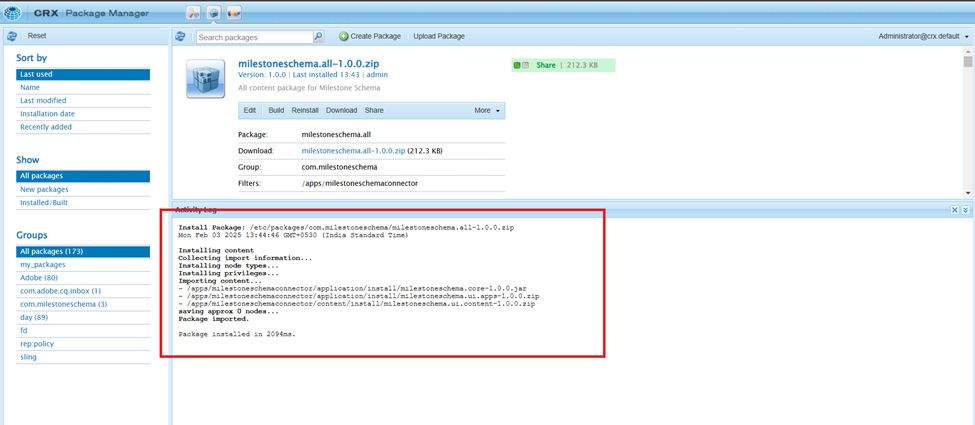
Step 8: Install the Milestone Schema Manager Connector package. Click on the Install button next to the package.
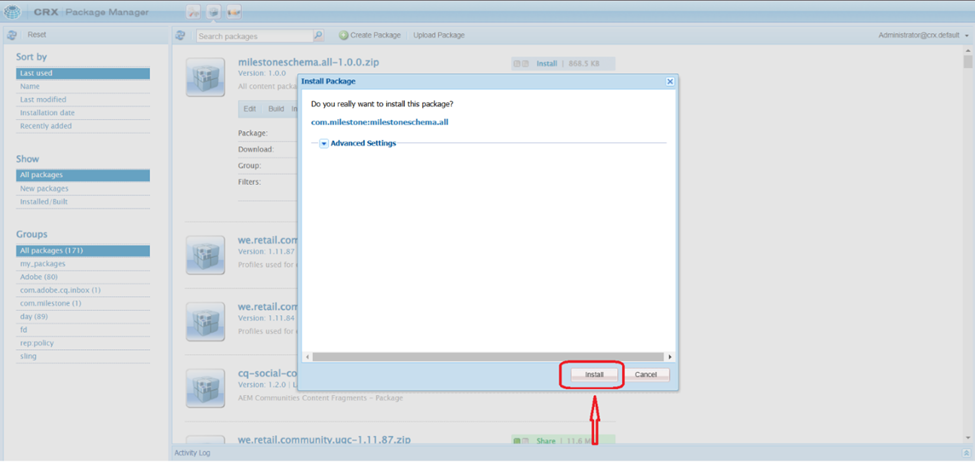
Step 9: Confirm the installation by clicking Install in the confirmation dialog.
Step 10: Check the status message after installation for success or failure notifications.
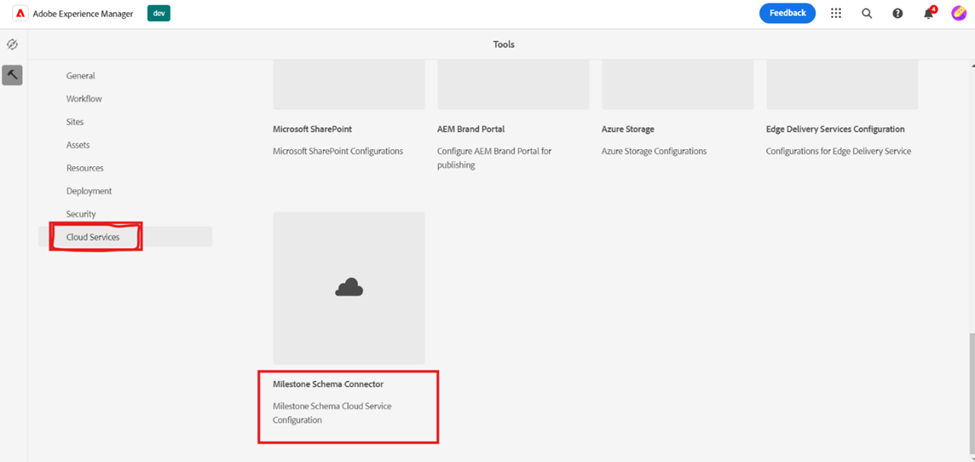
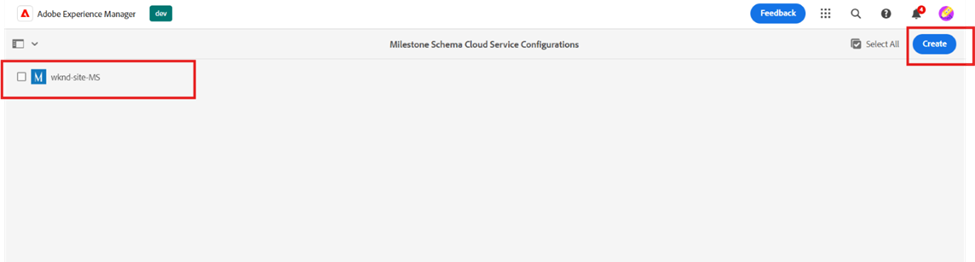
Step 11: The Milestone Schema Manager Connector will appear in the ‘Cloud Services’ section of AEM.
Was this article helpful?
That’s Great!
Thank you for your feedback
Sorry! We couldn't be helpful
Thank you for your feedback
Feedback sent
We appreciate your effort and will try to fix the article