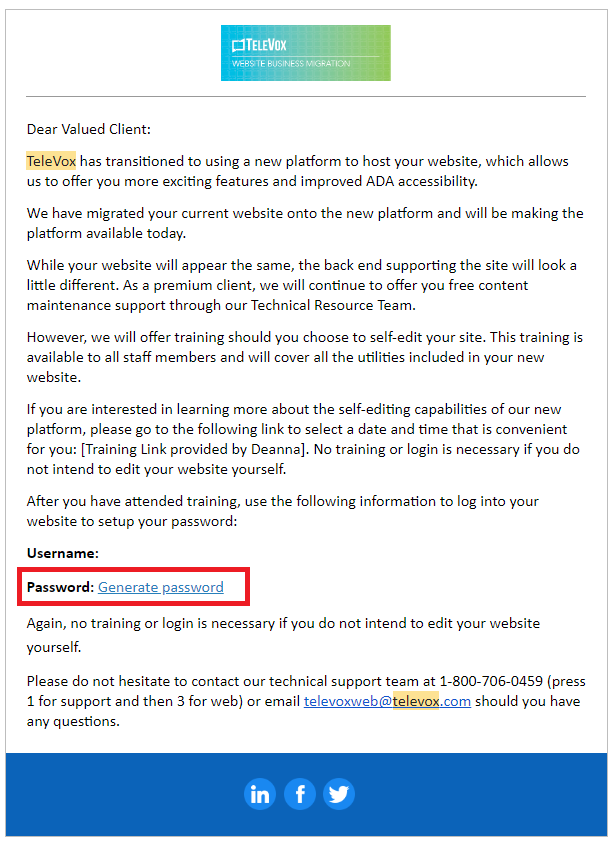
Step 1: Upon setting up your new user on the CMS you will receive a Welcome email. This email can be used to generate a new password. Click on the ‘Generate Password’ link to create a new password.
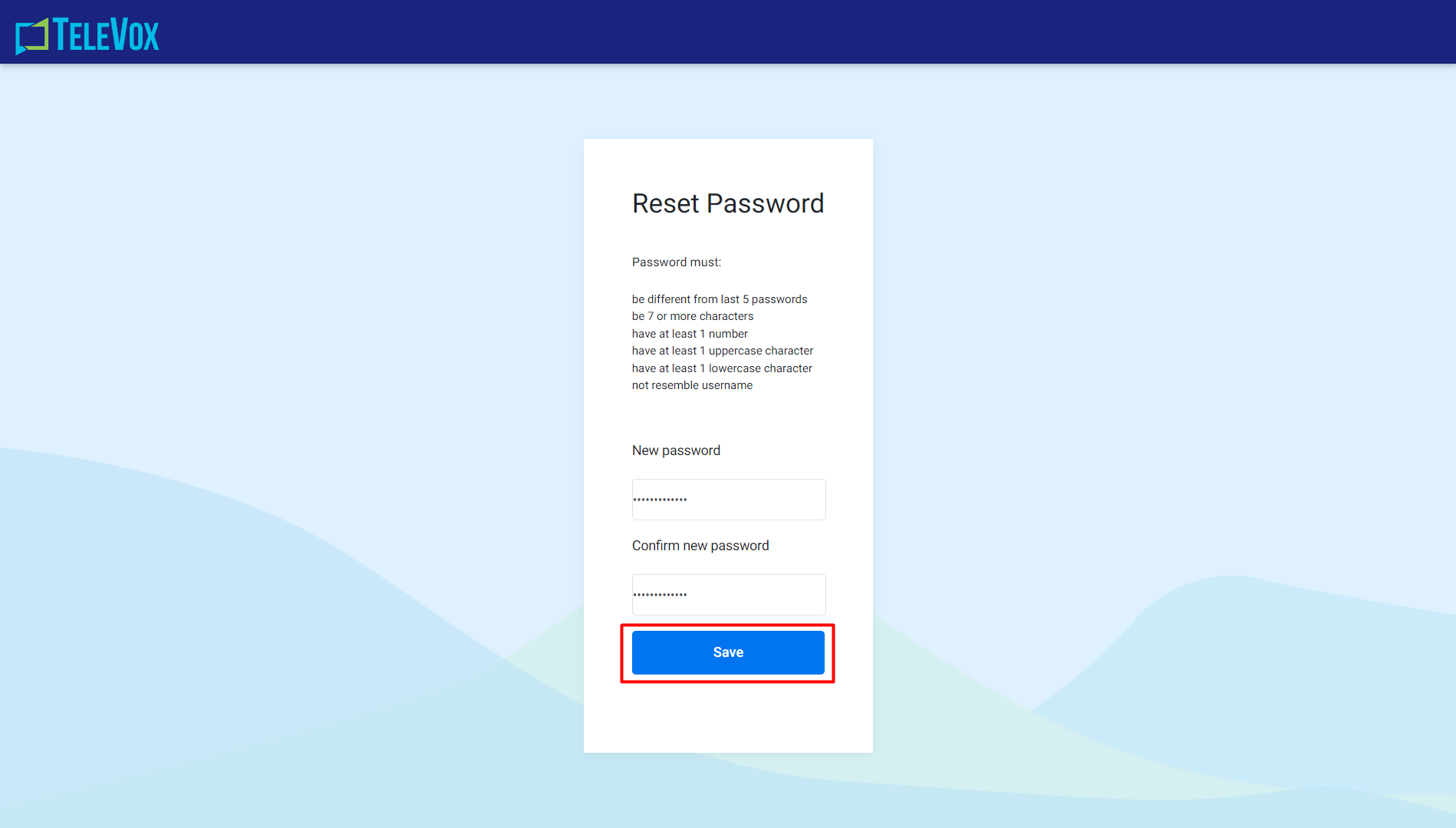
Create a new password and save it in the ‘Reset Password’ page.
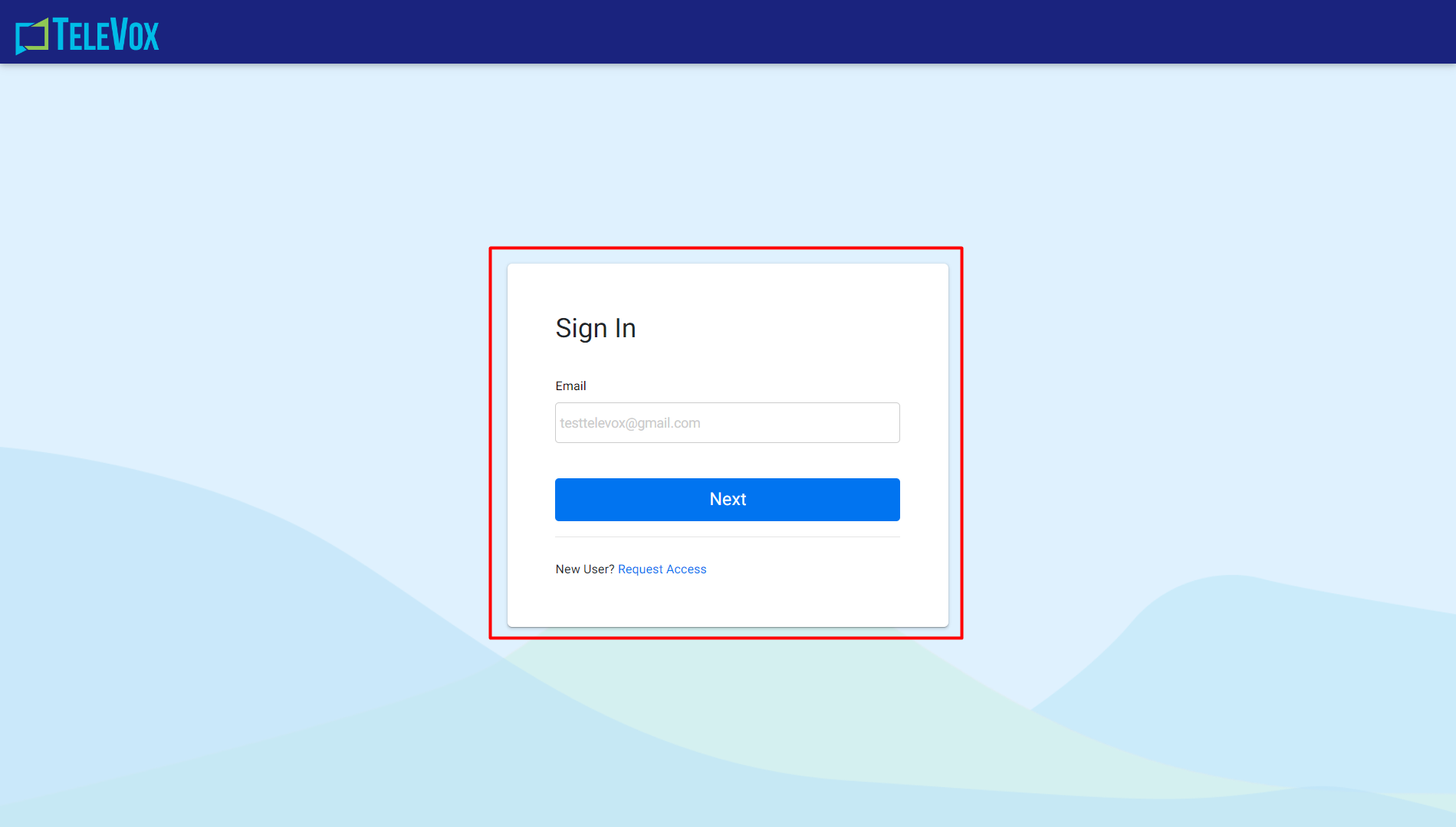
Once you have reset the password you will need to sign in from the ‘Sign In’ screen.
Upon logging in you will be greeted with the platform Dashboard.
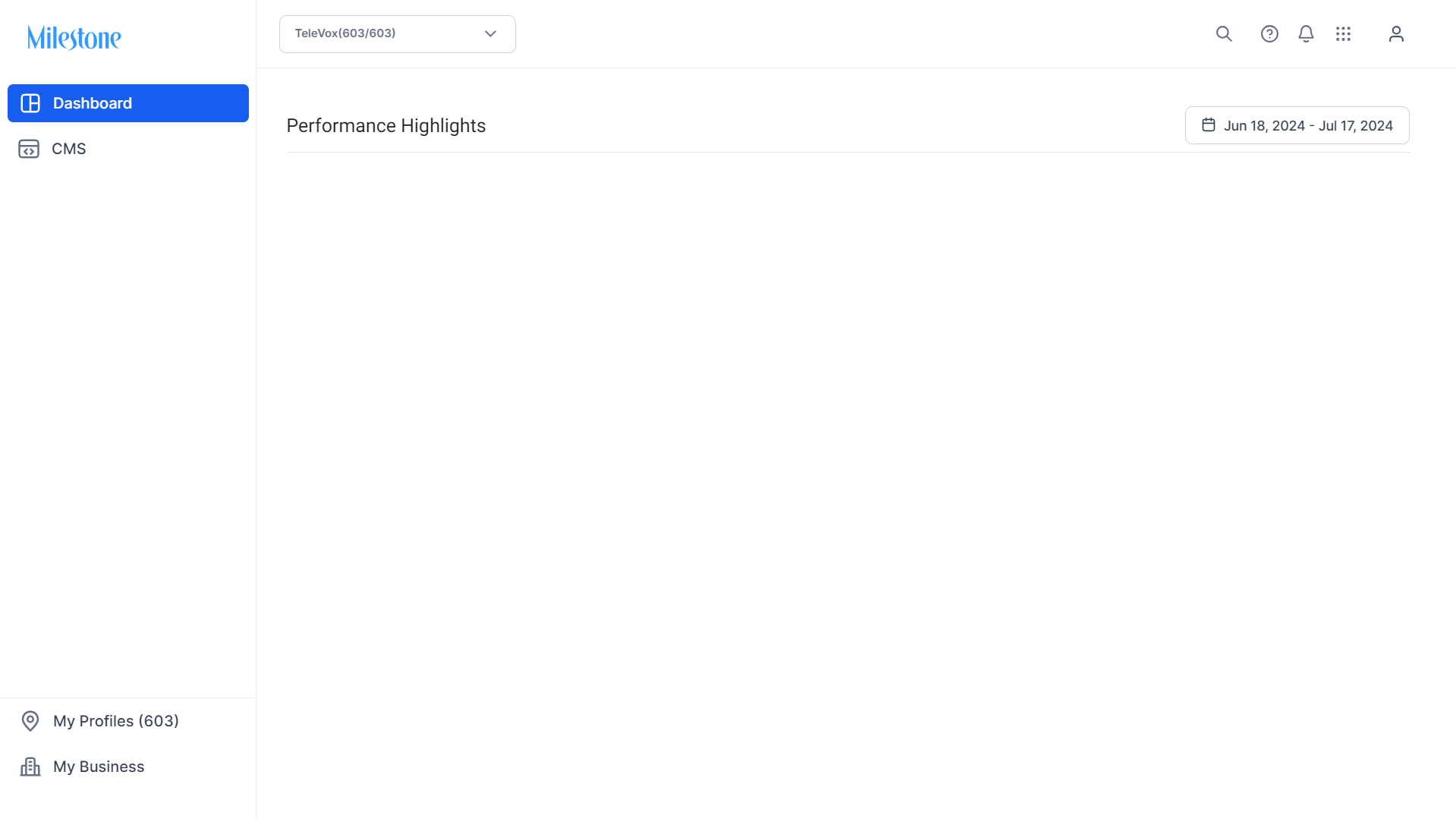
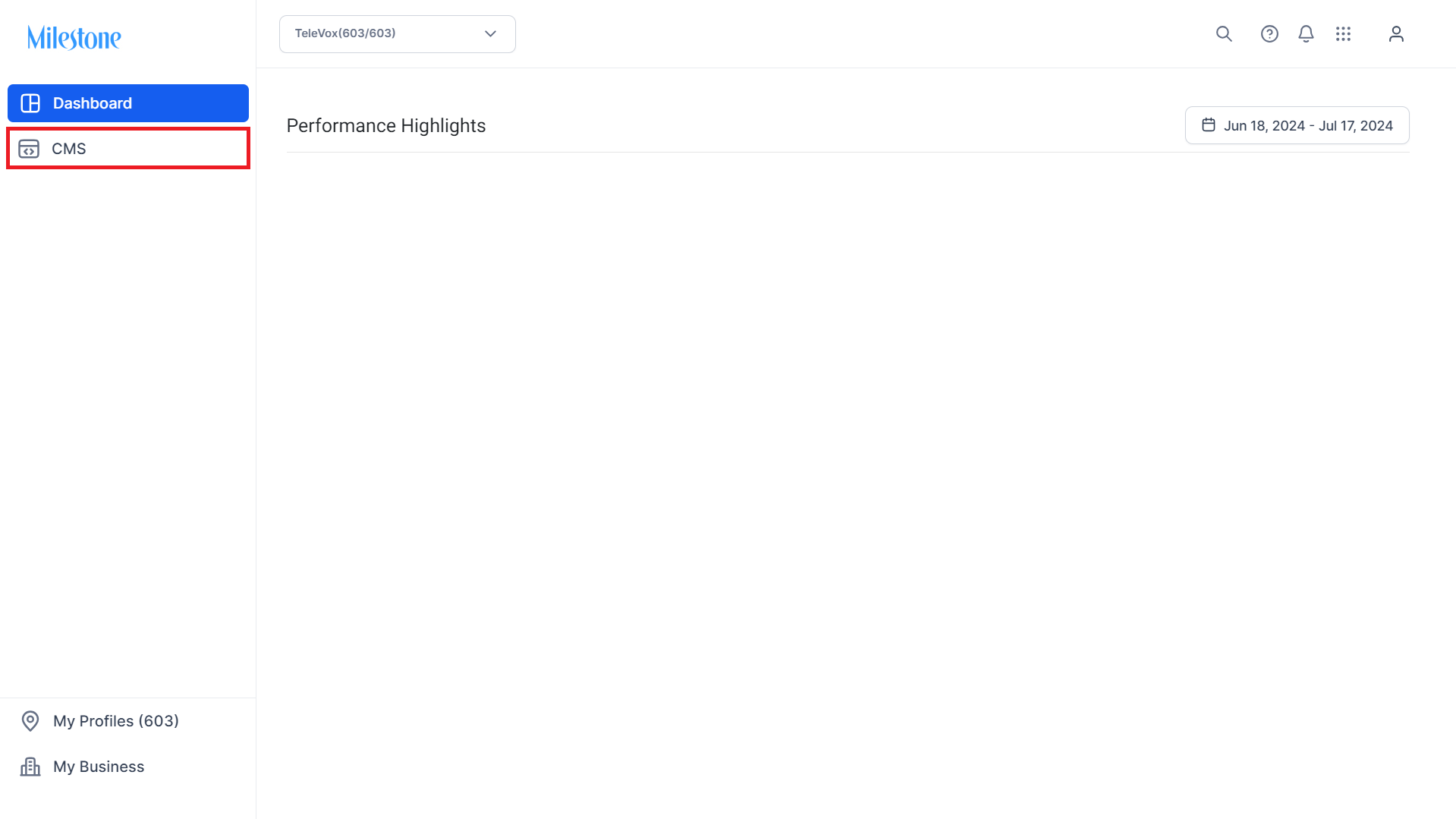
From the Dashboard click on ‘CMS’ in the left navigation panel.
Click on ‘Manage Website’ corresponding to the profile you wish to use.
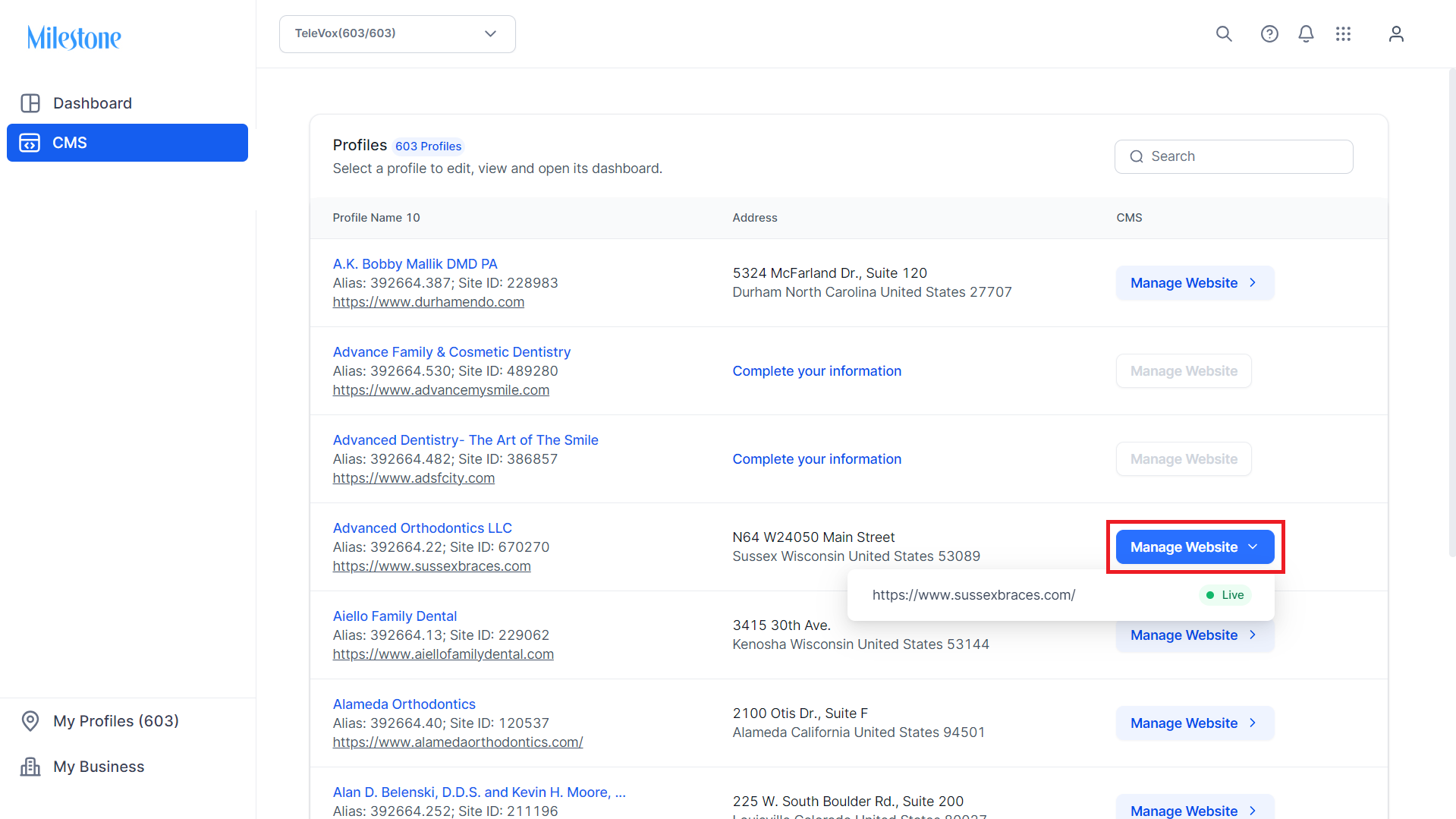
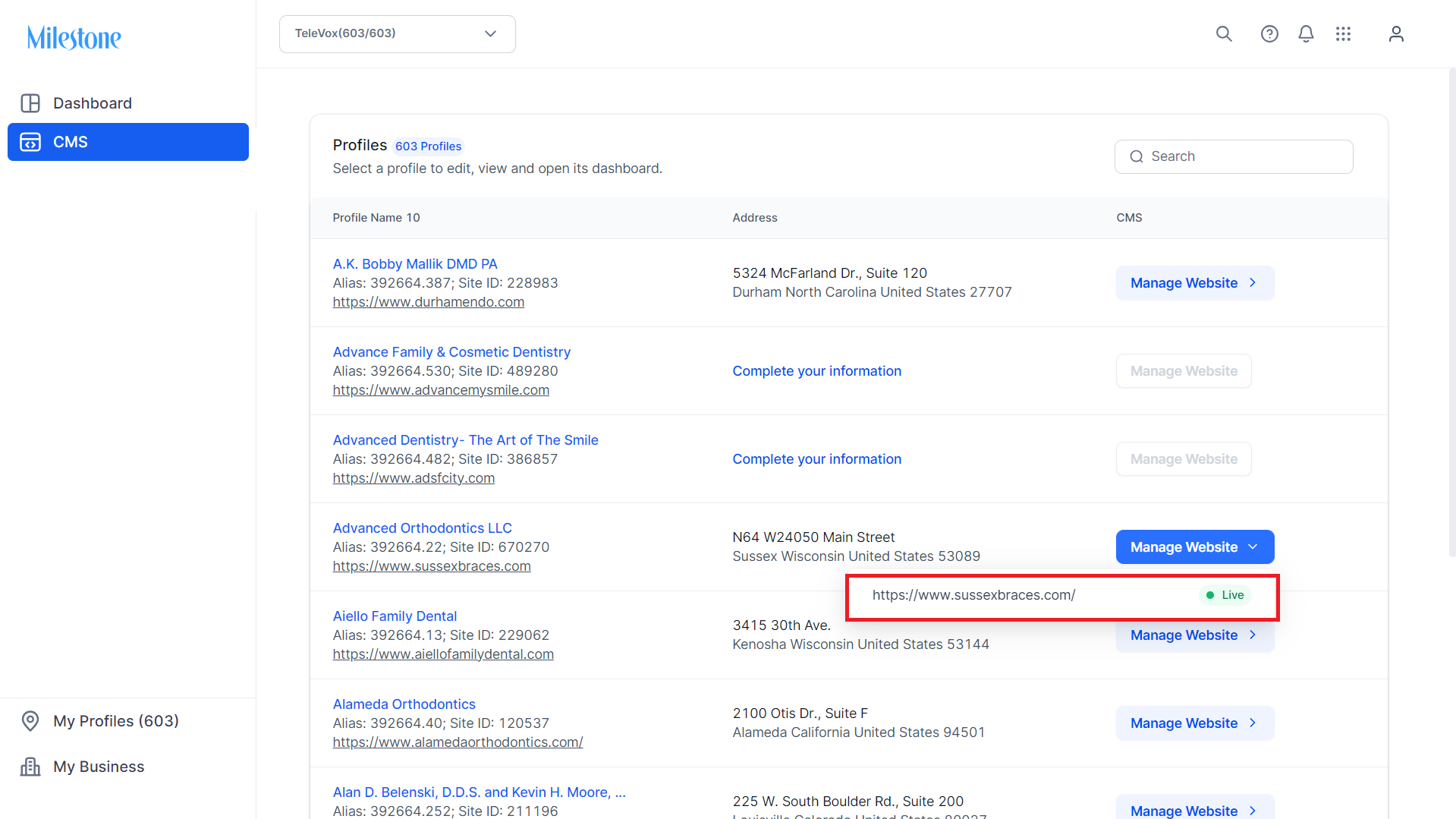
Select the website from the dropdown menu.
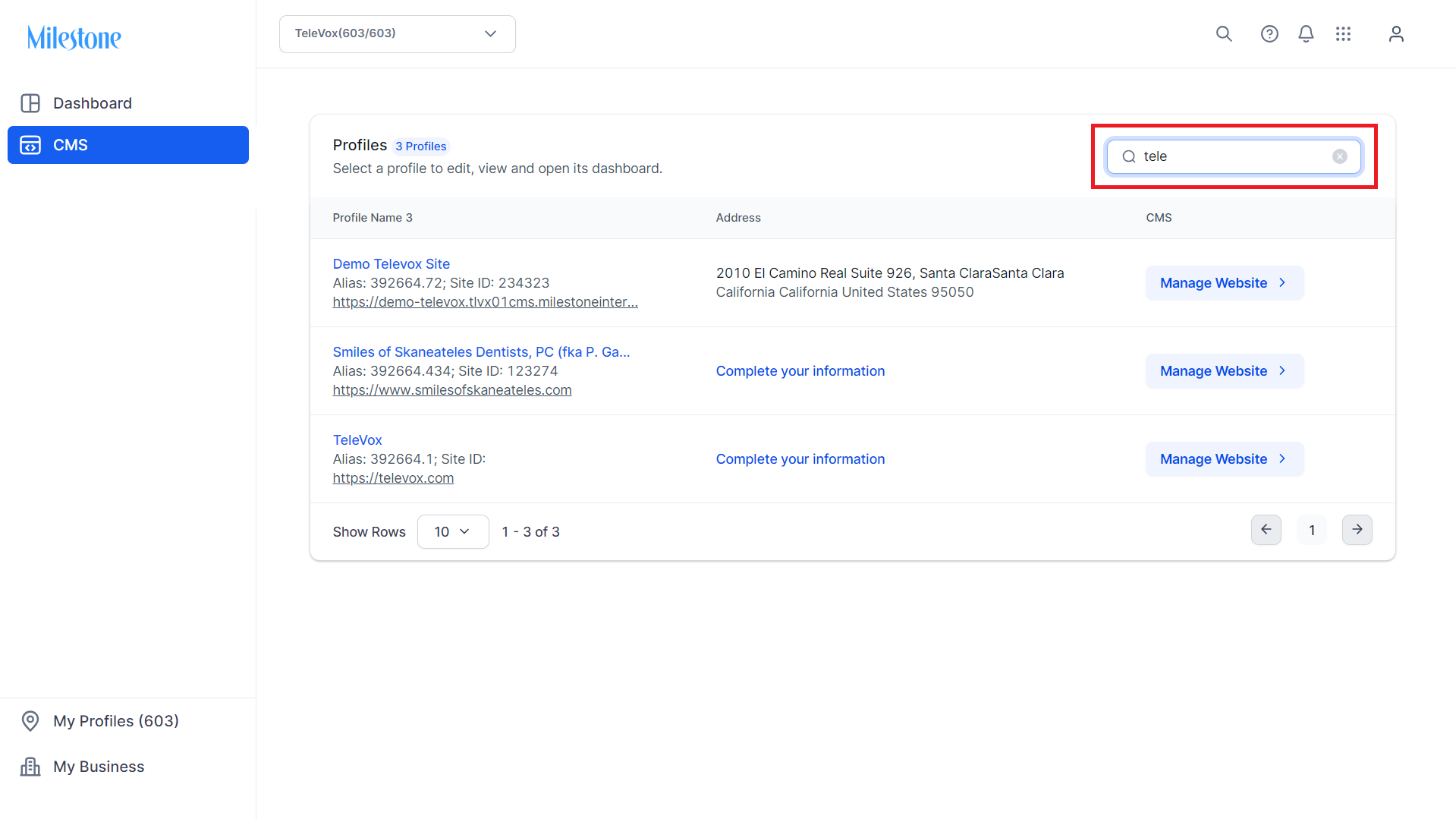
You can also use the search bar to the top to search for a specific profile.
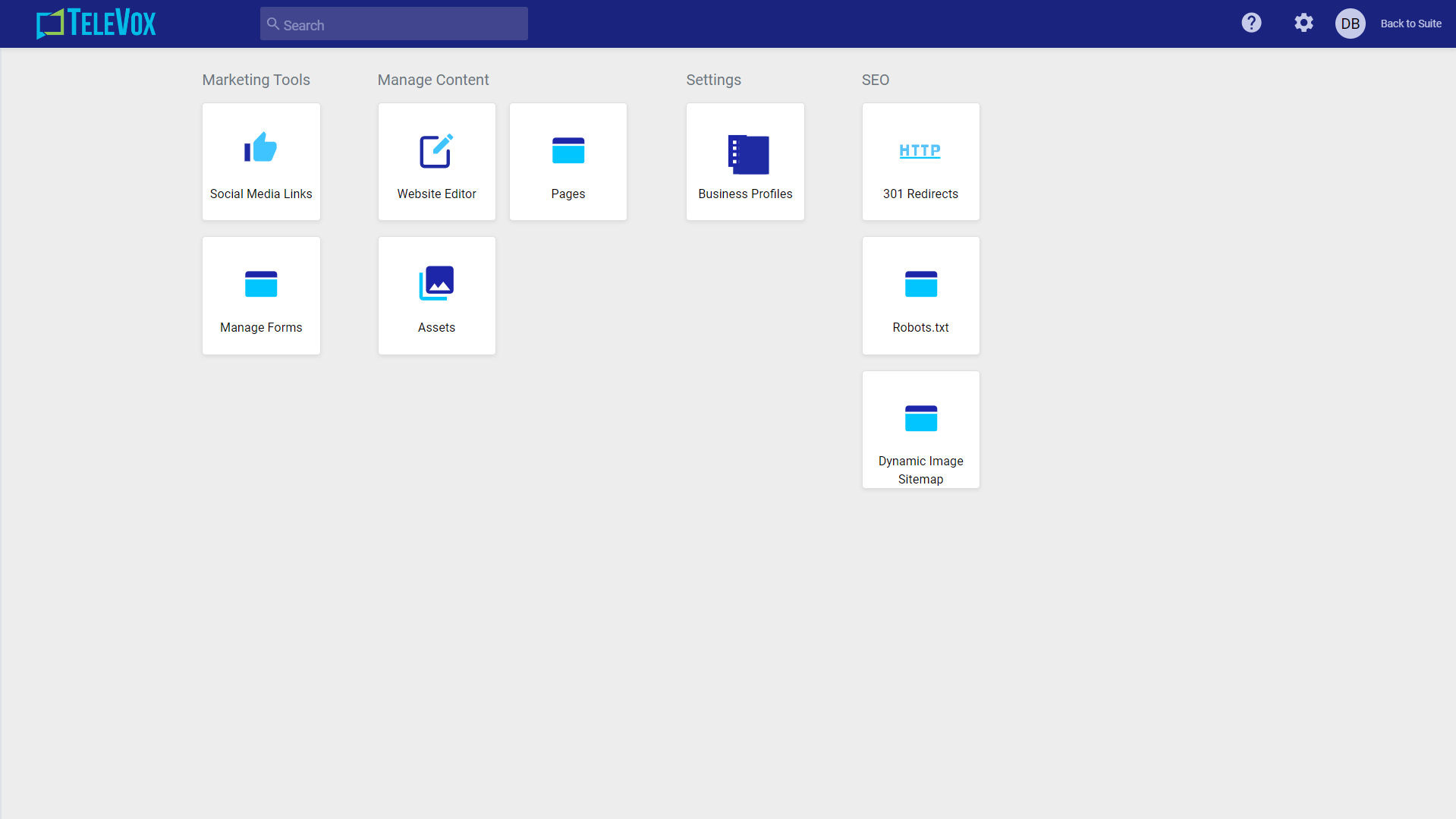
You will be redirected to the CMS Dashboard.
Was this article helpful?
That’s Great!
Thank you for your feedback
Sorry! We couldn't be helpful
Thank you for your feedback
Feedback sent
We appreciate your effort and will try to fix the article