Milestone CMS’ Content Intake Editor takes cues from your existing web pages and integrates them with your DAM to generate content for new web pages. This drastically reduces the time it takes to create new web pages and allows your website to scale at an unprecedented pace. Since the new pages use content from existing profile pages and the DAM they are consistent with the rest of the website and resonate with the brand and its audience.
Path: Milestone CMS > Dashboard > Manage Content > Content Intake Editor
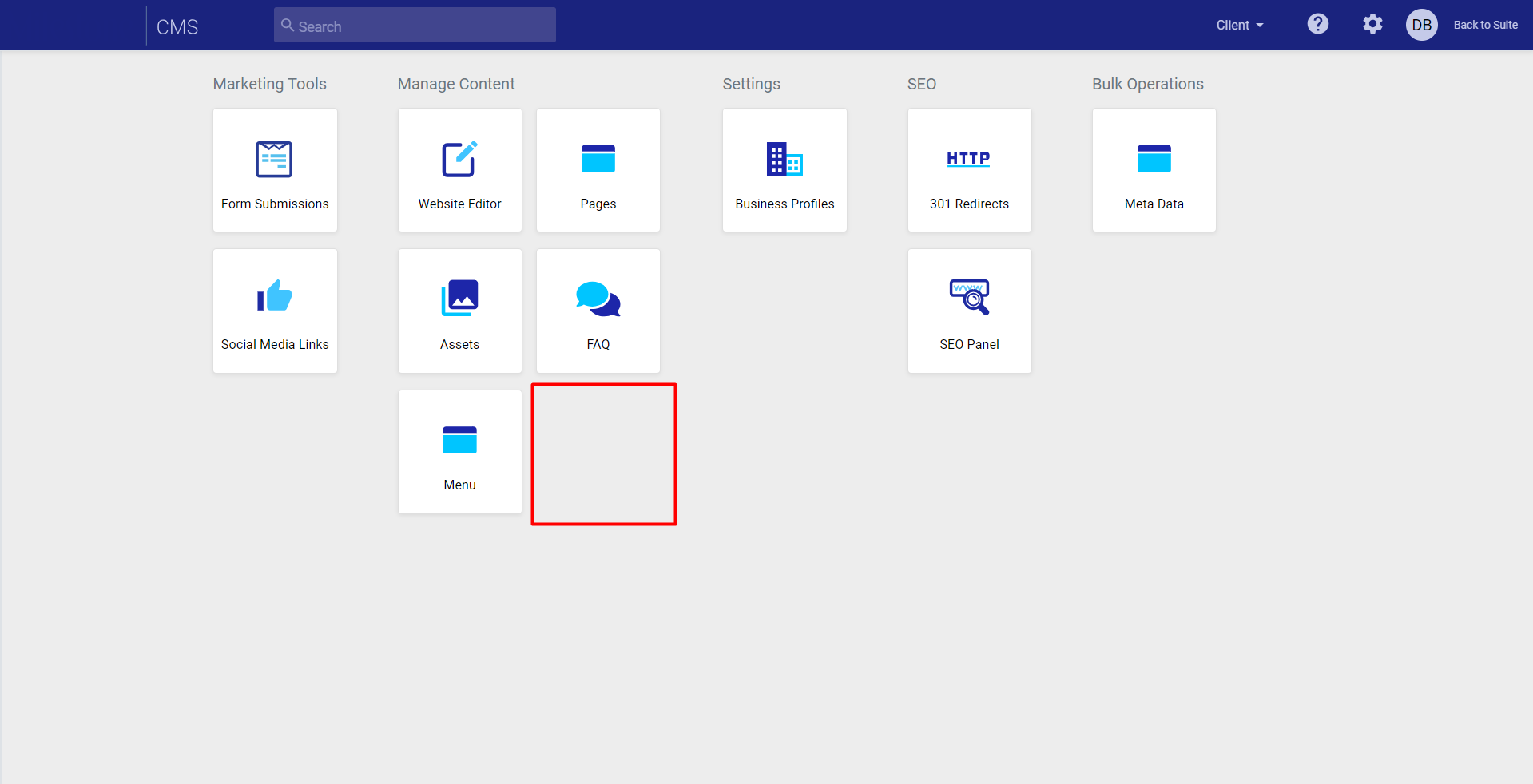
Step 1: Select ‘Content Intake Editor' from the Milestone CMS Dashboard.
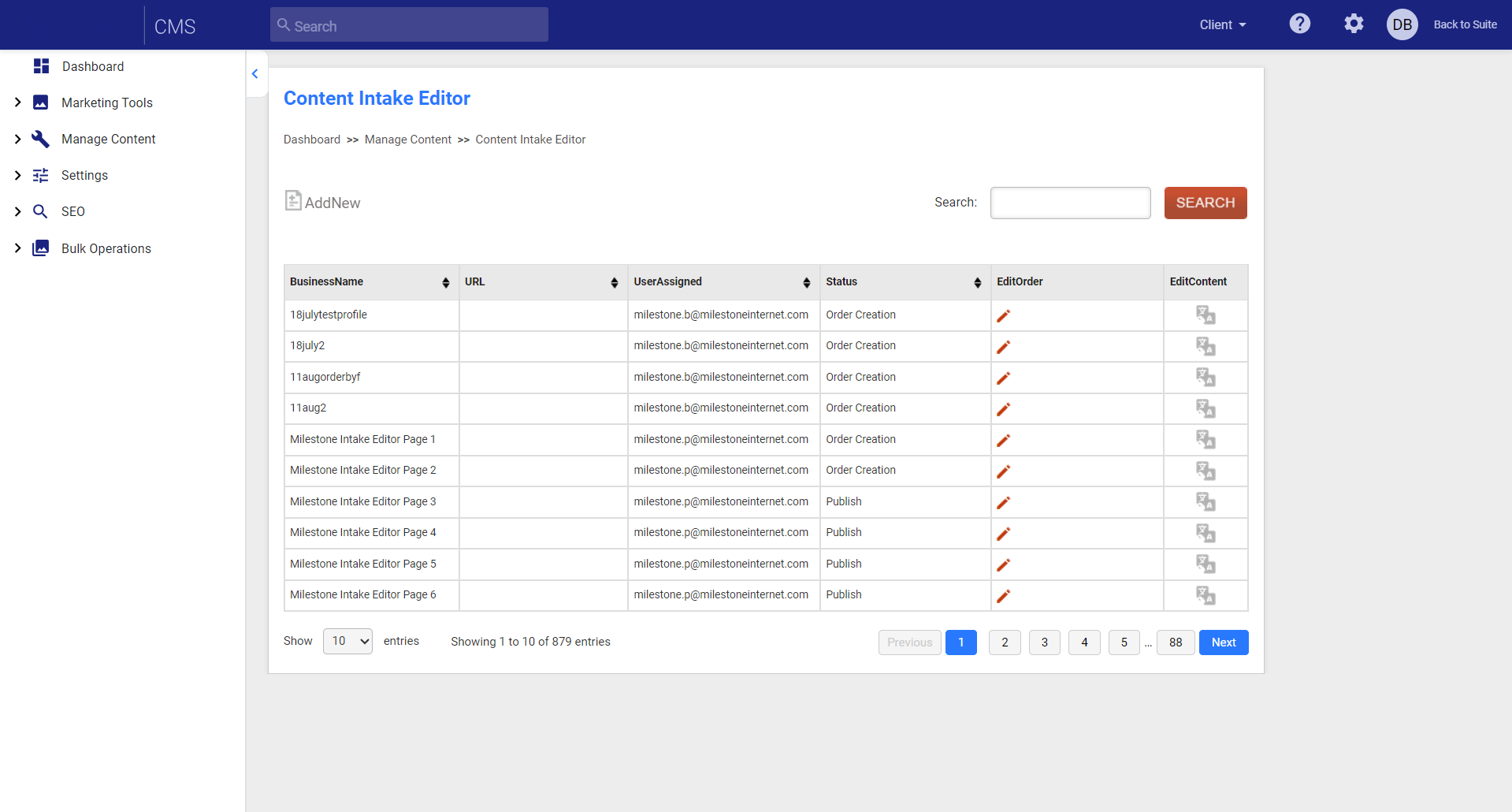
Step 2: In the Content Intake Editor section you can view the created pages, their status and choose to edit the order or content on the page manually.
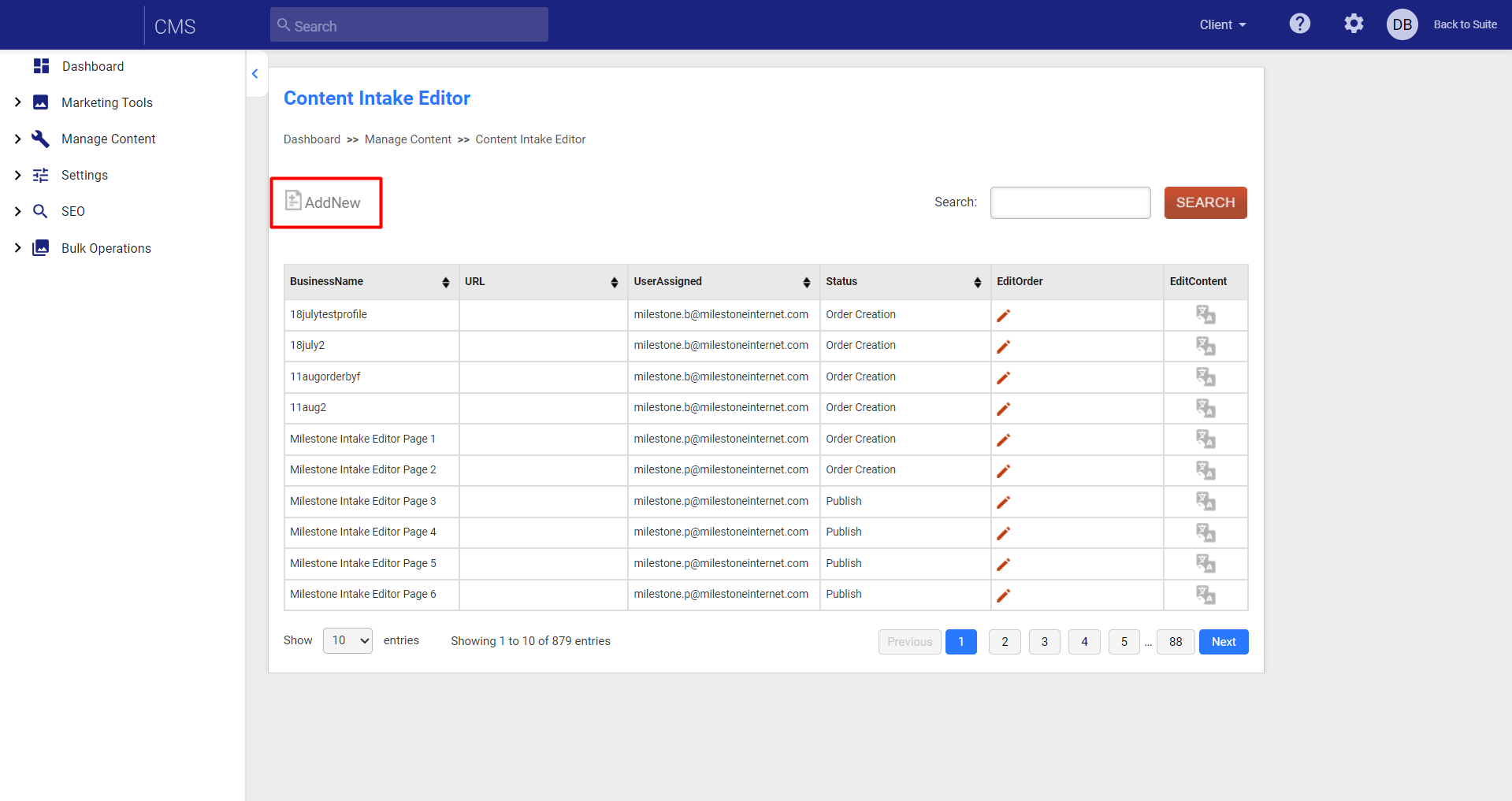
Step 3: Click on ‘Add New’ to the top left of the screen to create a new page using the Content Intake Editor.
Step 4: Provide all the details in this section.
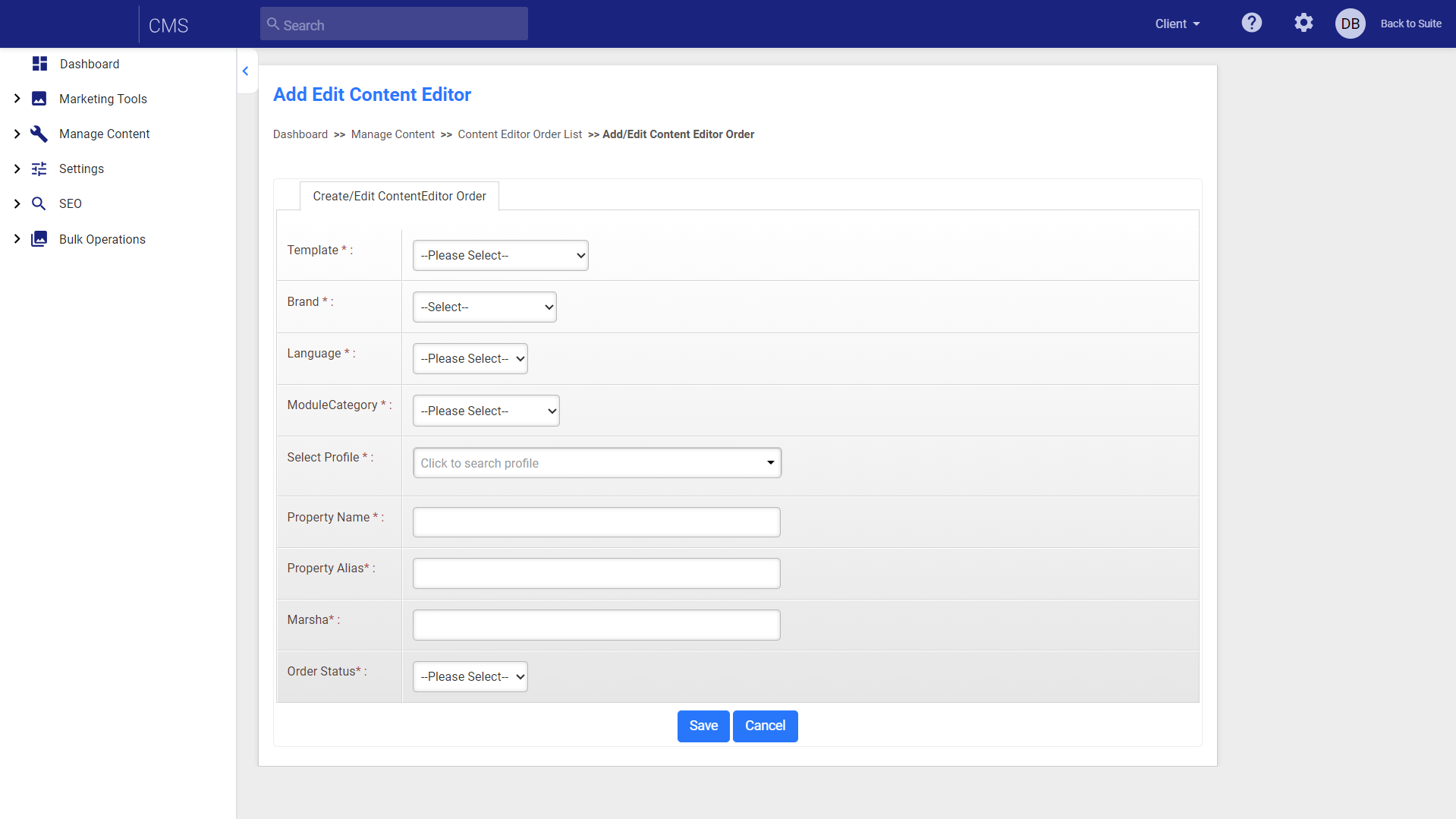
Template: Select from a group of predetermined templates for your website.
Brand: For websites that have multiple brand, select the brand for which the webpage is being created.
Language: Select the language you want to create the page in.
Module Category: Apply a module to the webpage.
Select Profile: Select a business profile for the Content Intake Editor to take content from.
Property Name: Add a name for the property or profile you are creating this page for.
Property Alias: Provide an alias for the property.
Marsha: Provide a unique Marsha code that is used to identify the business profile.
Order Status: Provide the order requirement.
Was this article helpful?
That’s Great!
Thank you for your feedback
Sorry! We couldn't be helpful
Thank you for your feedback
Feedback sent
We appreciate your effort and will try to fix the article