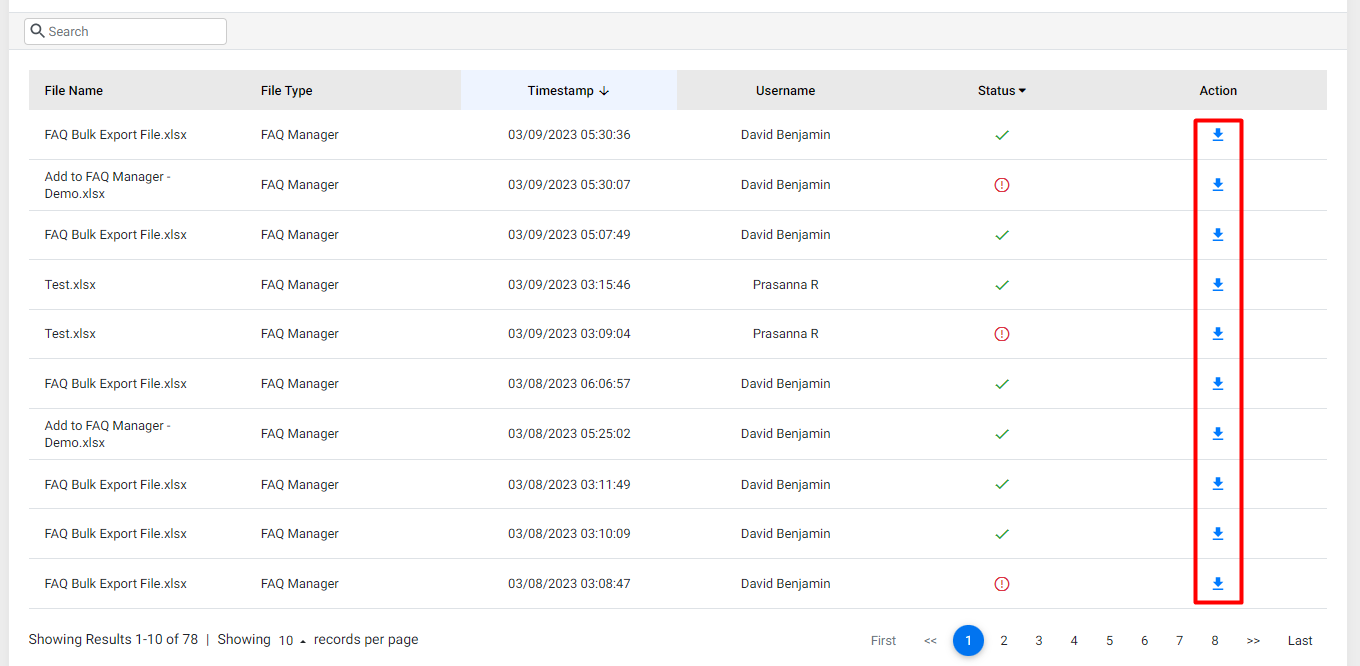
Once you've uploaded the files in bulk, all you have to do to download the files are click on the download button under the 'Actions Column'.
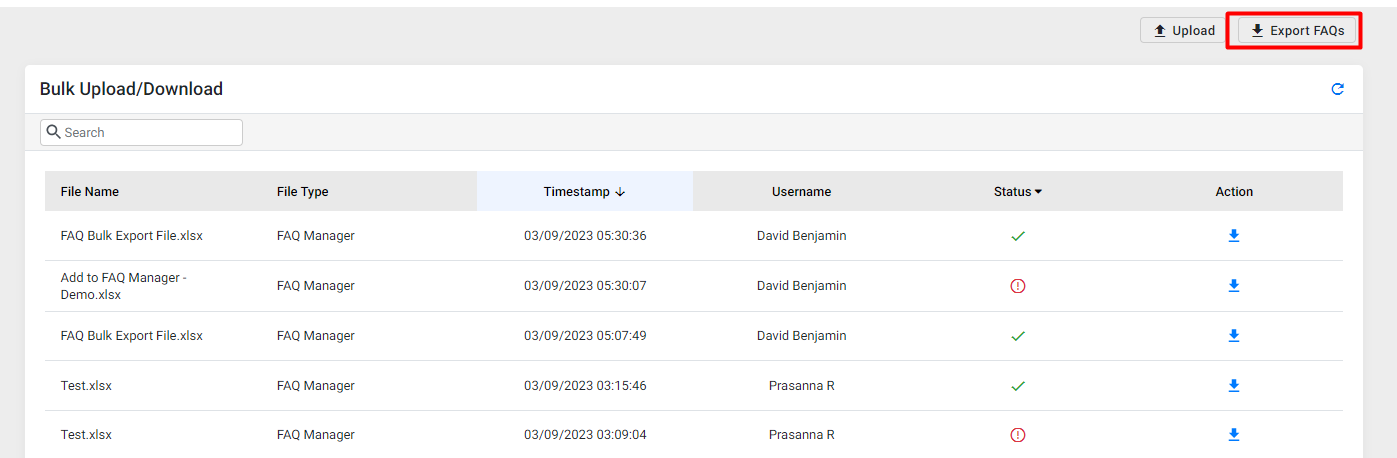
In addition, you can choose to export FAQs for a desired time frame.
Export FAQs
To export FAQs, click on the 'Export' button.
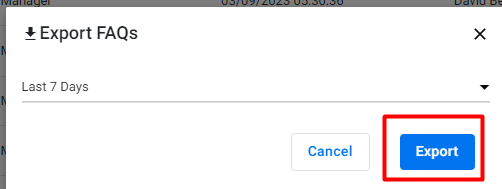
Choose the time frame and click on 'Export'.
Now click on the 'Refresh' button to refresh the list of downloaded FAQs.
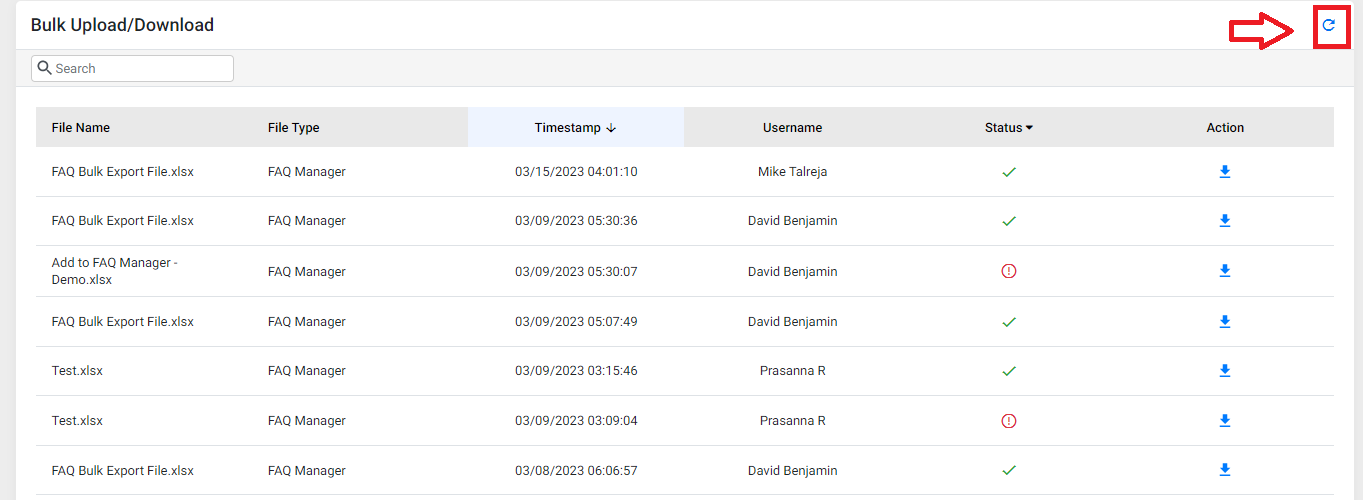
Download the export file which will appear at the top of the list.

Was this article helpful?
That’s Great!
Thank you for your feedback
Sorry! We couldn't be helpful
Thank you for your feedback
Feedback sent
We appreciate your effort and will try to fix the article