You can now add images to FAQs via Milestone’s Digital Asset Library. Milestone’s Digital Asset Library provides you with a centralized repository for pre-optimized images that can be used across your range of products. Using search engine optimized images for various aspects of your online presence greatly improves your chances of appearing on image searches.
Path: FAQ/Voice > Add New FAQ
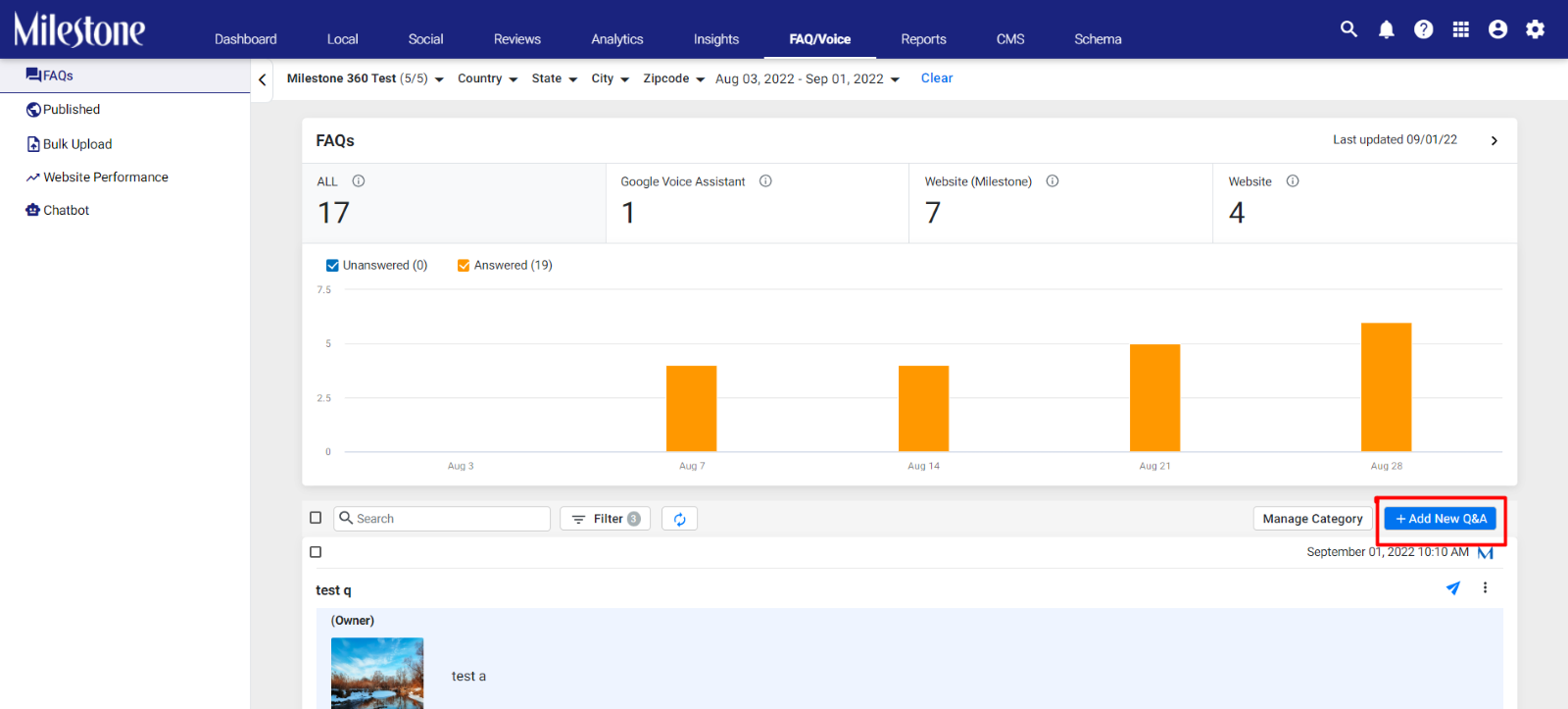
Step 1: From the FAQ/Voice section click on ‘Add New Q&A’
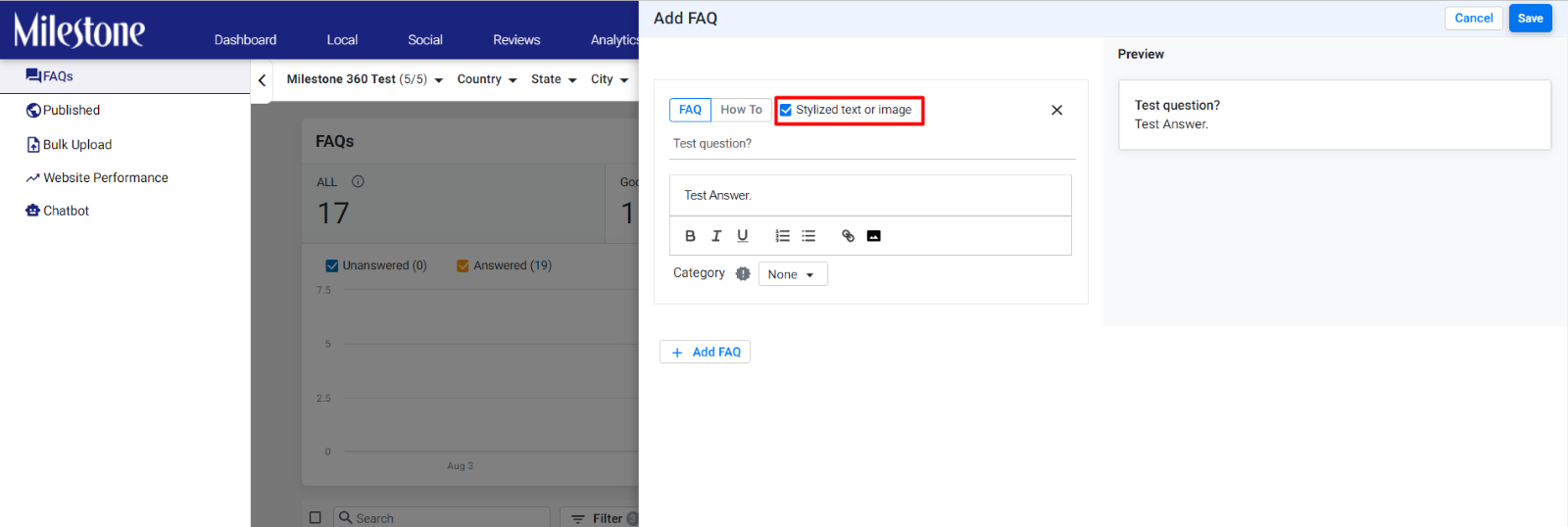
Step 2: Once you have added the question and answer in this section click on ‘Stylized text or image’ to the top
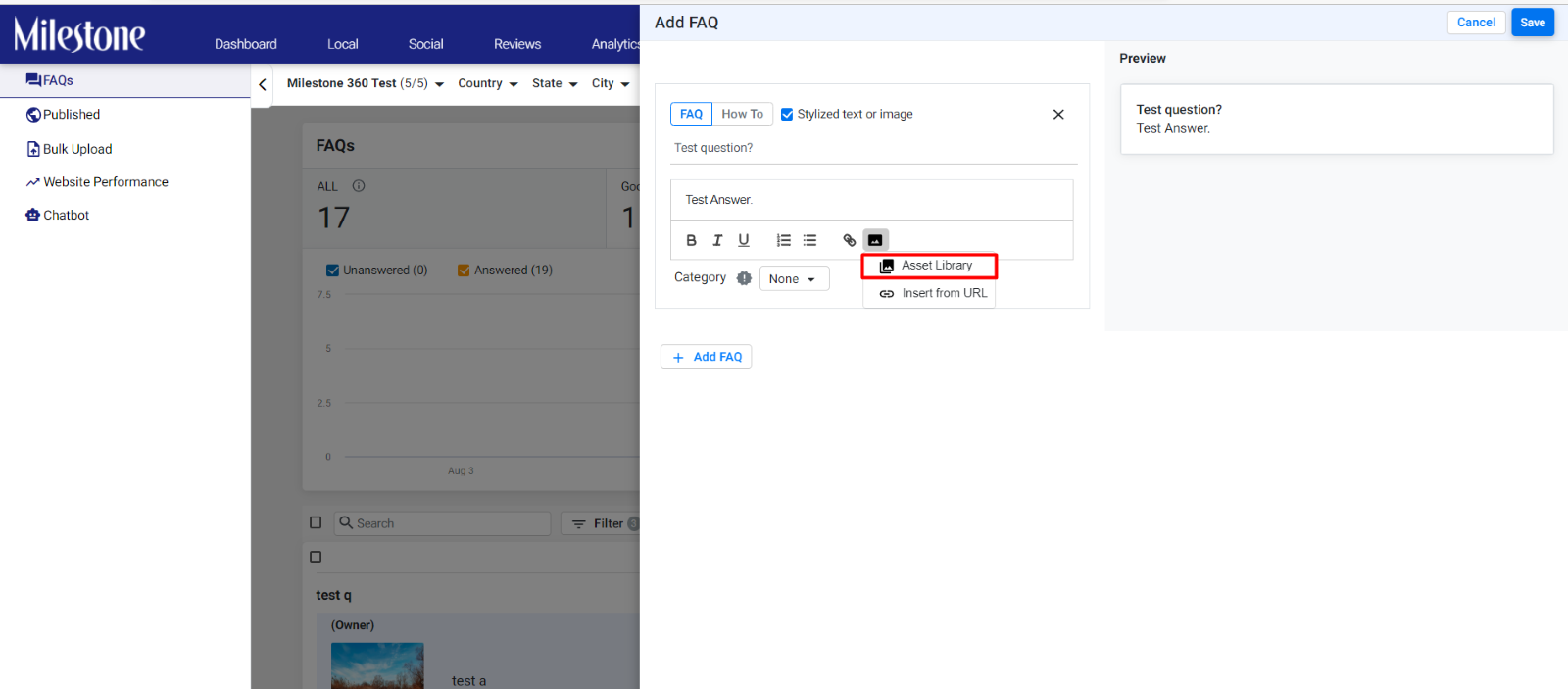
Step 3: From the options to the bottom click on the image icon and select ‘Asset Library’ to access your centralized asset library
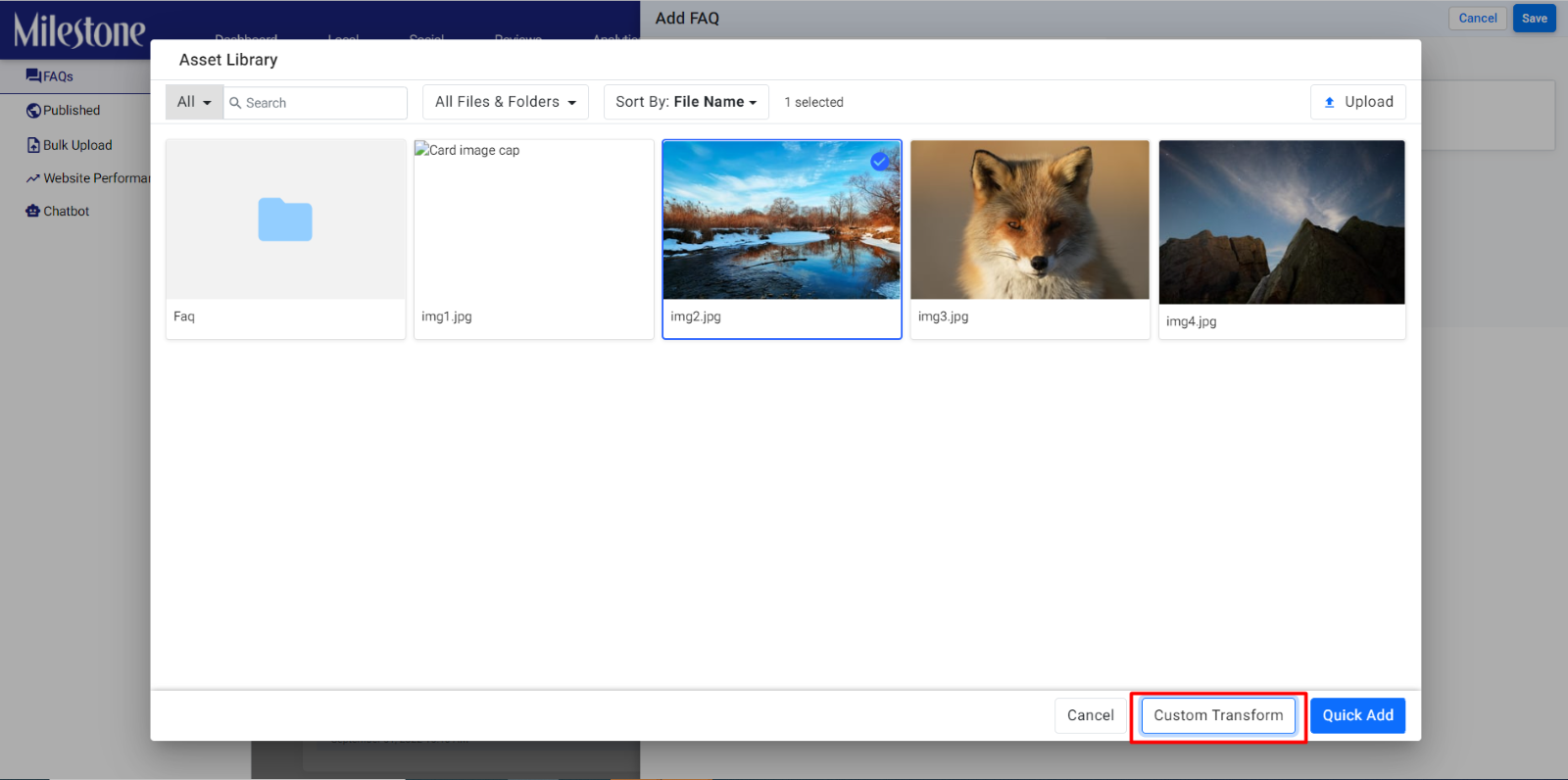
Step 4: From the Asset Library select the images you wish to add to the Q&A
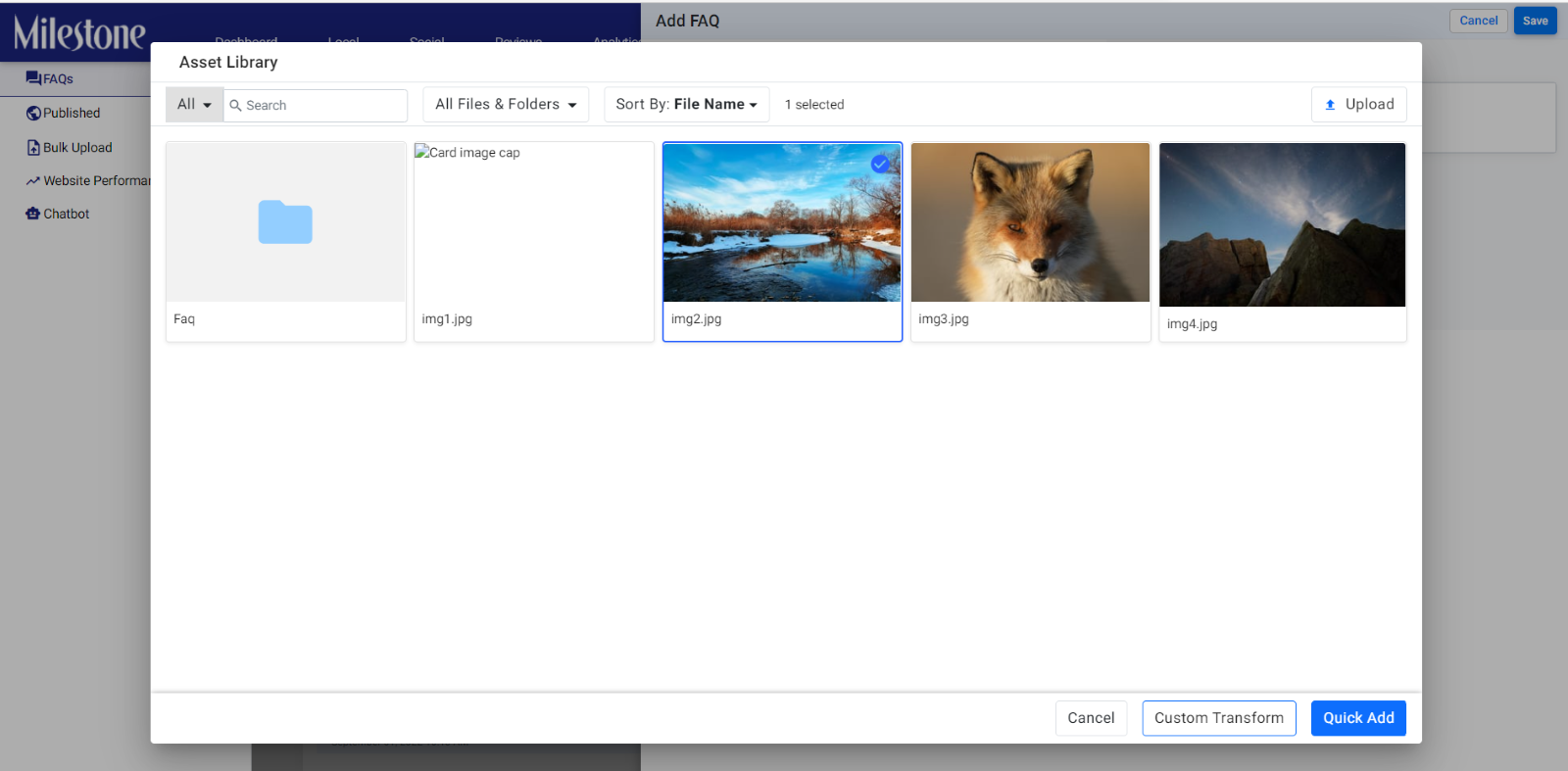
Step 5: If you wish to resize the image click on ‘Custom Transform’ to the bottom
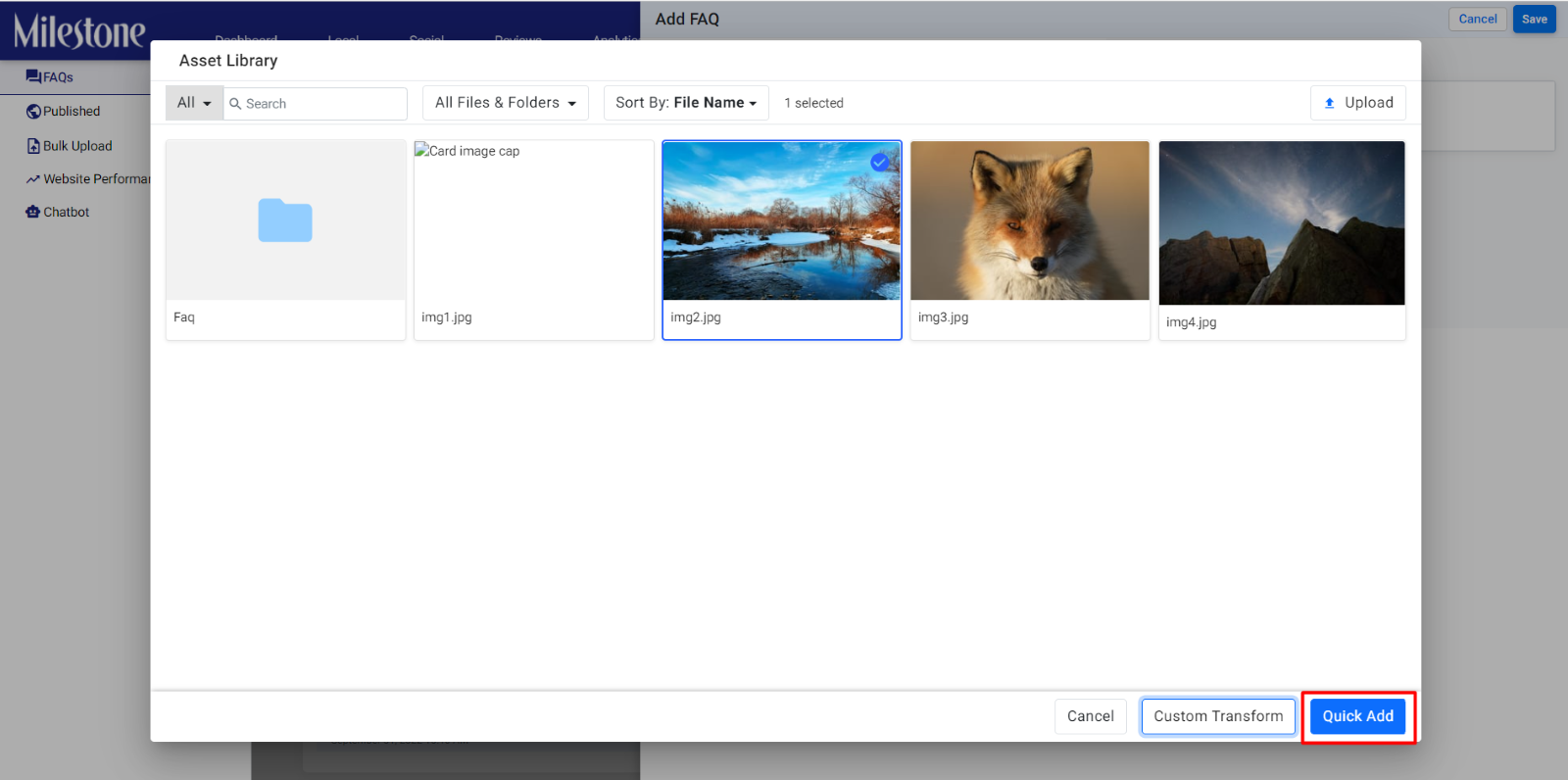
Step 6: If you wish to add the image without any edits click on ‘Quick Add’
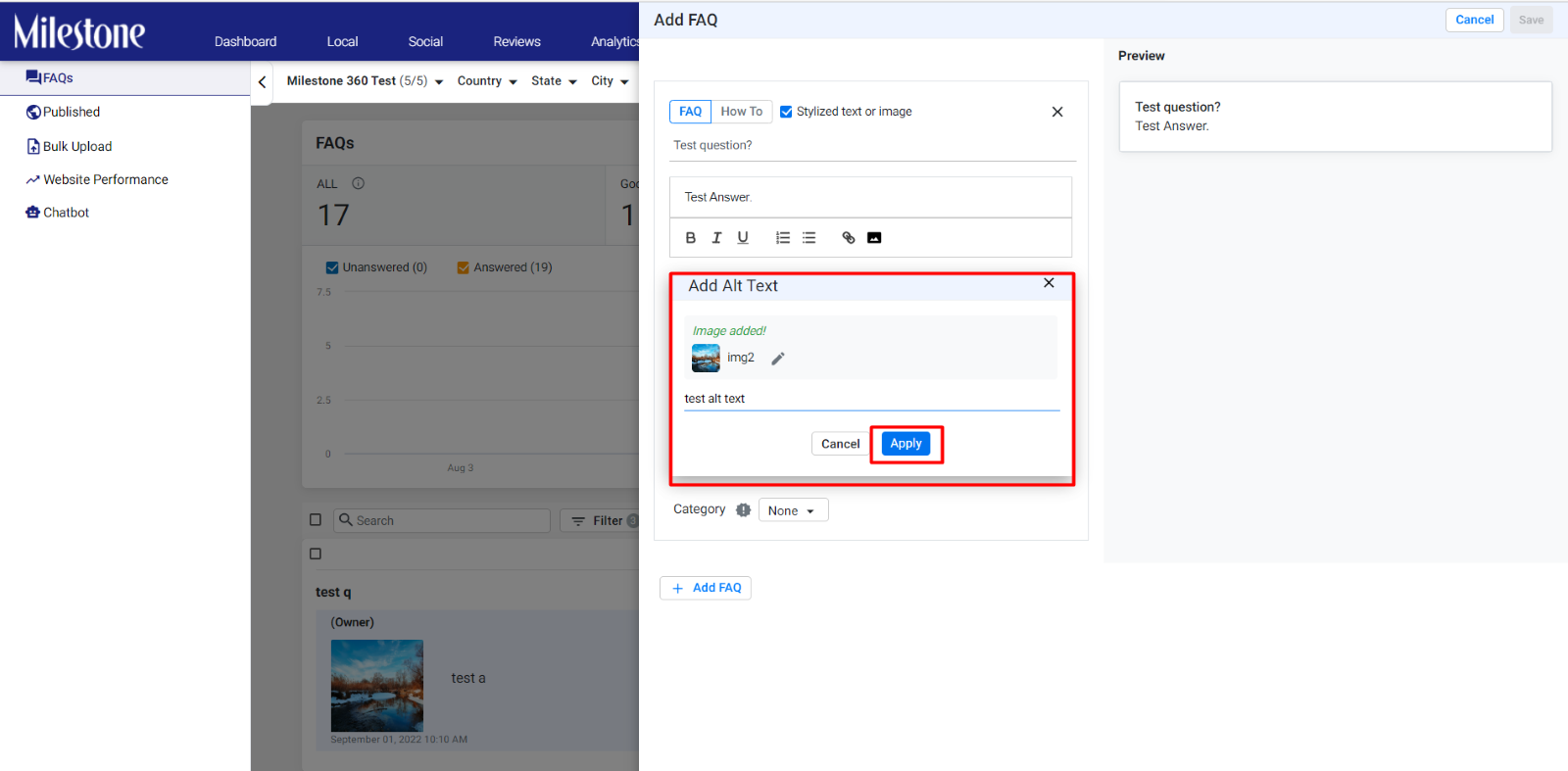
Step 7: Add the ‘Alt text’ for the image and click on ‘Apply’
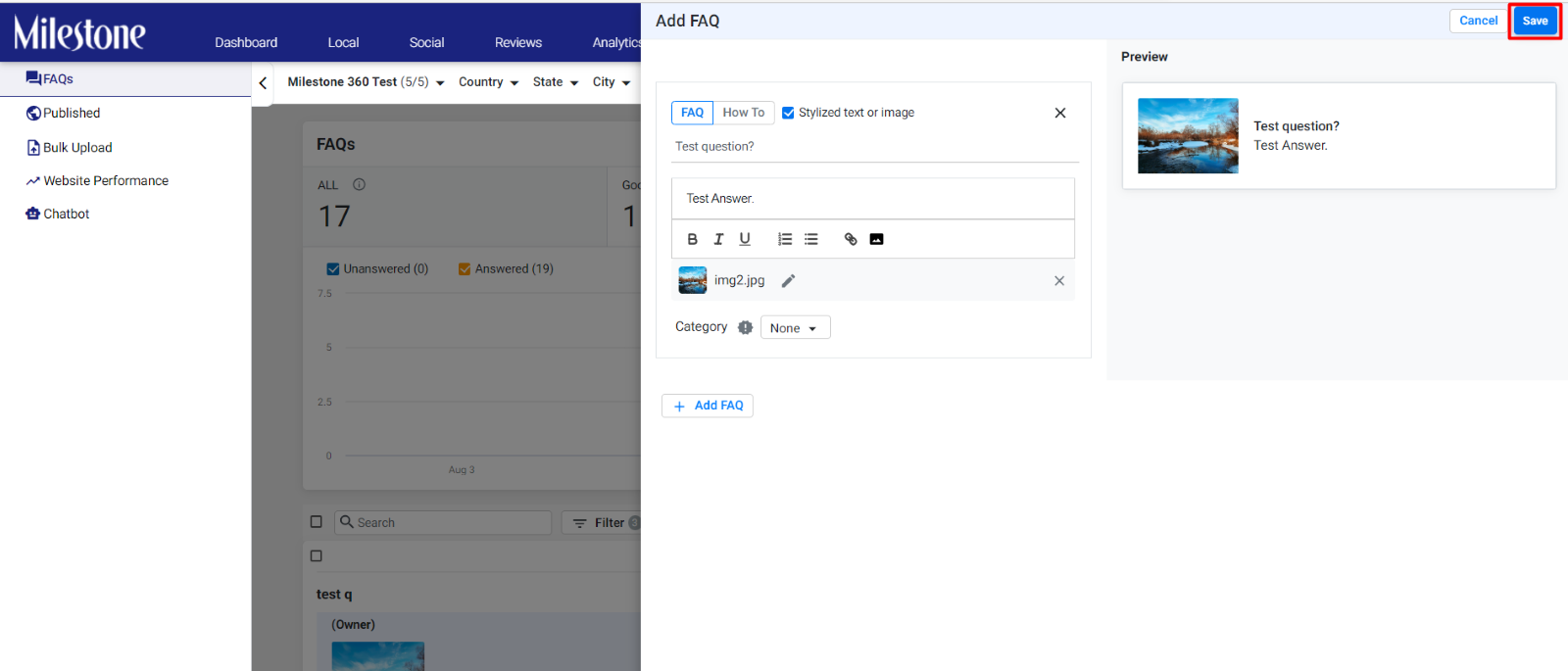
Step 8: Click on ‘Save’ to save the Q&A to FAQ Manager
Was this article helpful?
That’s Great!
Thank you for your feedback
Sorry! We couldn't be helpful
Thank you for your feedback
Feedback sent
We appreciate your effort and will try to fix the article