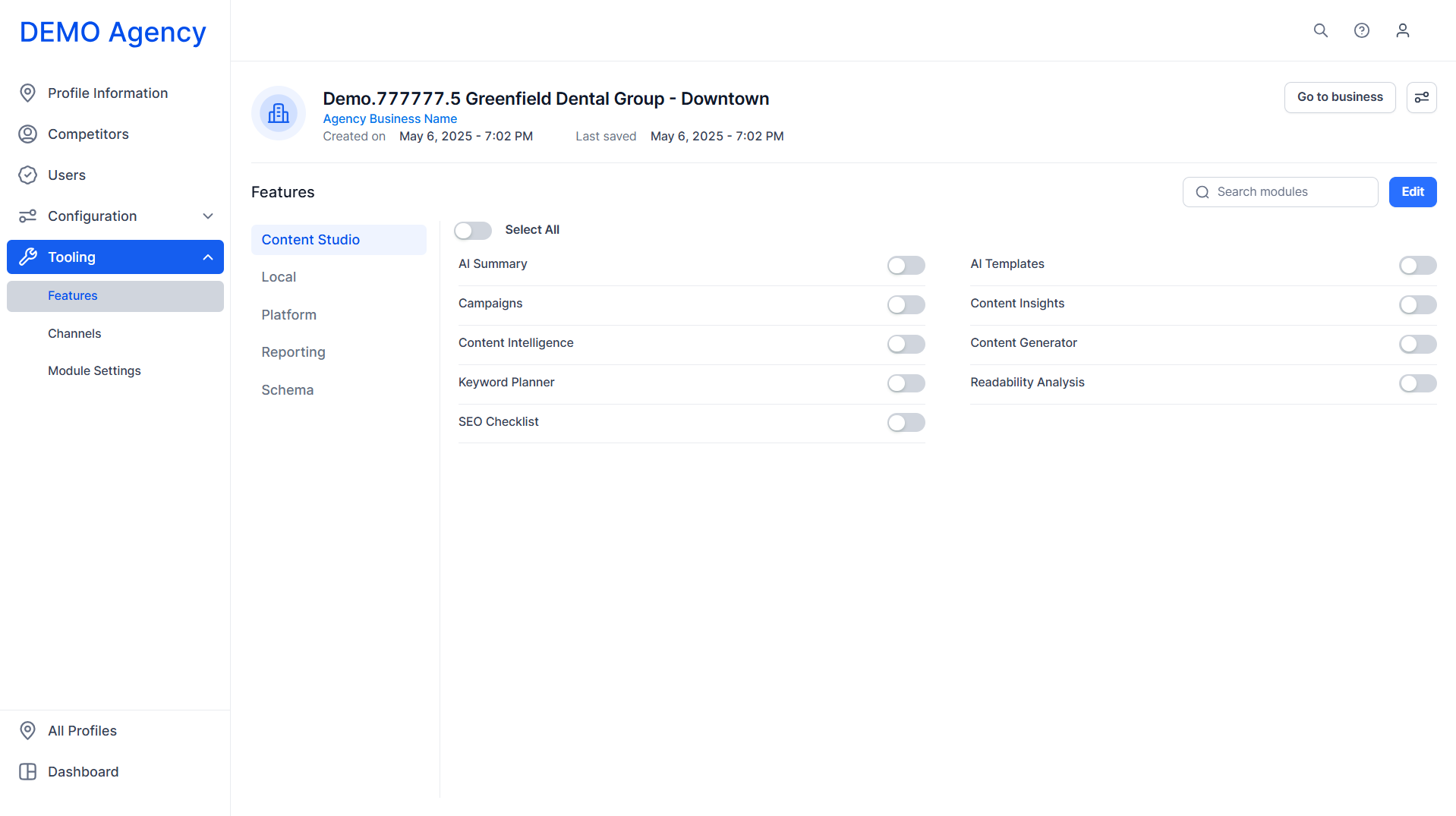
Since profiles inherit their tooling data from the business, you can change these settings for an individual from within a profile section.
Step 1: Click on ‘Features’ under the ‘Tooling’ section.
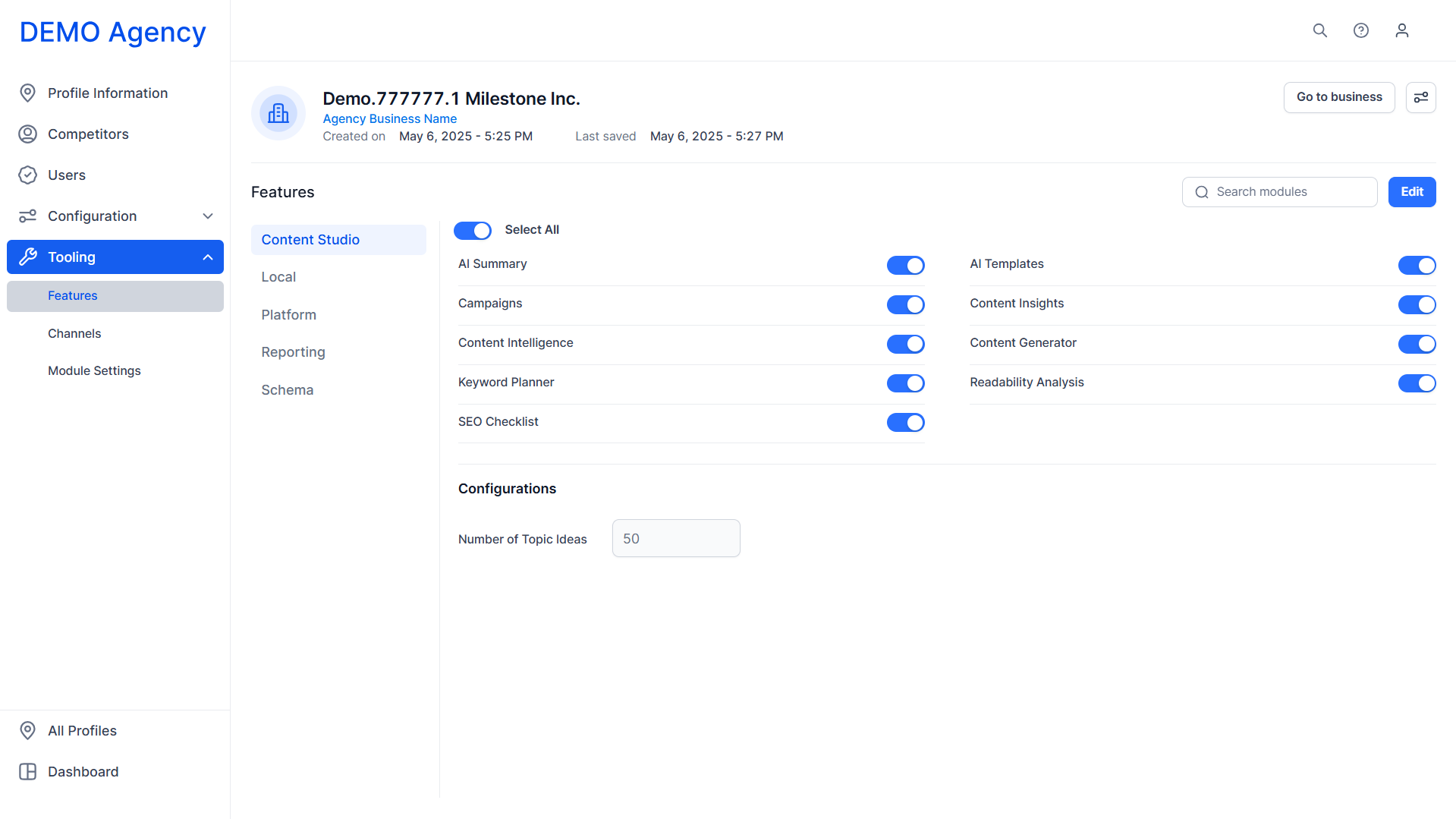
Step 2: Click on ‘Edit’ at the top right.
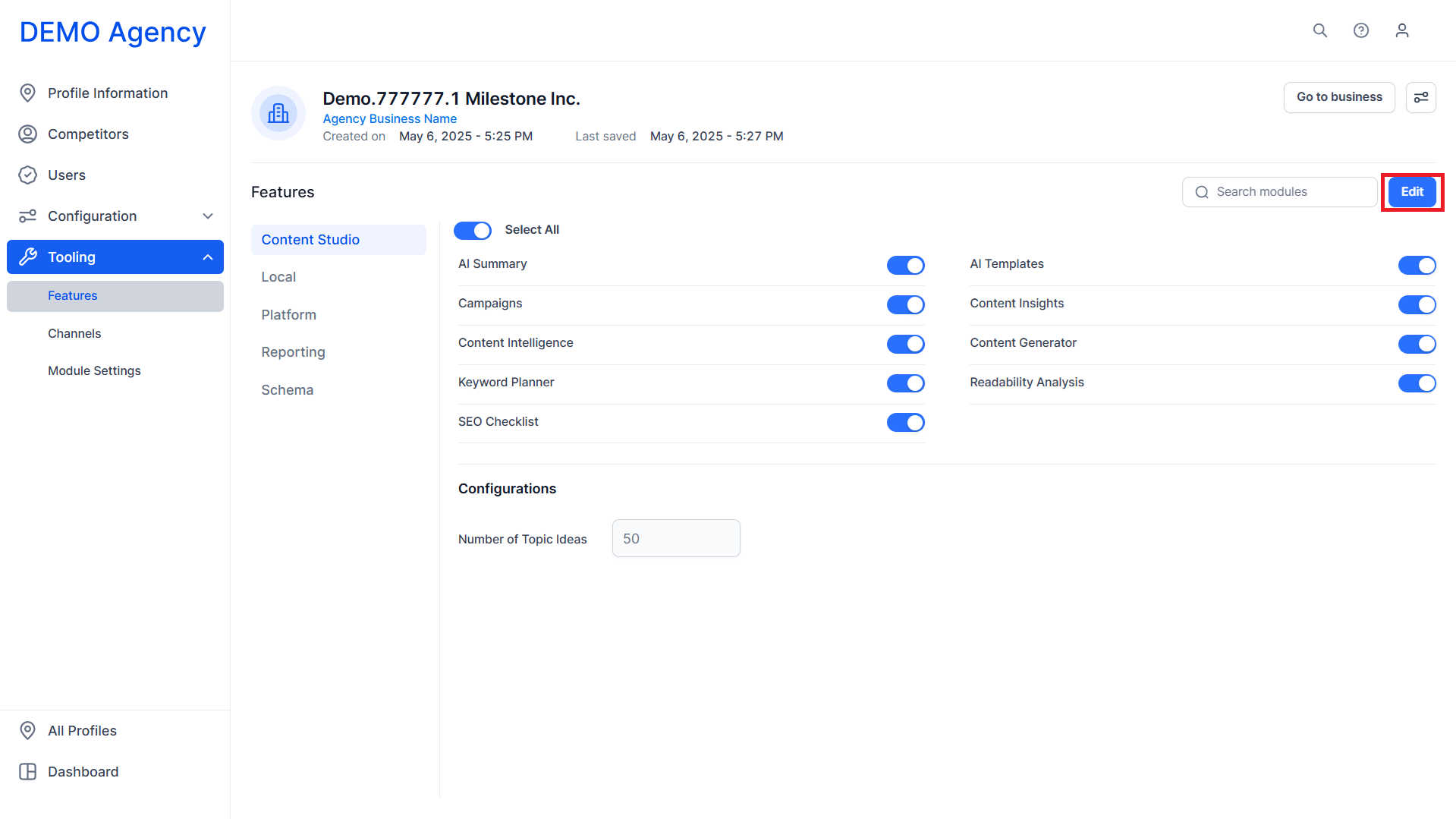
Step 3: Use the toggles to make the changes.
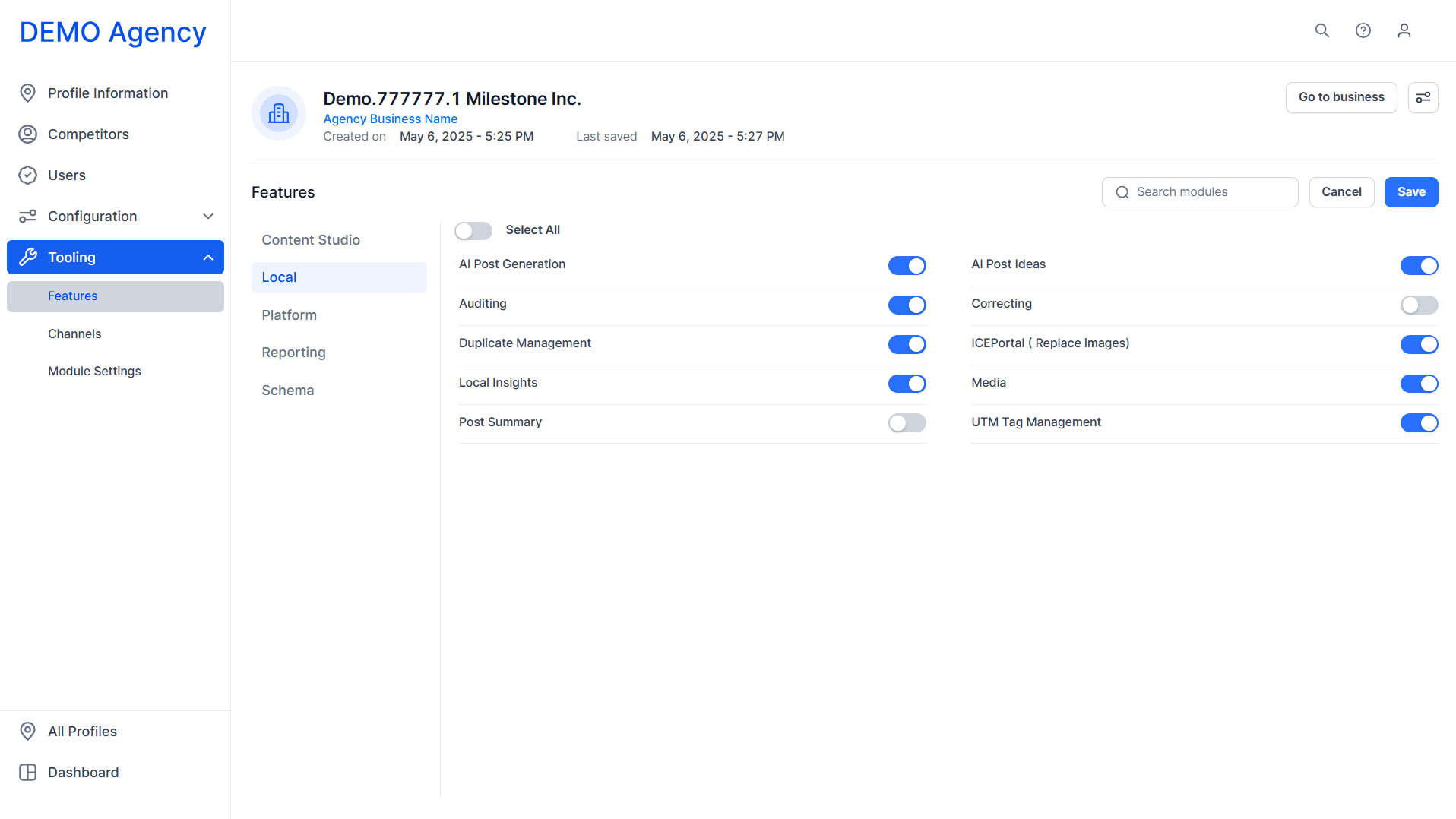
Step 4: Click on ‘Save’.
Tooling Bulk Operations
The ‘Bulk Upload/Download’ section lets you carry out feature tooling across profiles. This saves time and effort.
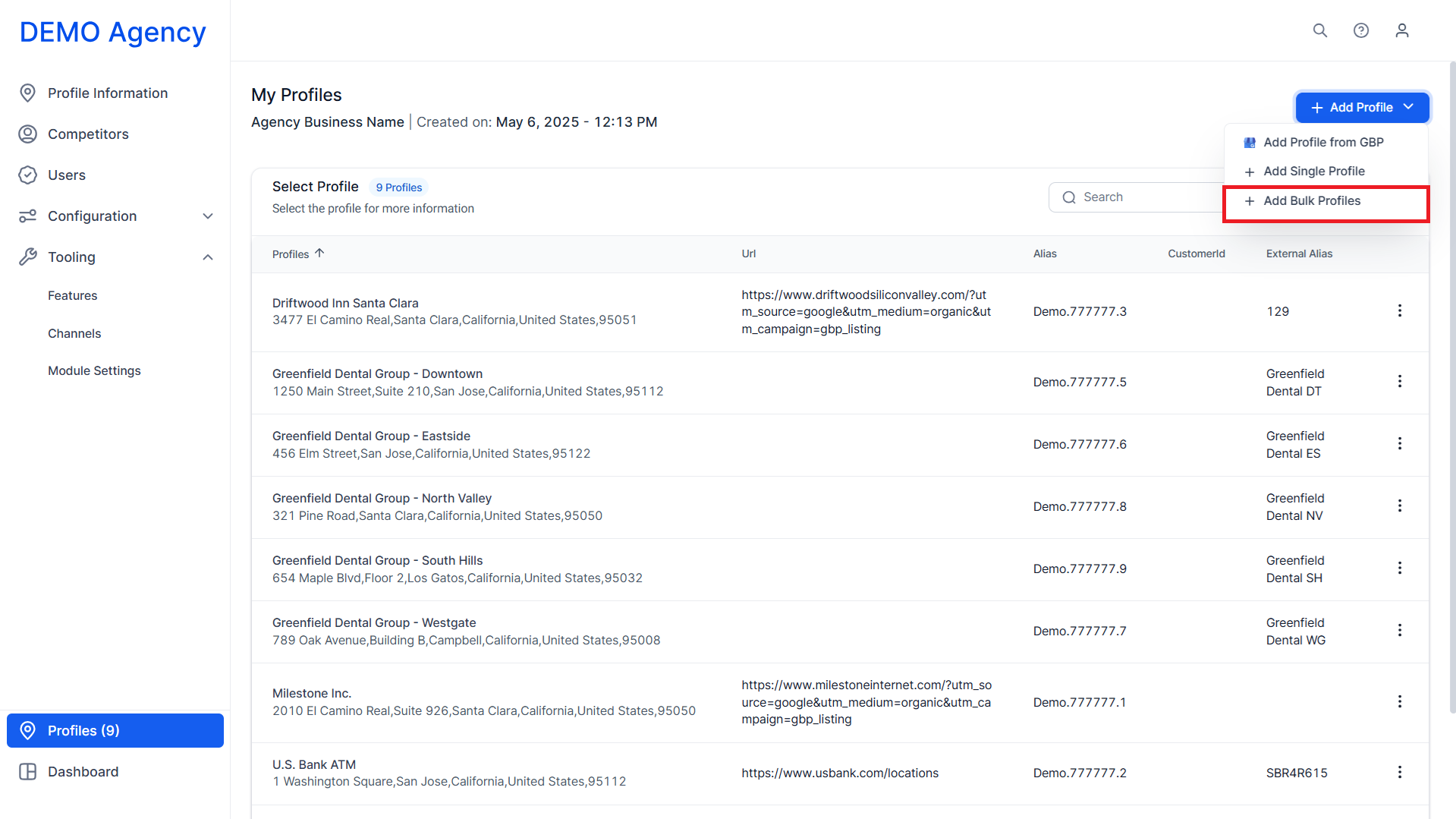
Step 1: In the ‘Profiles’ section, click on ‘Add Bulk Profiles’.
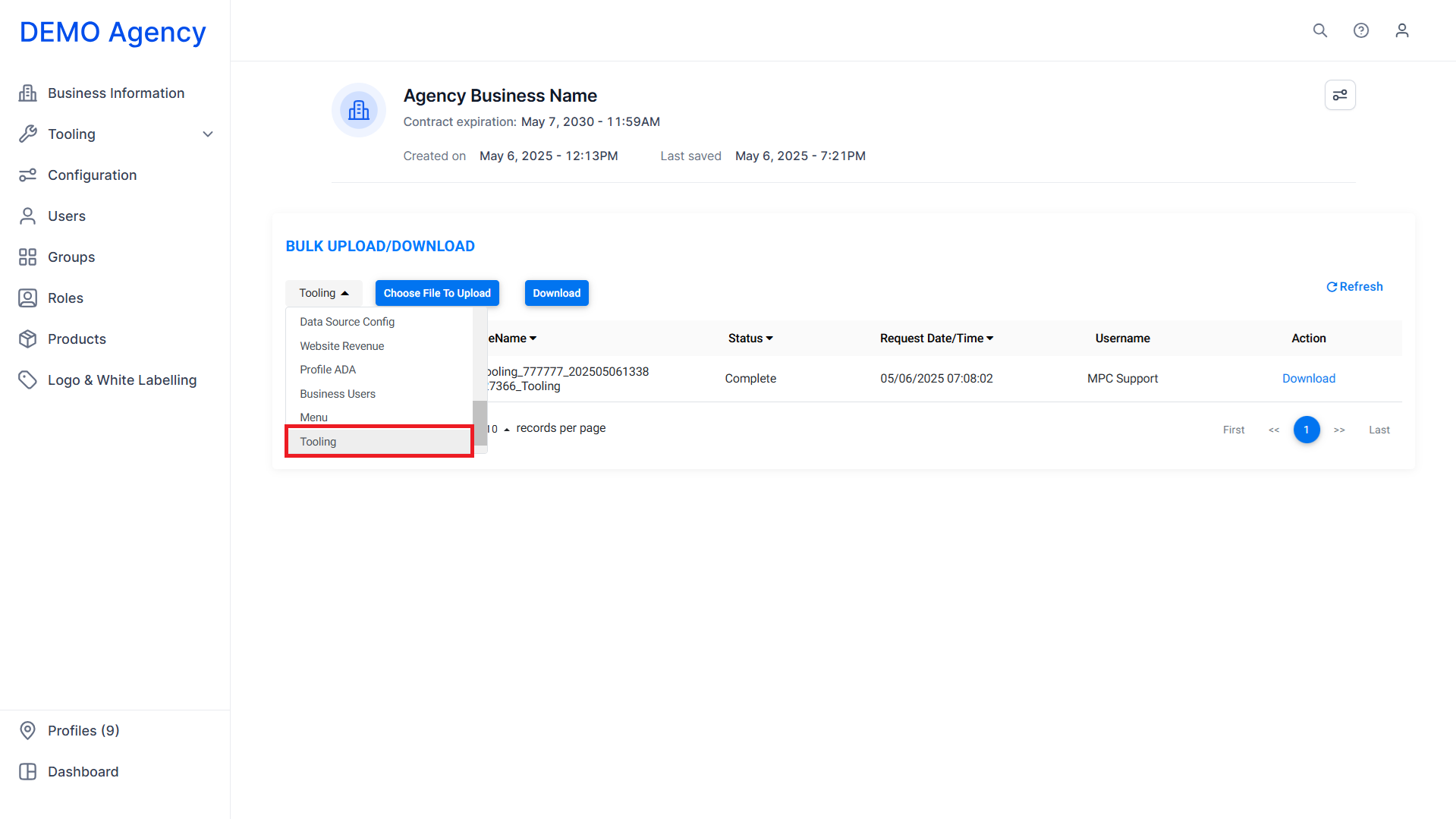
Step 2: From the dropdown menu, select ‘Tooling’.
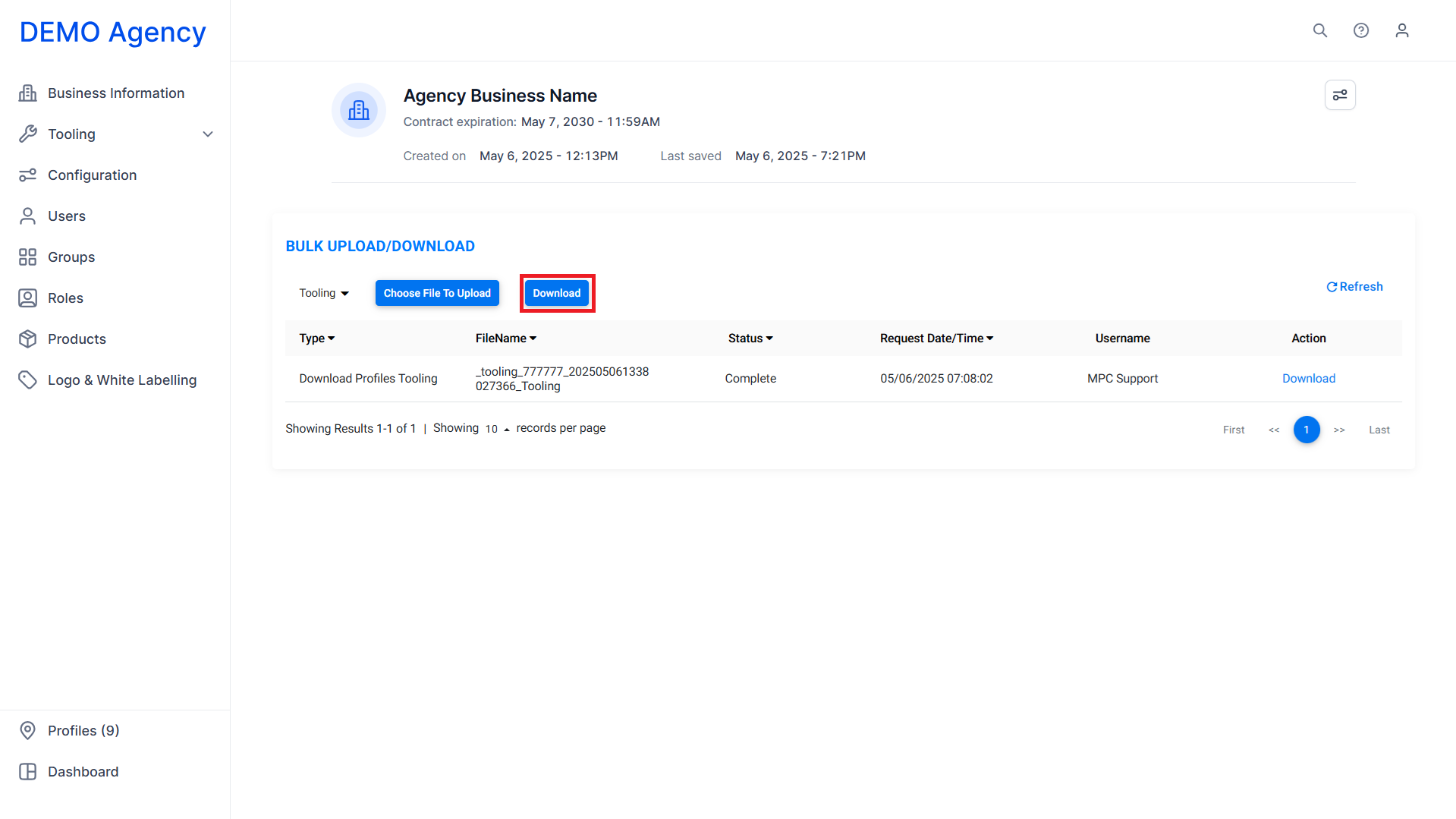
Step 3: Click on ‘Download’ to download the template with the current tooling data.
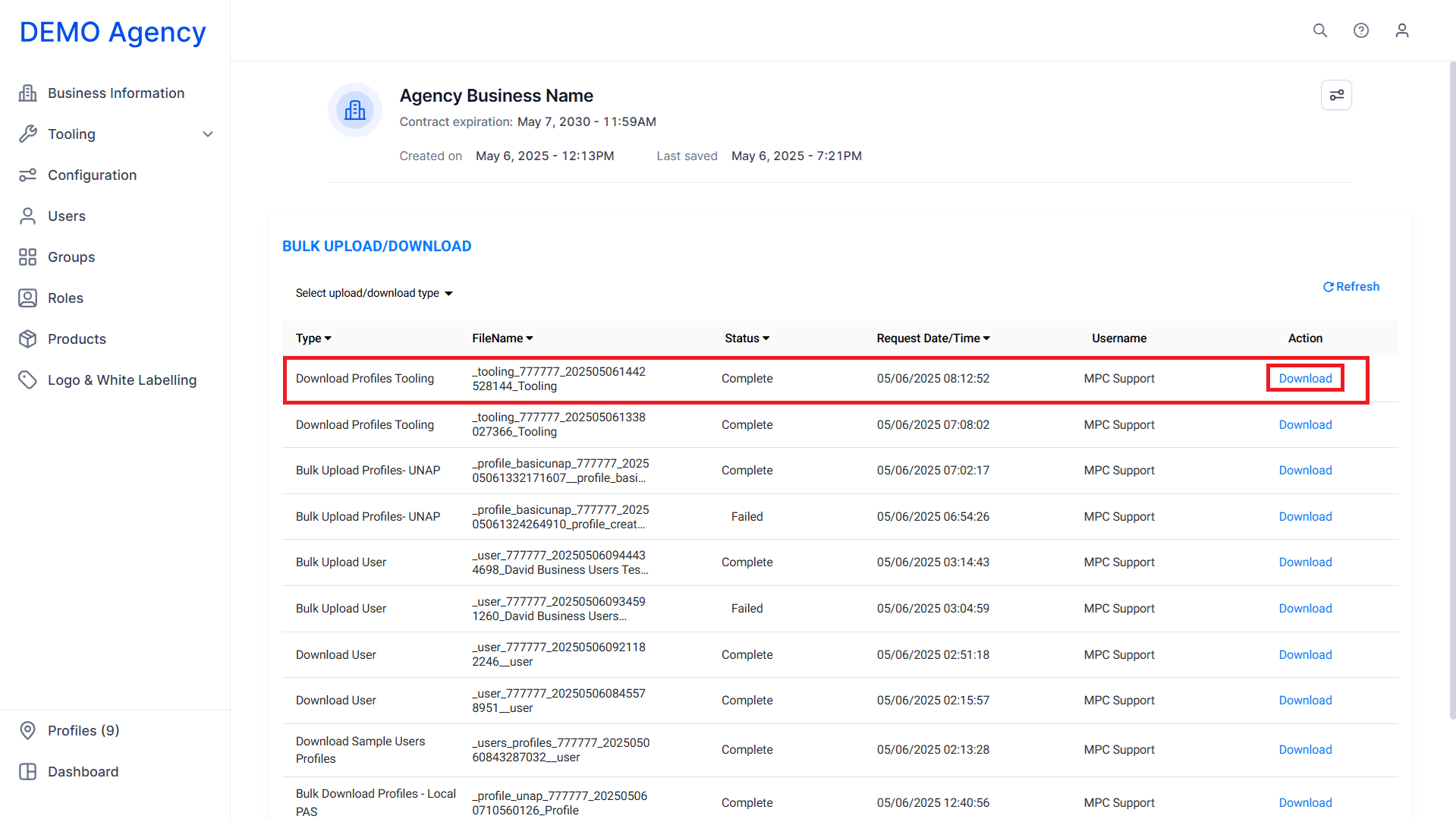
Step 4: In the actions column, click on ‘Download’ to download the spreadsheet.
Step 5: The spreadsheet contains the profile alias and the profile external alias in the left columns. The features tooled for them are provided in the right columns. The features enabled are denoted by ‘y’, to deactivate a feature change this to ‘n’.

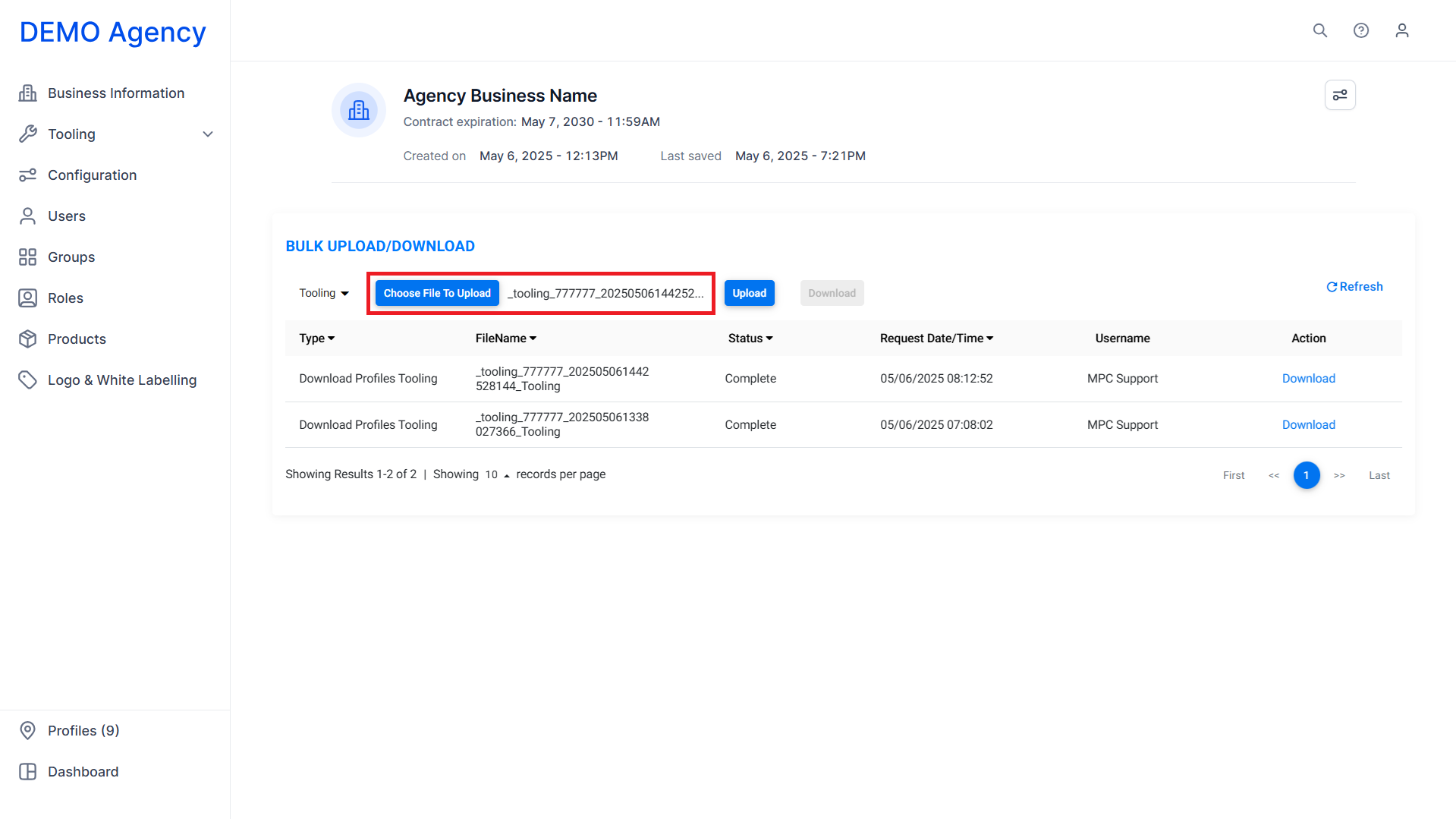
Step 6: Save the spreadsheet and click on ‘Choose File to Upload’ and select the saved spreadsheet.
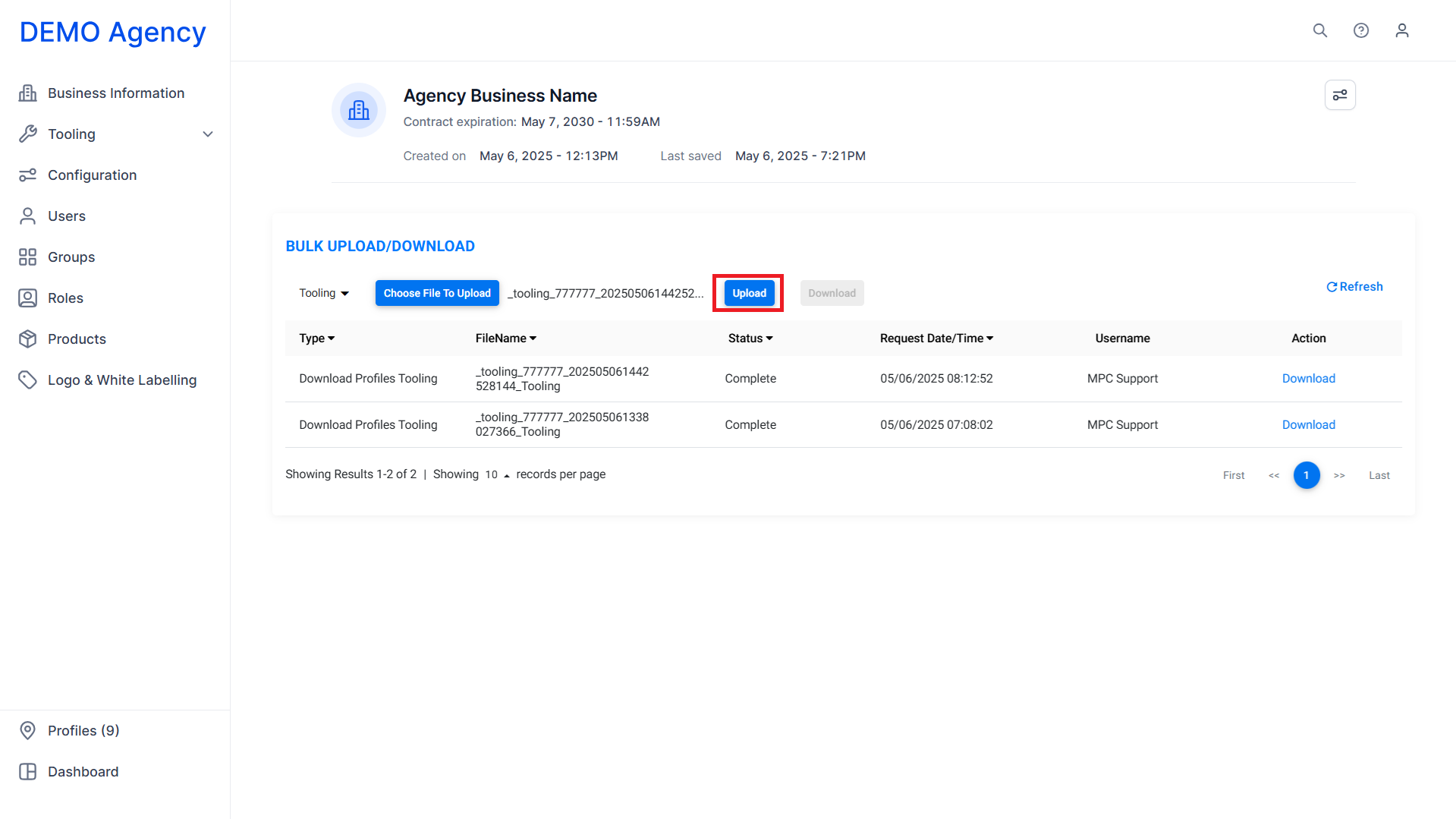
Step 7: Click on ‘Upload’.
The feature tooling will be updated for the specified profile.
Was this article helpful?
That’s Great!
Thank you for your feedback
Sorry! We couldn't be helpful
Thank you for your feedback
Feedback sent
We appreciate your effort and will try to fix the article