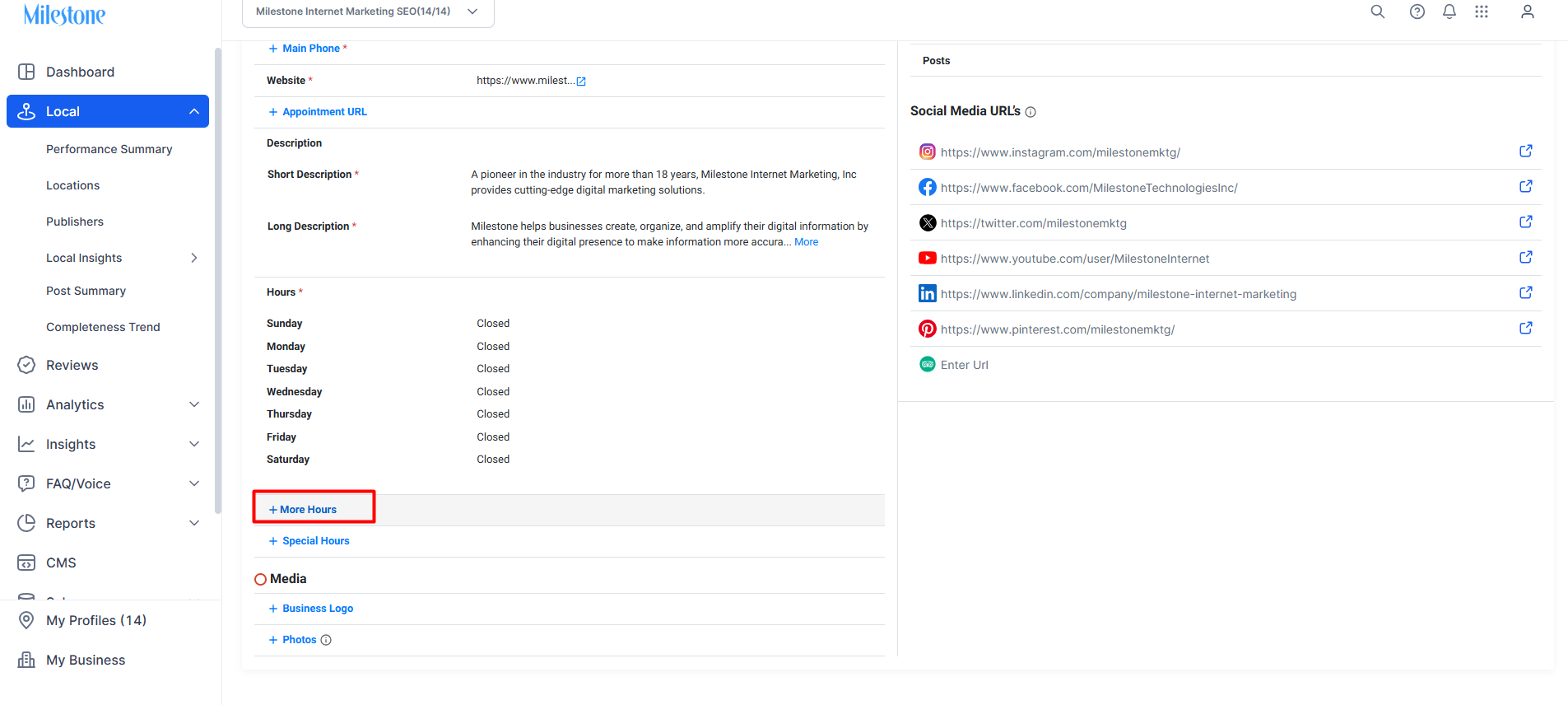
If your business is offering additional services within a particular time frame, you can use the ‘More Hours' option on the 'Profile Summary' screen. For example, the More Hours can be used to display services such as happy hours, dining, brunch, etc., which can be displayed on the listing of the business profile on Google and Bing.
Let's show you how to add ‘More Hours’.
Path: MPC Dashboard > Local > Locations > Profile Summary Screen
Step 1: Click on ‘More Hours’.
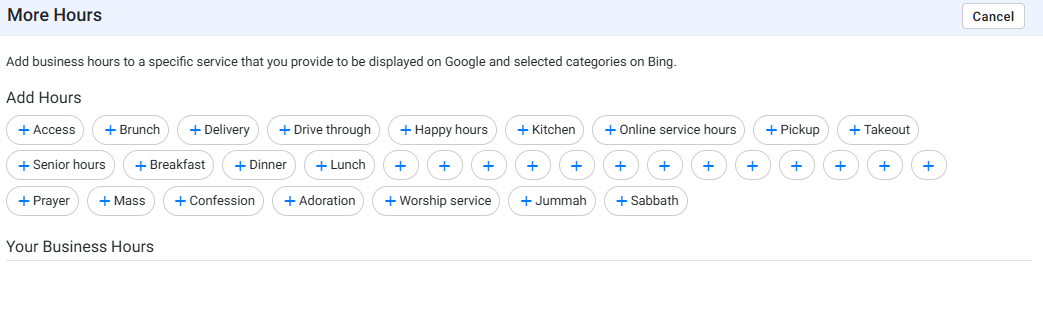
Step 2: Choose the service you wish to add ‘More Hours’. Example, happy hours, dining, etc.
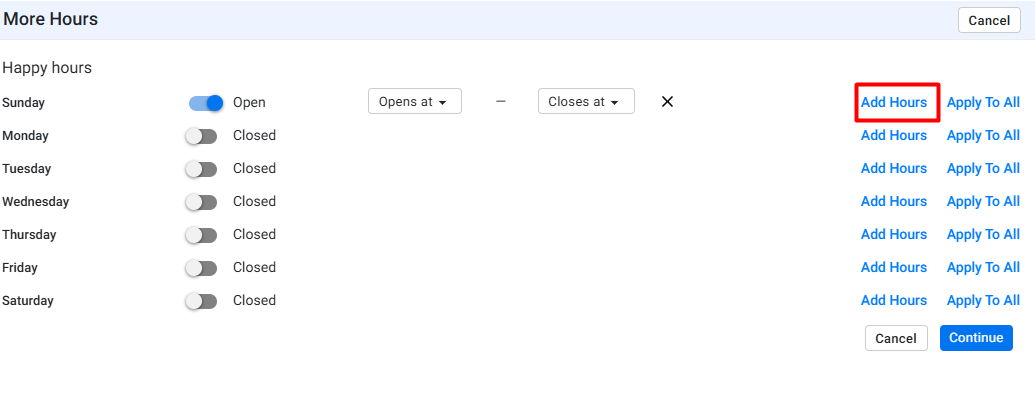
Step 3: Choose the day of the week you're offering the service, and click on ‘Add Hour’. Then choose the timing - open and close of the service.
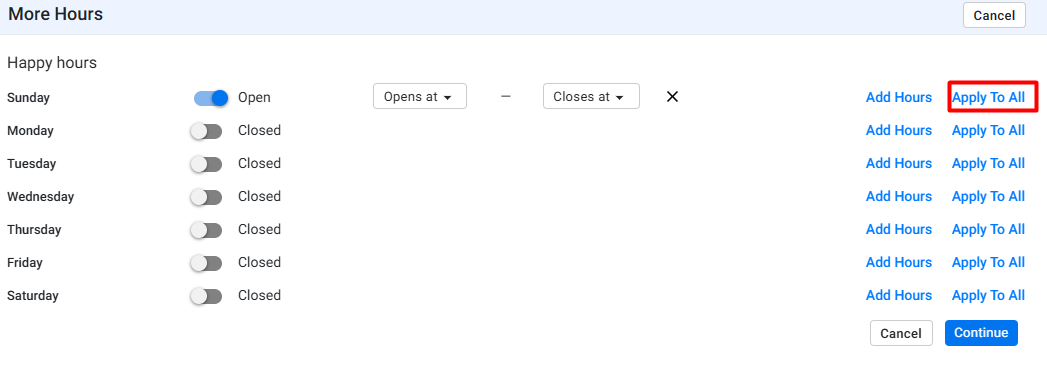
If you're offering the service on all days, click on ‘Apply to All’ to set the details across all days with ease.
Was this article helpful?
That’s Great!
Thank you for your feedback
Sorry! We couldn't be helpful
Thank you for your feedback
Feedback sent
We appreciate your effort and will try to fix the article