Apply ‘Special Hours’ across ‘More Hours’ and ‘Business Hours’ with the click of a button, providing customers with a clear view of your business hours and services being offered on holidays and other occasions.
Path: Milestone Local > Locations
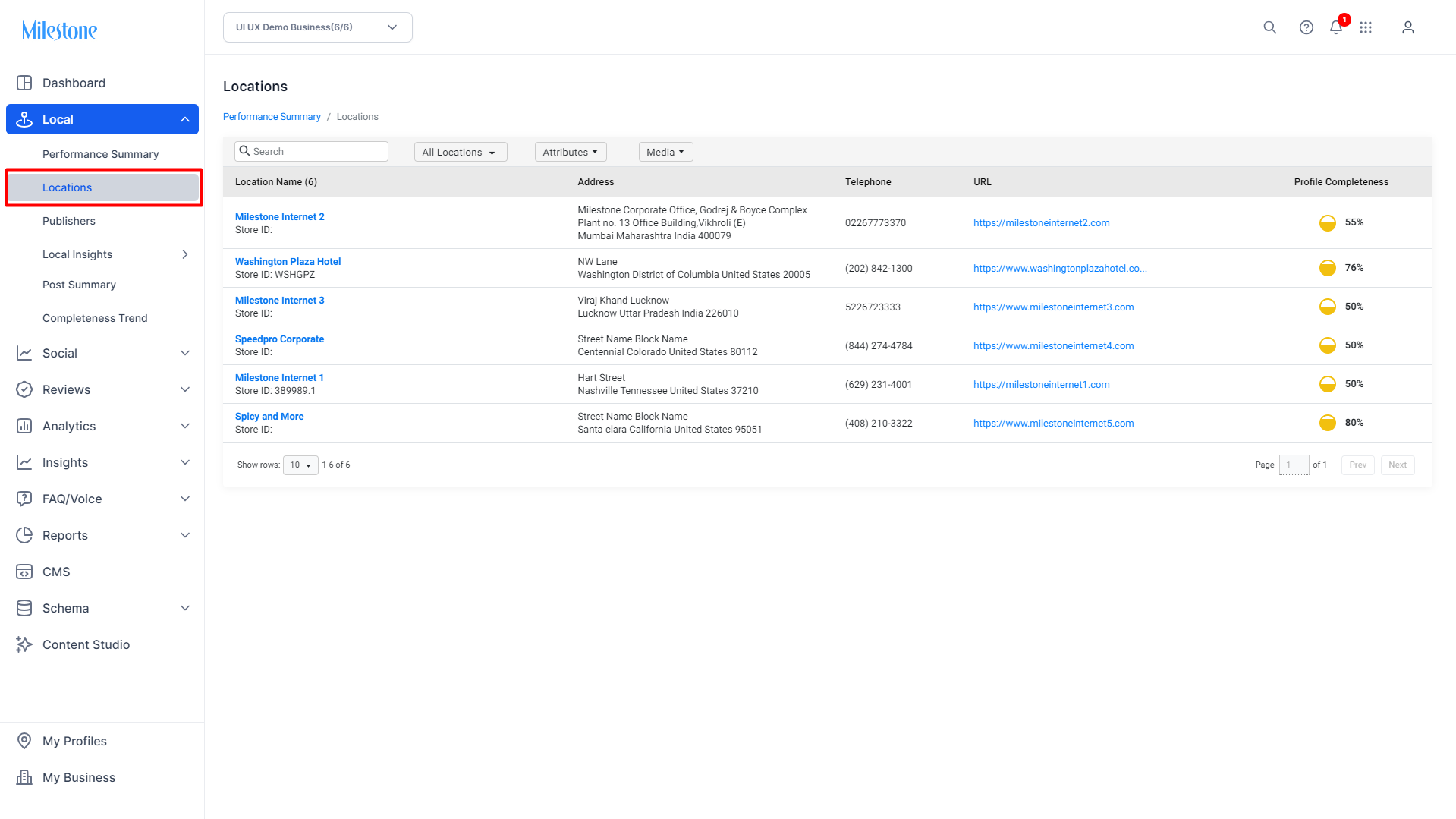
Step 1: From Milestone Local homepage click on ‘Locations’ in the left navigation panel.
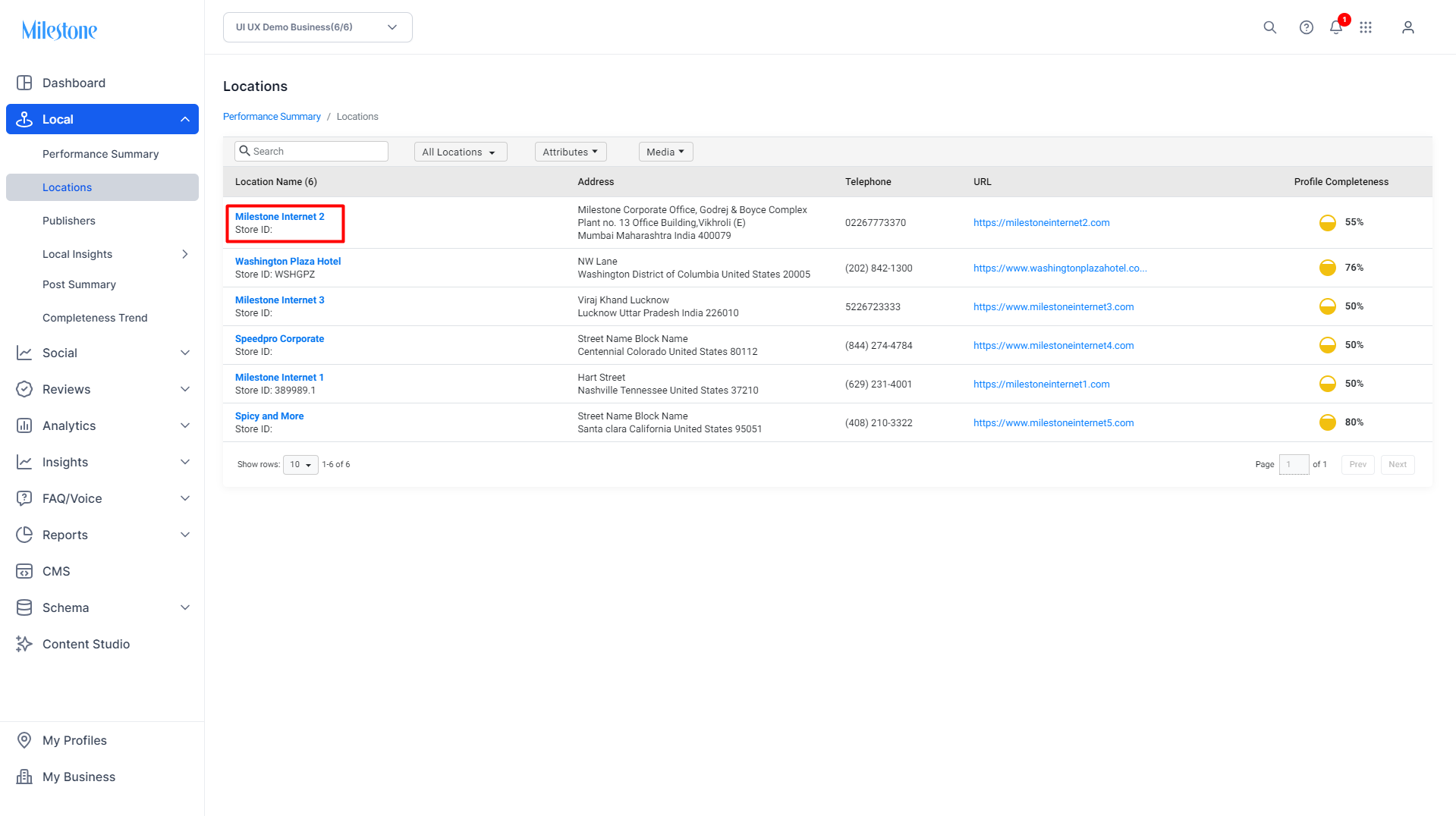
Step 2: Select the location for which you wish to update ‘Special Hours’ by clicking on it.
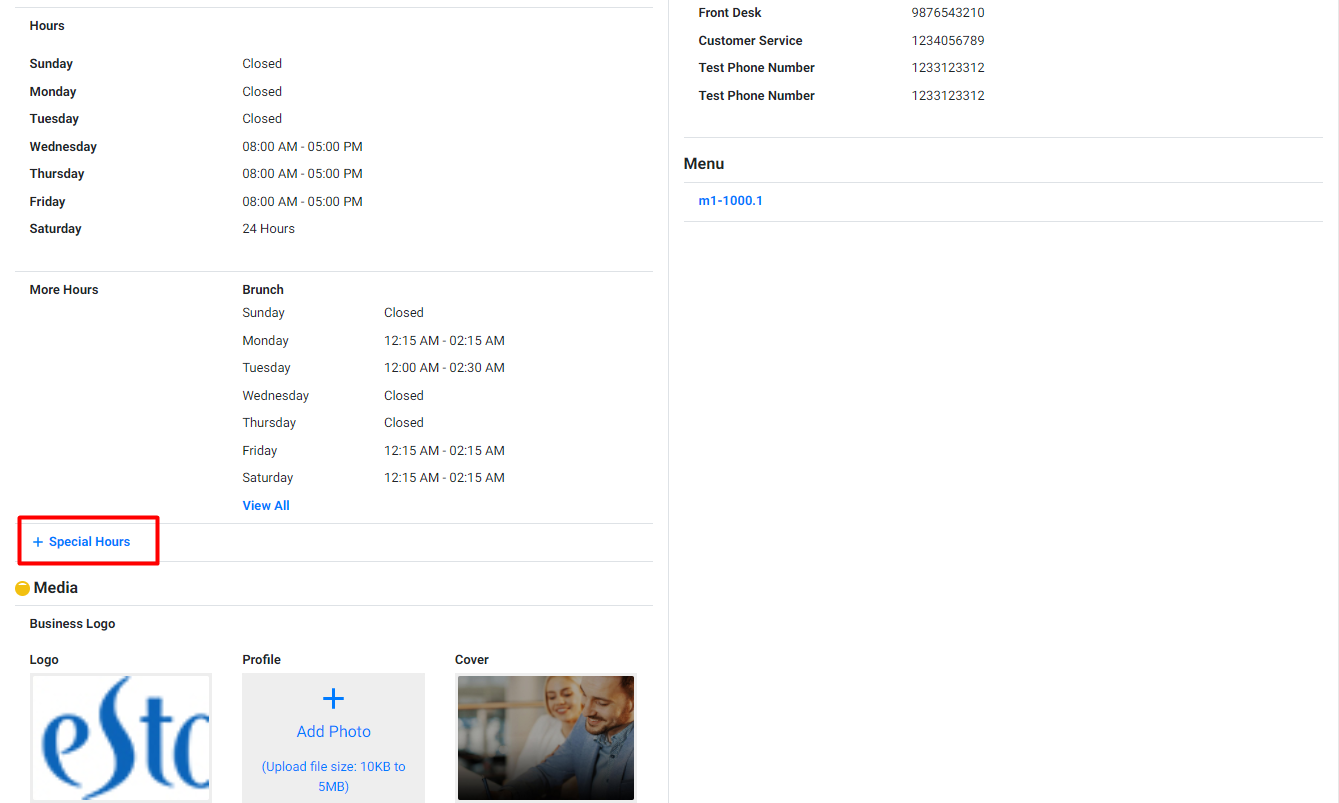
Step 3: In the ‘Profile Summary’ screen click on ‘Special Hours’ to add new Special Hours for occasions.
Step 4: Click on ‘Add Day for Special Hours’ to add the date to which the ‘Special Hours’ are applicable.
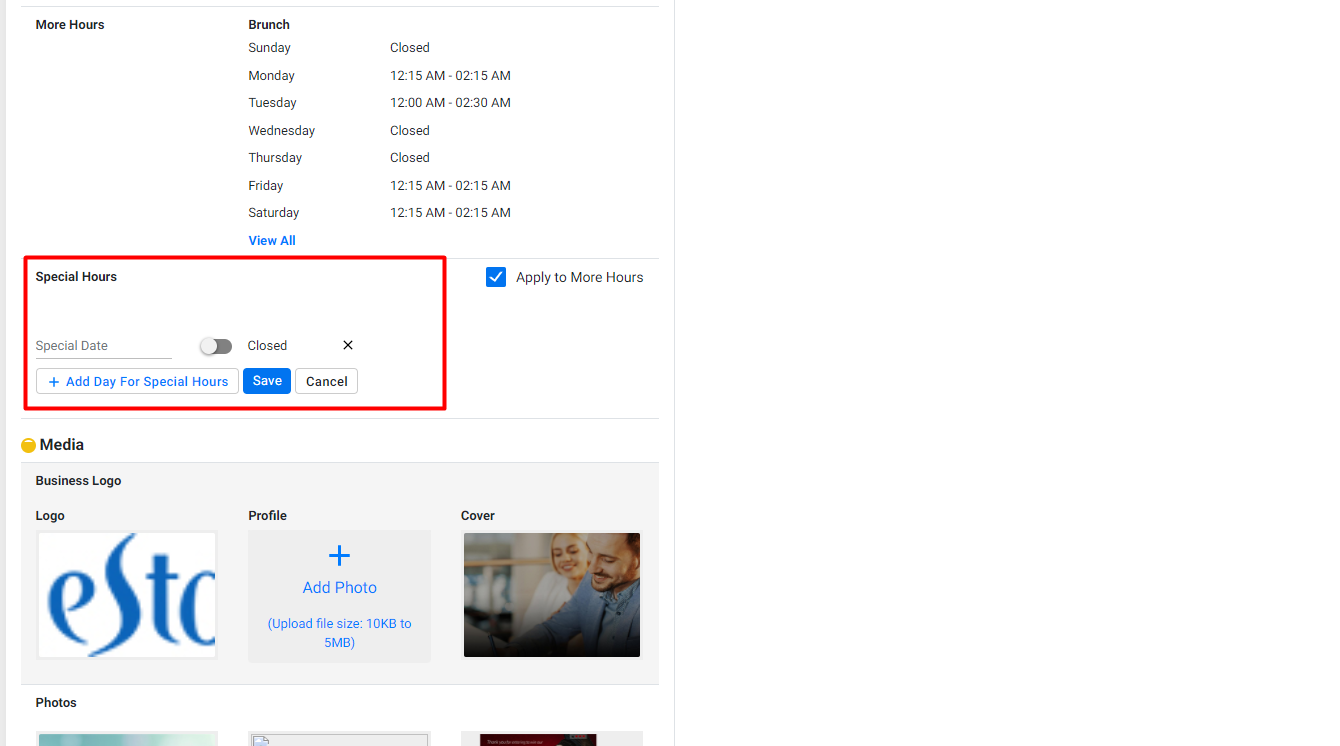
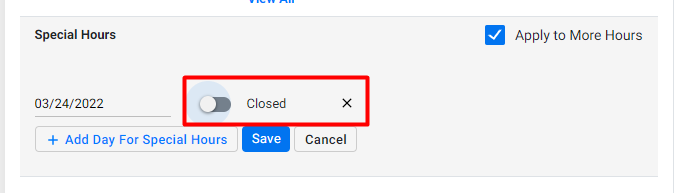
Step 5: Select whether the business is closed or open on that date using the toggle switch.
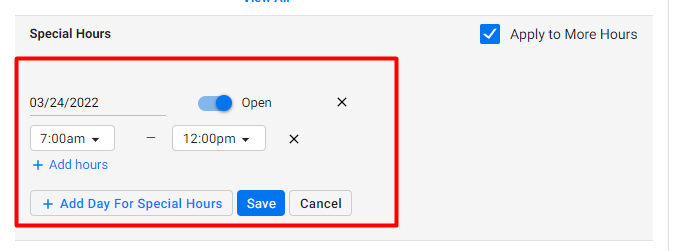
If the business is open but the hours have changed select ‘Open’ from the toggle switch and add the ‘Special Hours’.
Step 6: To the right you can check the box to apply ‘Special Hours’ to ‘More Hours’ on your Google Business Profile.
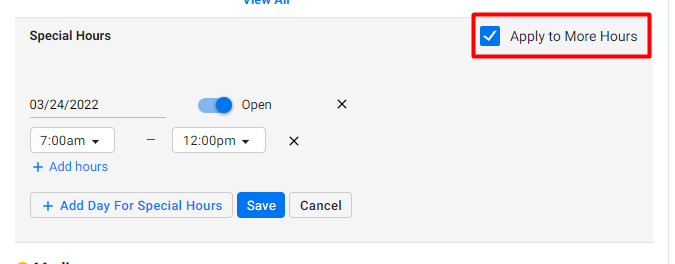
Once the ‘Special Hours’ have been updated the service offerings on ‘Business Hours’ and ‘More Hours’ will update on your Google Business Profile.
Was this article helpful?
That’s Great!
Thank you for your feedback
Sorry! We couldn't be helpful
Thank you for your feedback
Feedback sent
We appreciate your effort and will try to fix the article