Milestone Content Studio lets you reschedule published content to future dates, ensuring it stays relevant. It also allows you to update content and republish it with the current date for improved freshness.
Path: Content Studio > My Content > Published Content > Editor
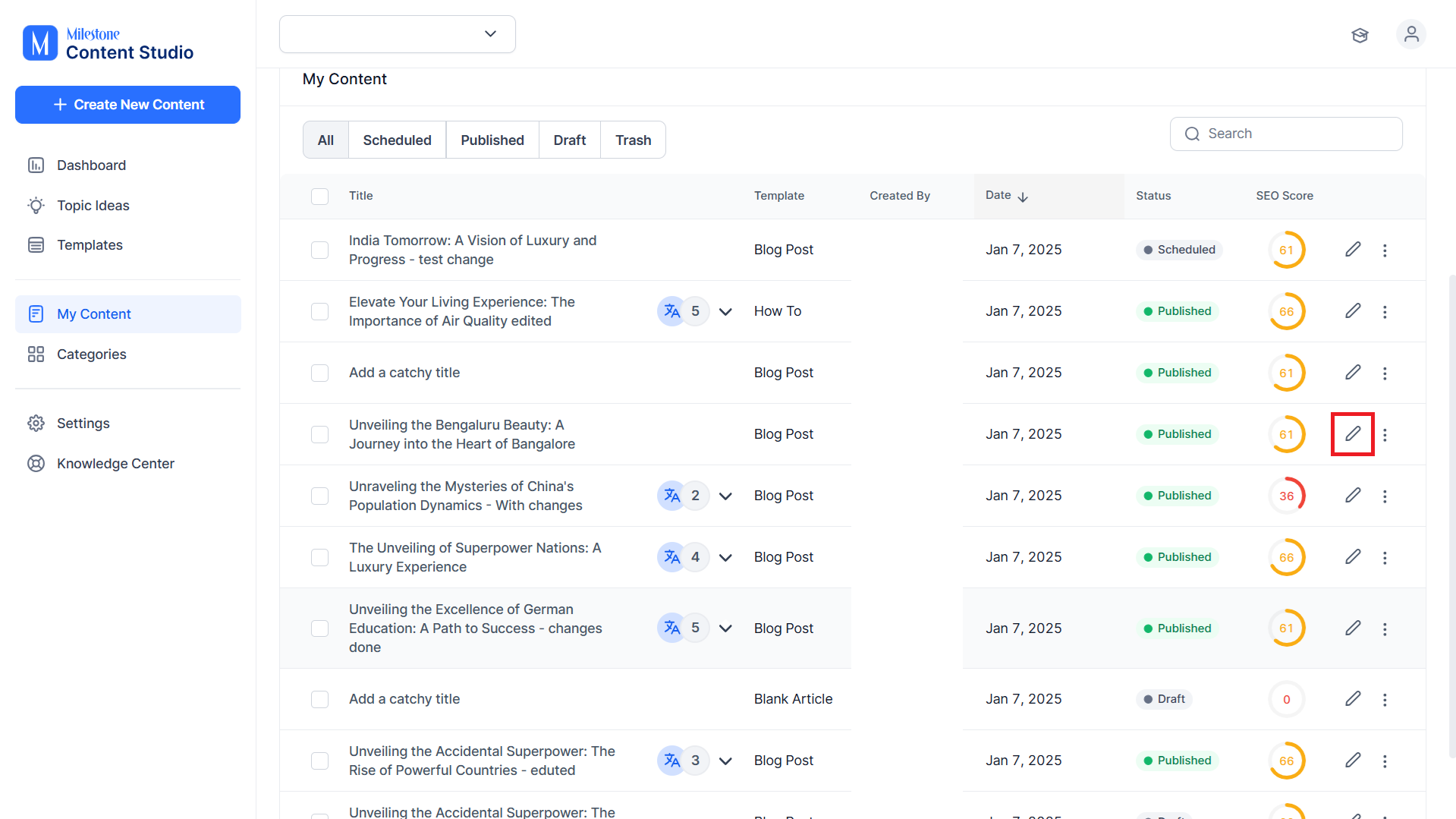
Step 1: Click on the ‘Edit’ icon corresponding to the published content.
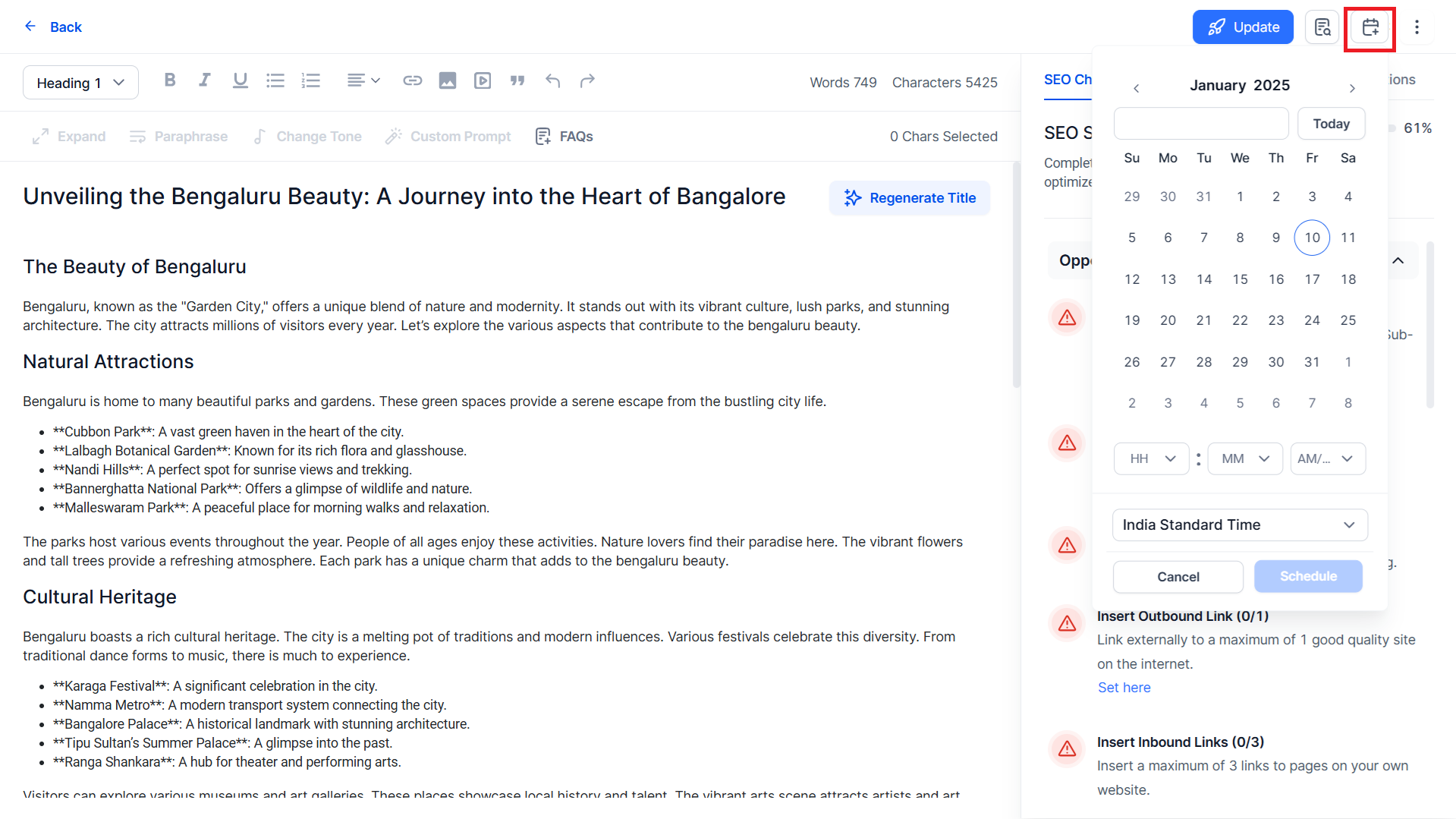
Step 2: Click on the calendar icon at the top right of the editor.
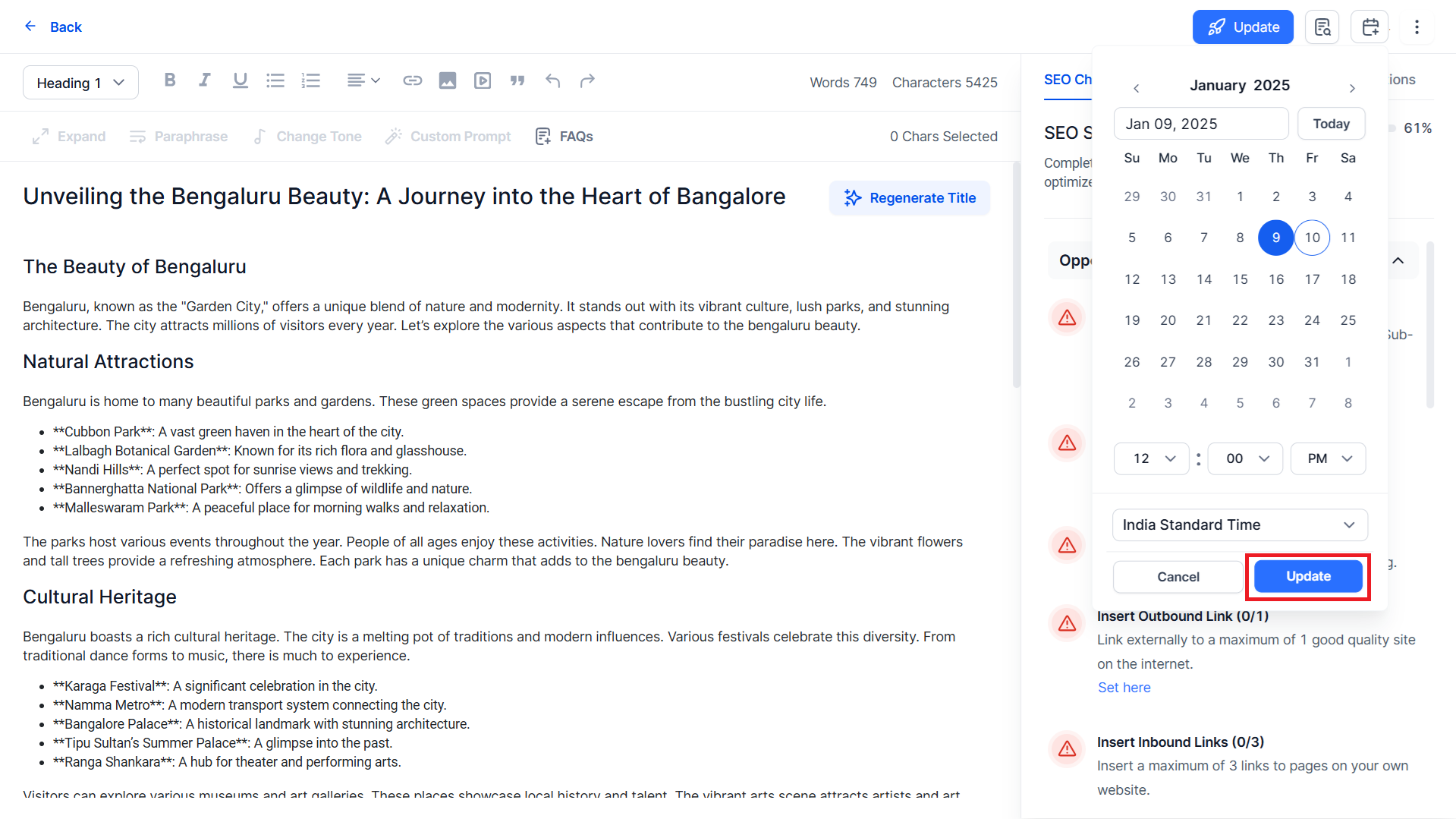
Step 3: Once you have selected the date, time and timezone click on ‘Update’.
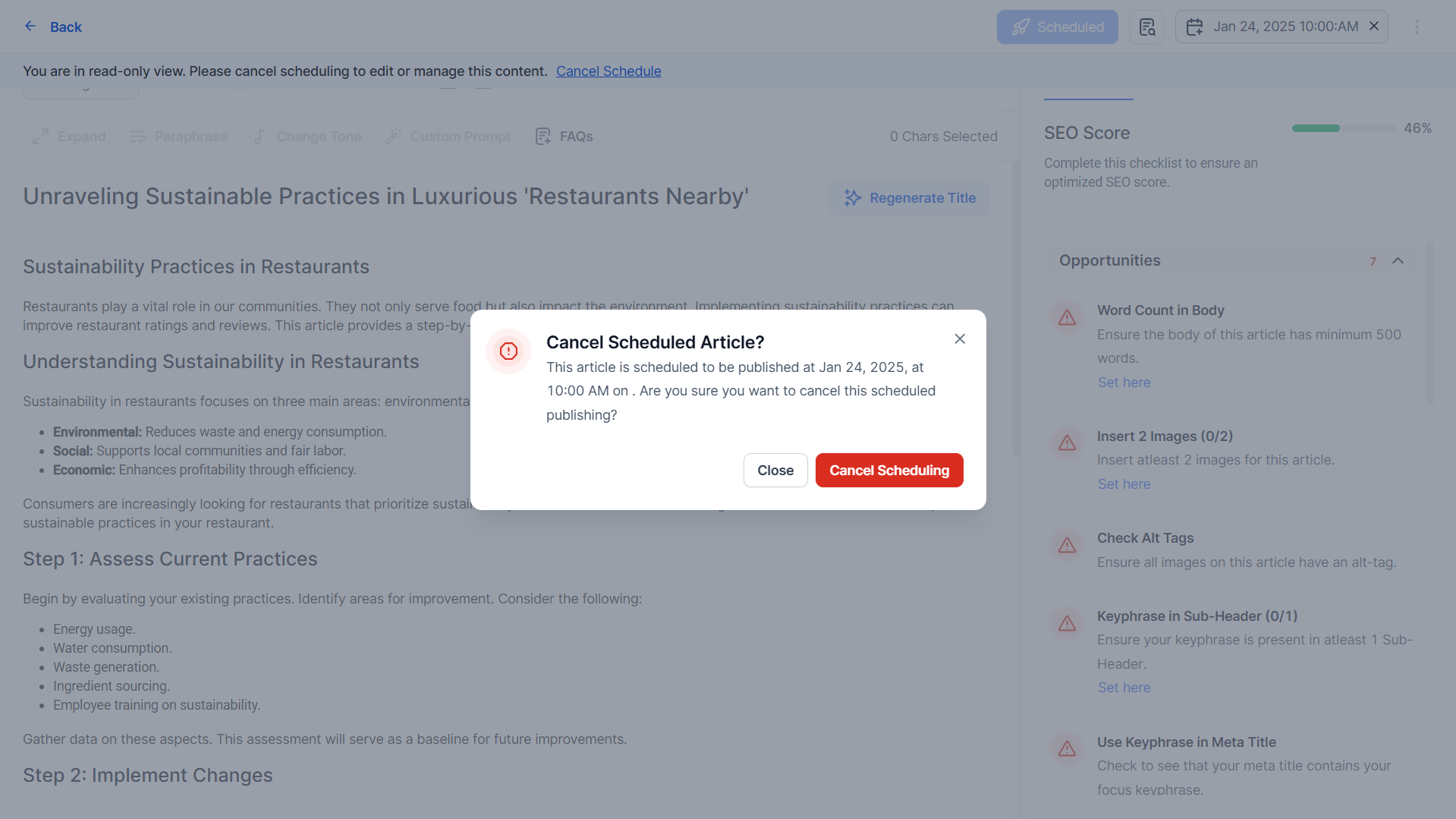
If the content is scheduled for a future date it will not be editable until the schedule is removed. To edit this content you will need to remove the schedule by clicking on ‘X’ in the scheduled date and time.
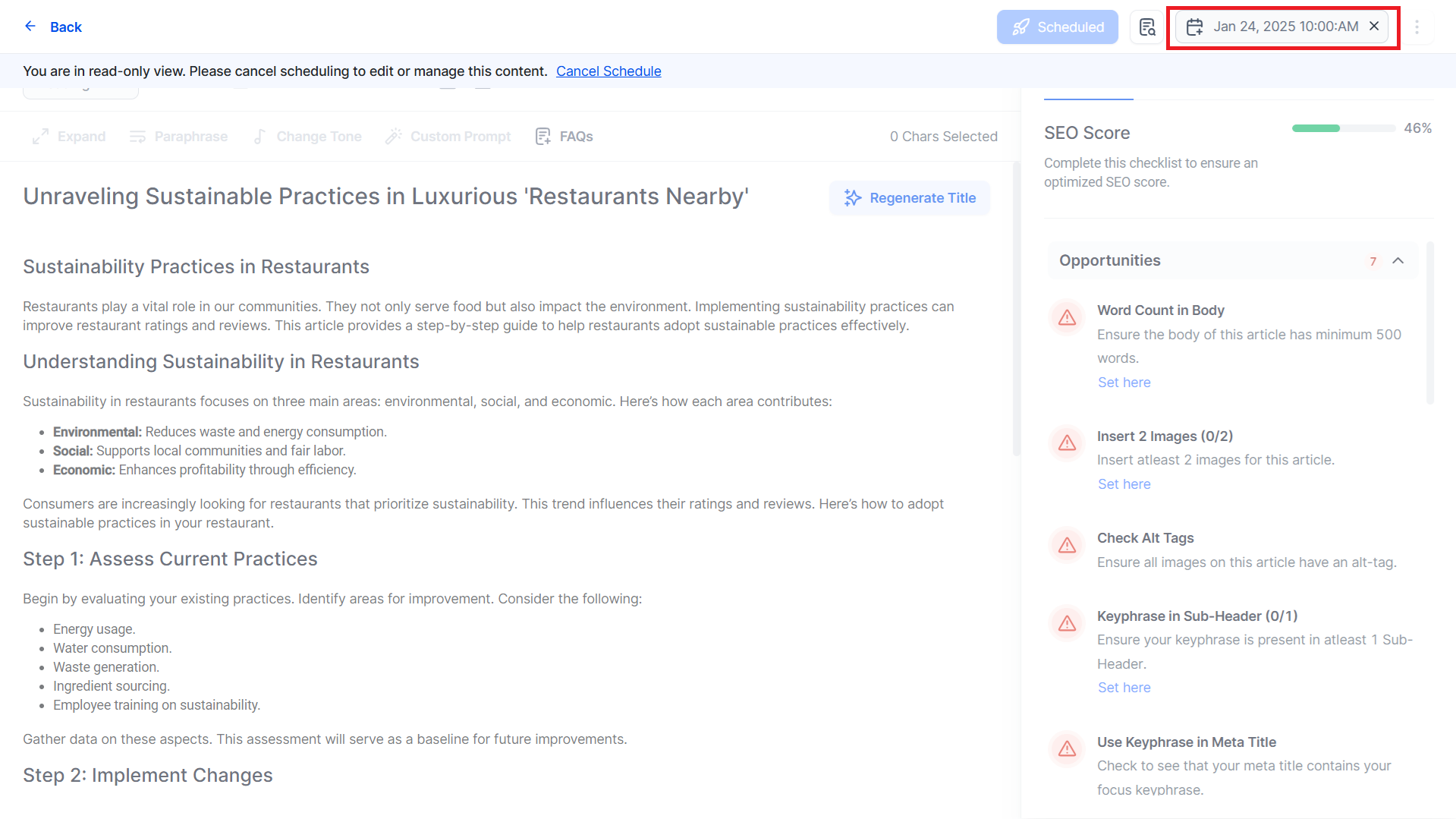
Cancel the schedule to edit the content.
Was this article helpful?
That’s Great!
Thank you for your feedback
Sorry! We couldn't be helpful
Thank you for your feedback
Feedback sent
We appreciate your effort and will try to fix the article