When deleting content from Milestone Content Studio, it will be temporarily stored in the ‘Trash’ folder before being permanently deleted. This allows you to restore this content before it is permanently deleted. Here's how you can restore content moved to the ‘Trash’ folder.
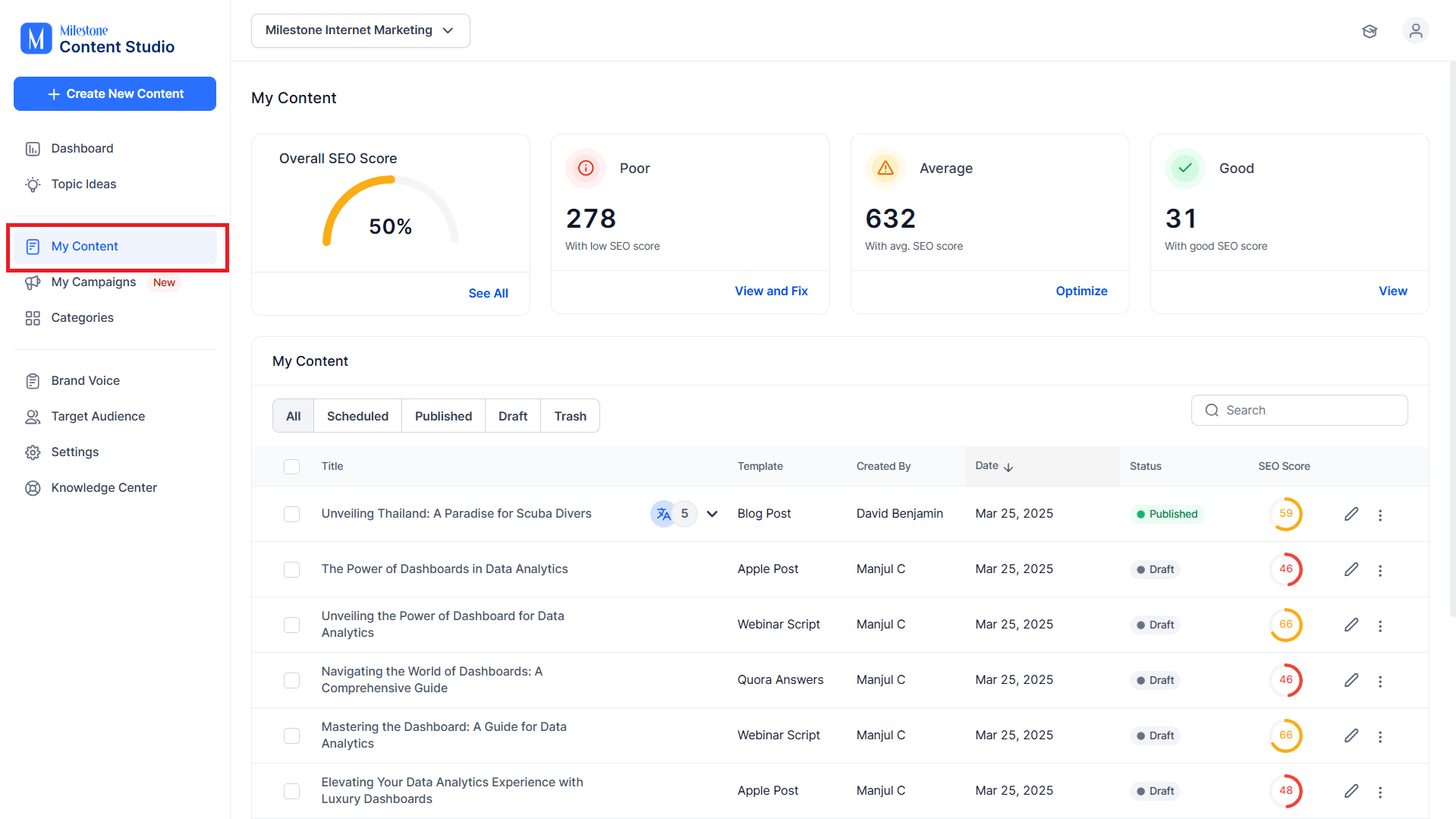
Step 1: To view articles on AI Content Studio, click on ‘My Content’ in the left navigation panel.
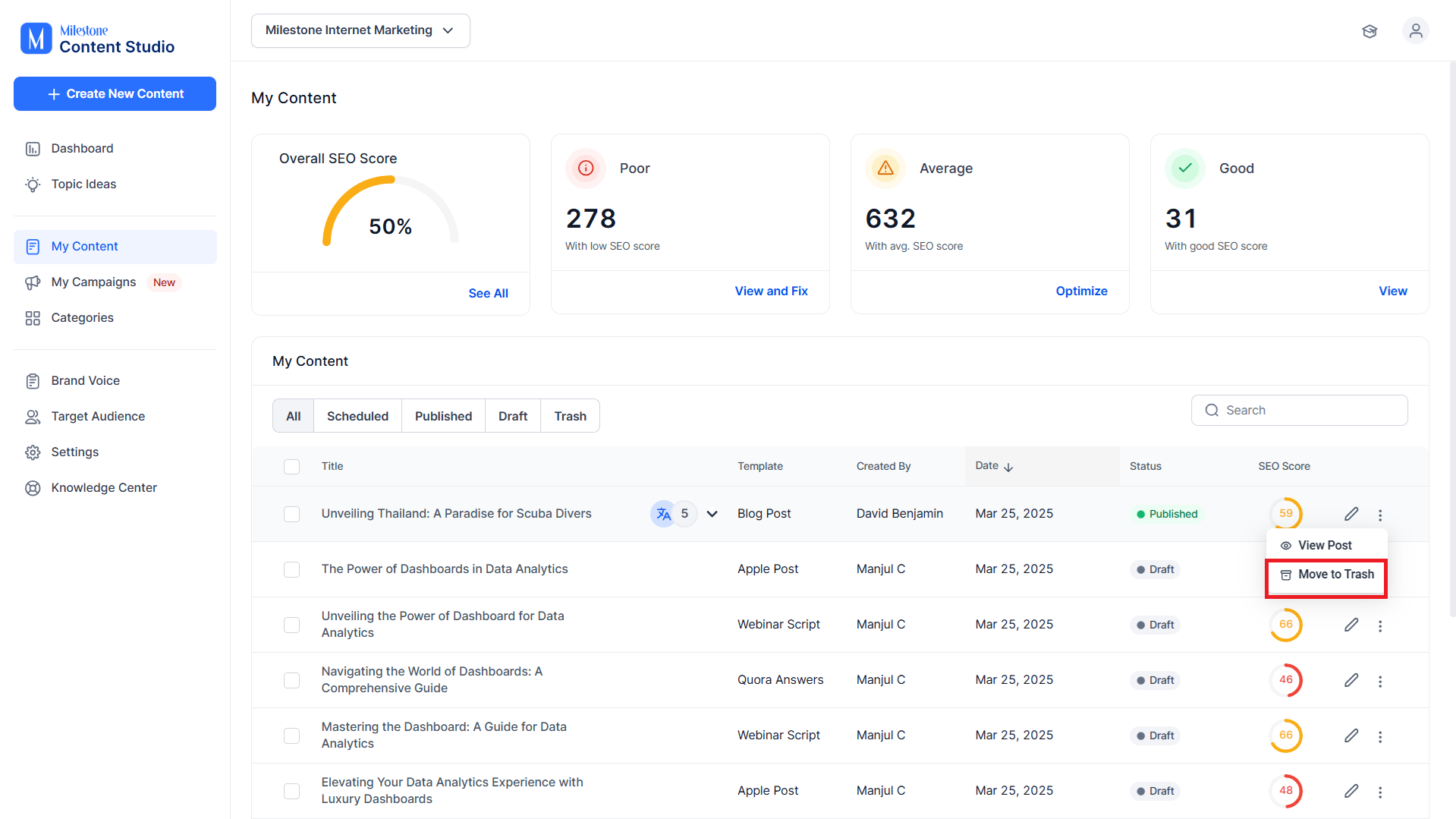
Step 2: Click on the three-dot menu corresponding to the article you wish to move to trash and click on ‘Move to Trash’.
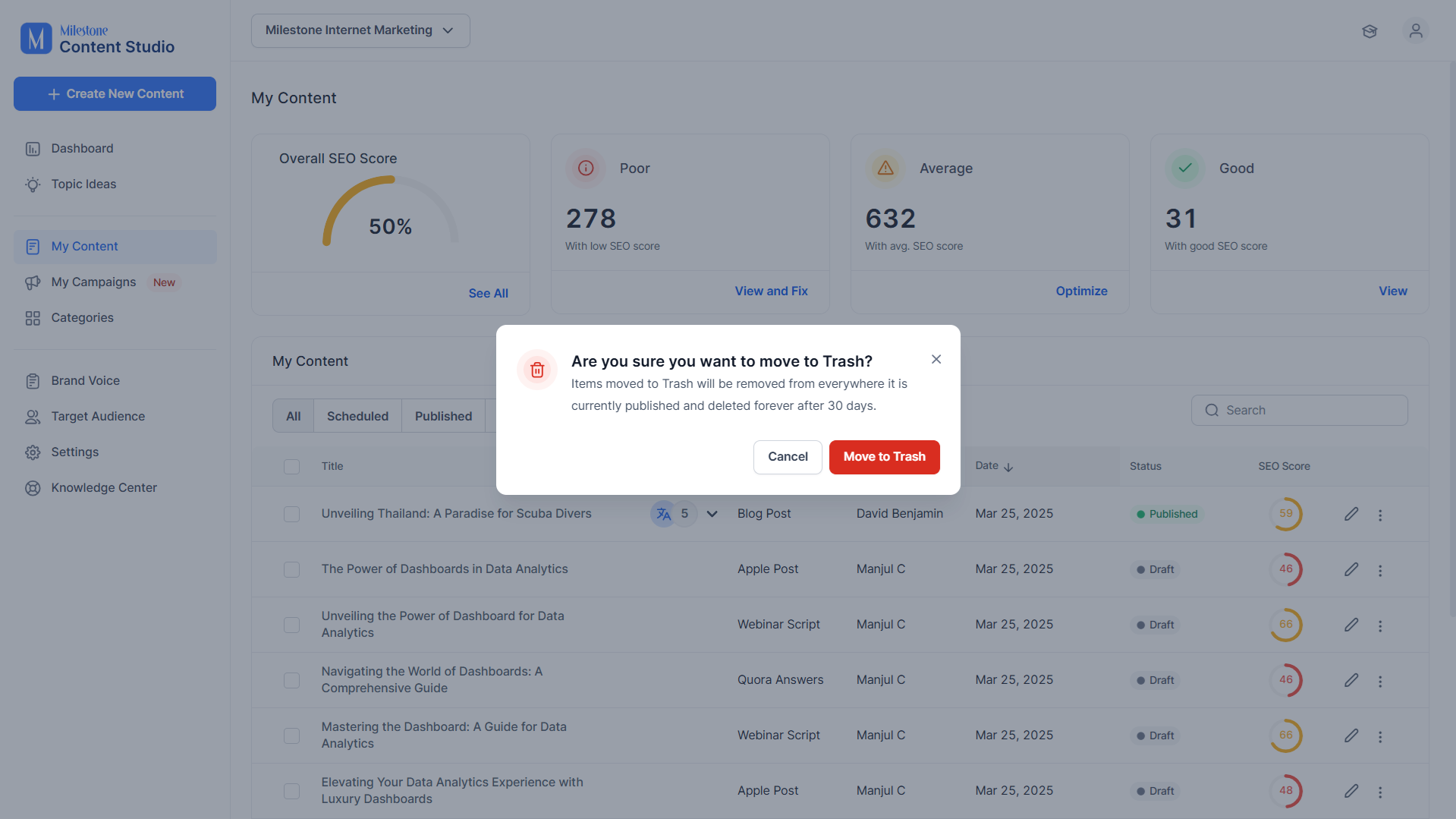
Step 3: You will be notified that the article will be stored in ‘Trash’ for 30 days. Click on ‘Move to Trash’ to continue.
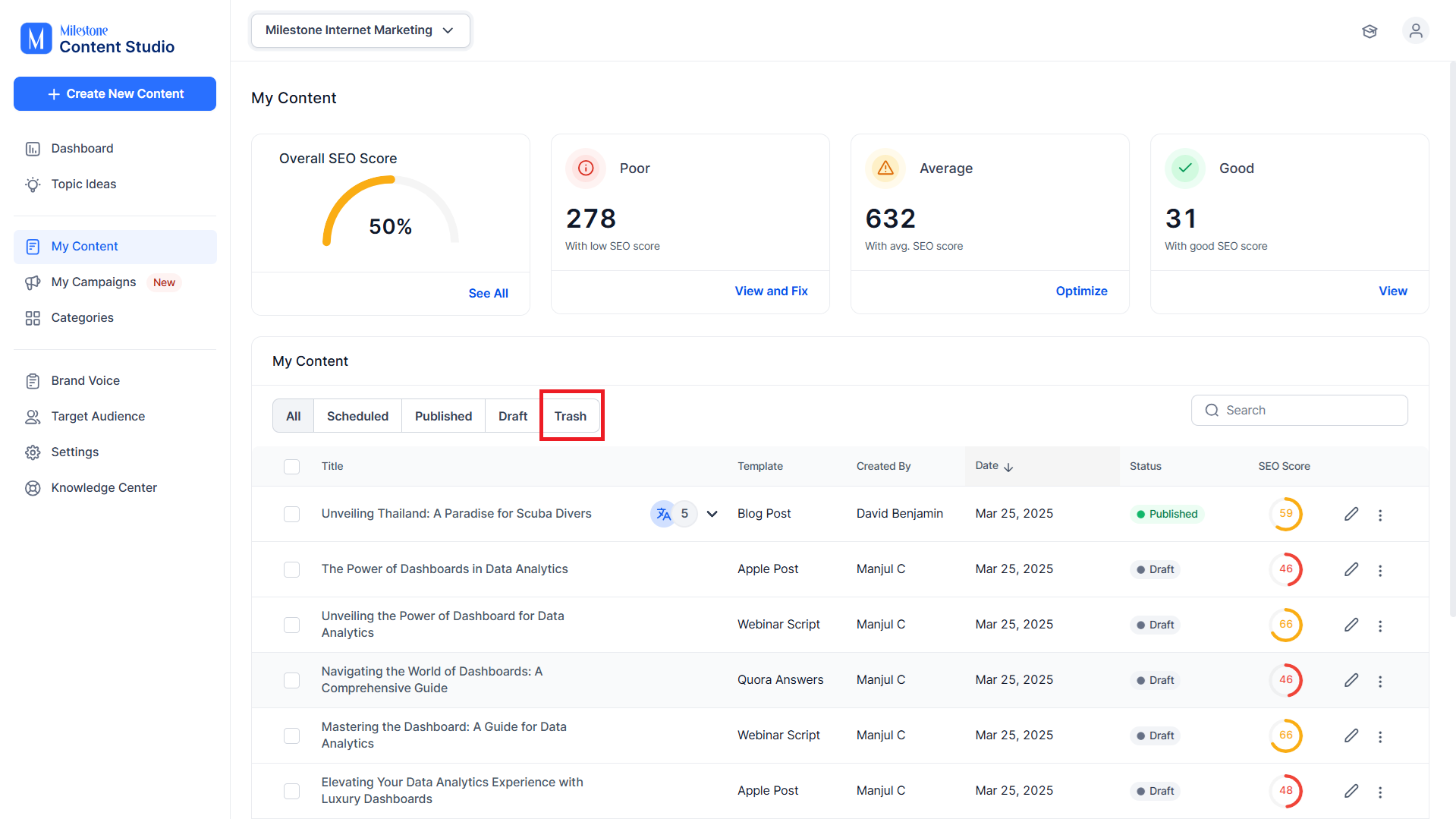
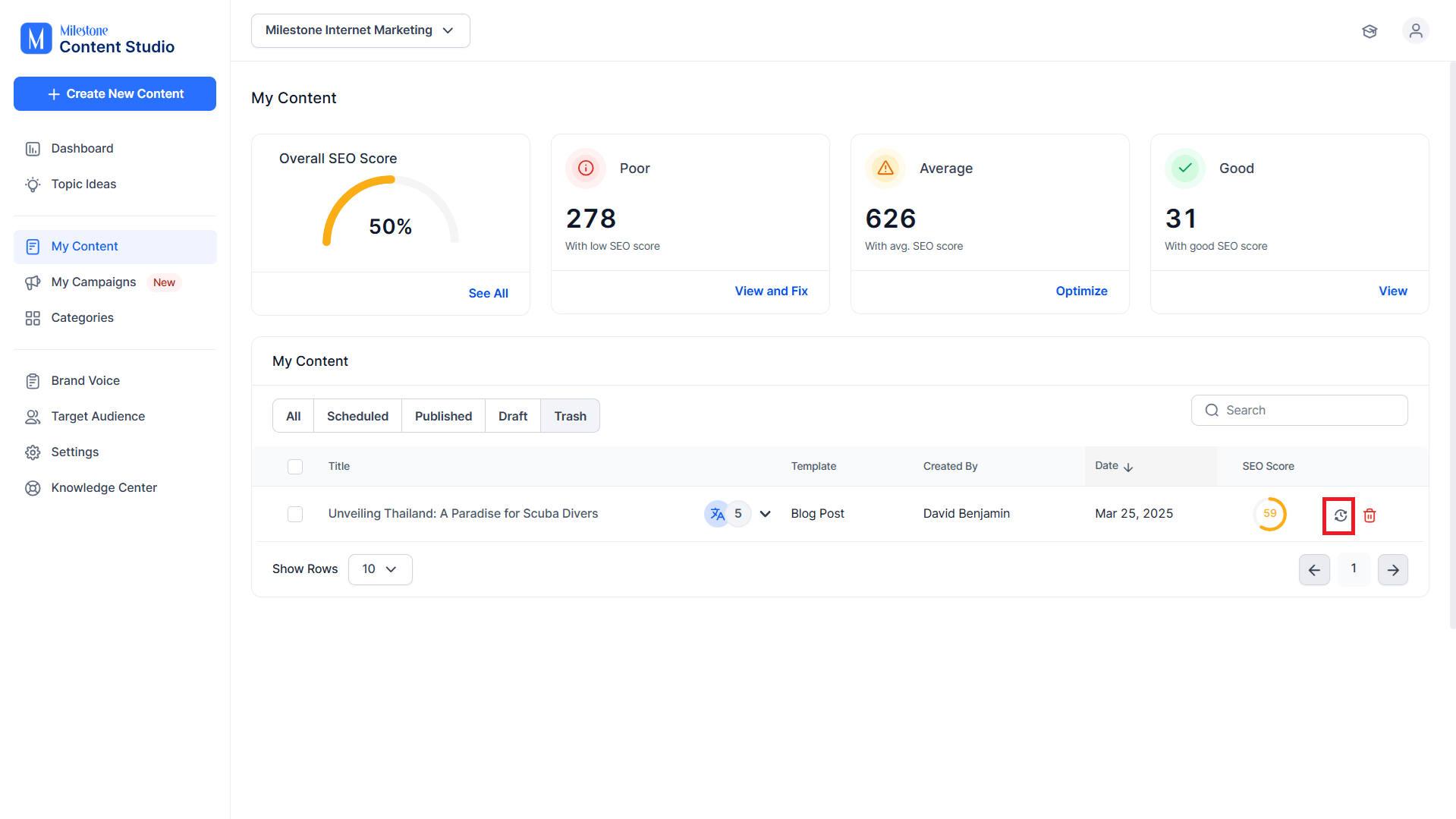
Step 4: To view the articles temporarily stored in Trash, click on the ‘Trash’ tab at the top of this section.
Step 5: To restore an article, click on the ‘Restore’ icon corresponding to it.
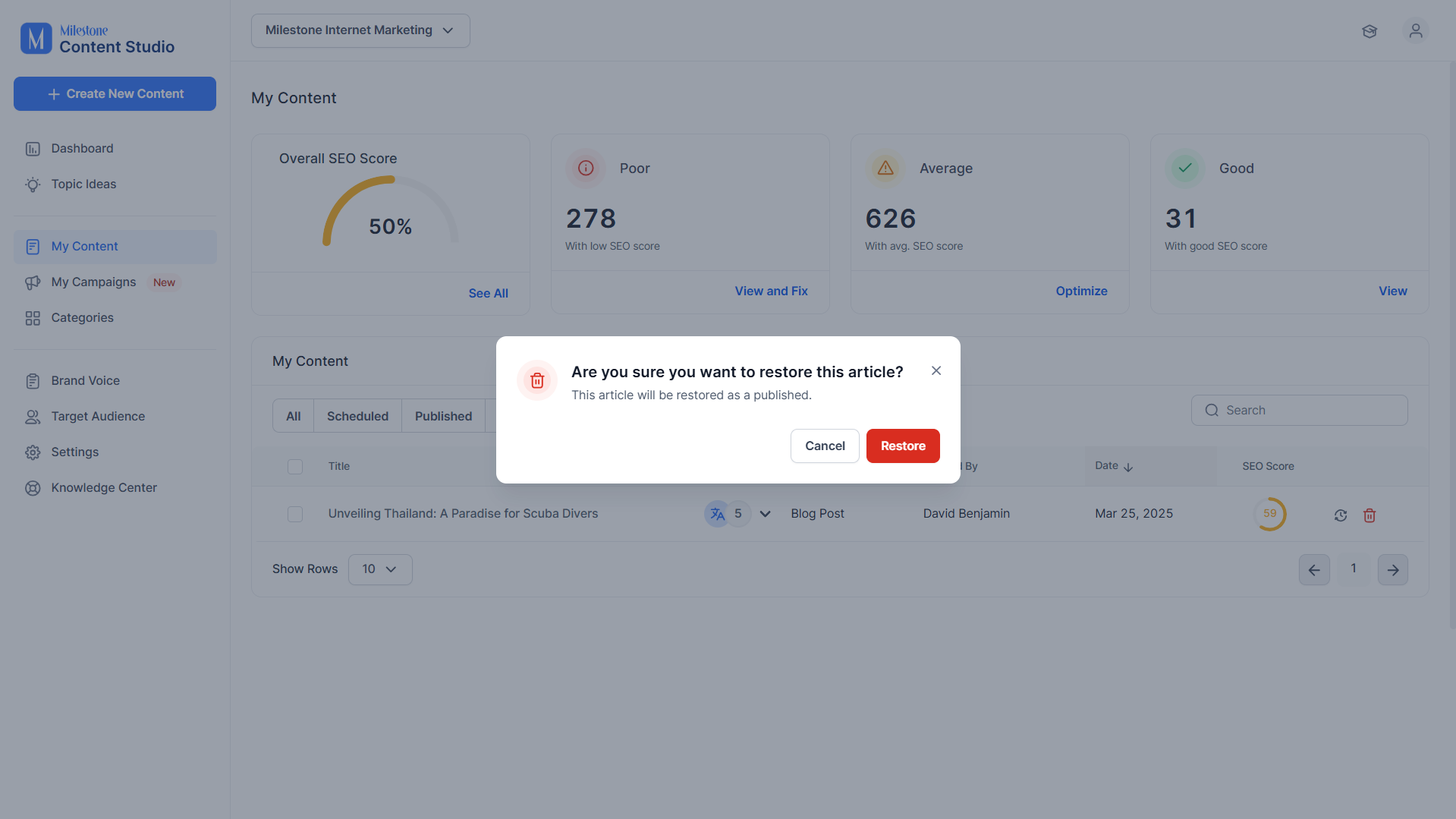
Step 6: You will be notified that by restoring this article, you will be republishing it.
Was this article helpful?
That’s Great!
Thank you for your feedback
Sorry! We couldn't be helpful
Thank you for your feedback
Feedback sent
We appreciate your effort and will try to fix the article