Page Studio lets you manage overlay components on a page with ease. Just go to Page Layers and see the various components deployed on the page and manage them from a single place.
Adding an Overlay Component
Step 1: To add an overlay component to a page, click on the components menu at the right of the page editor.
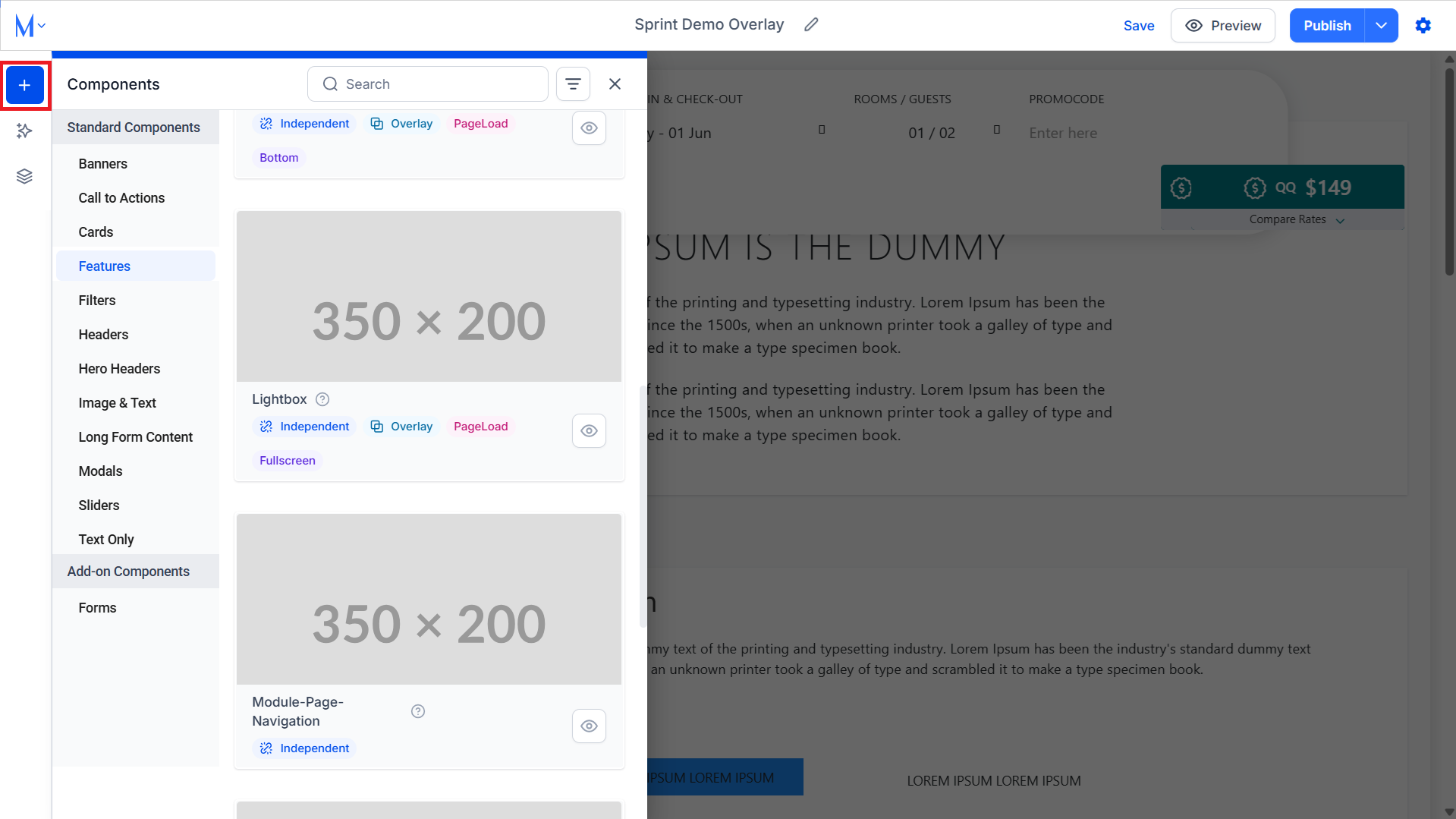
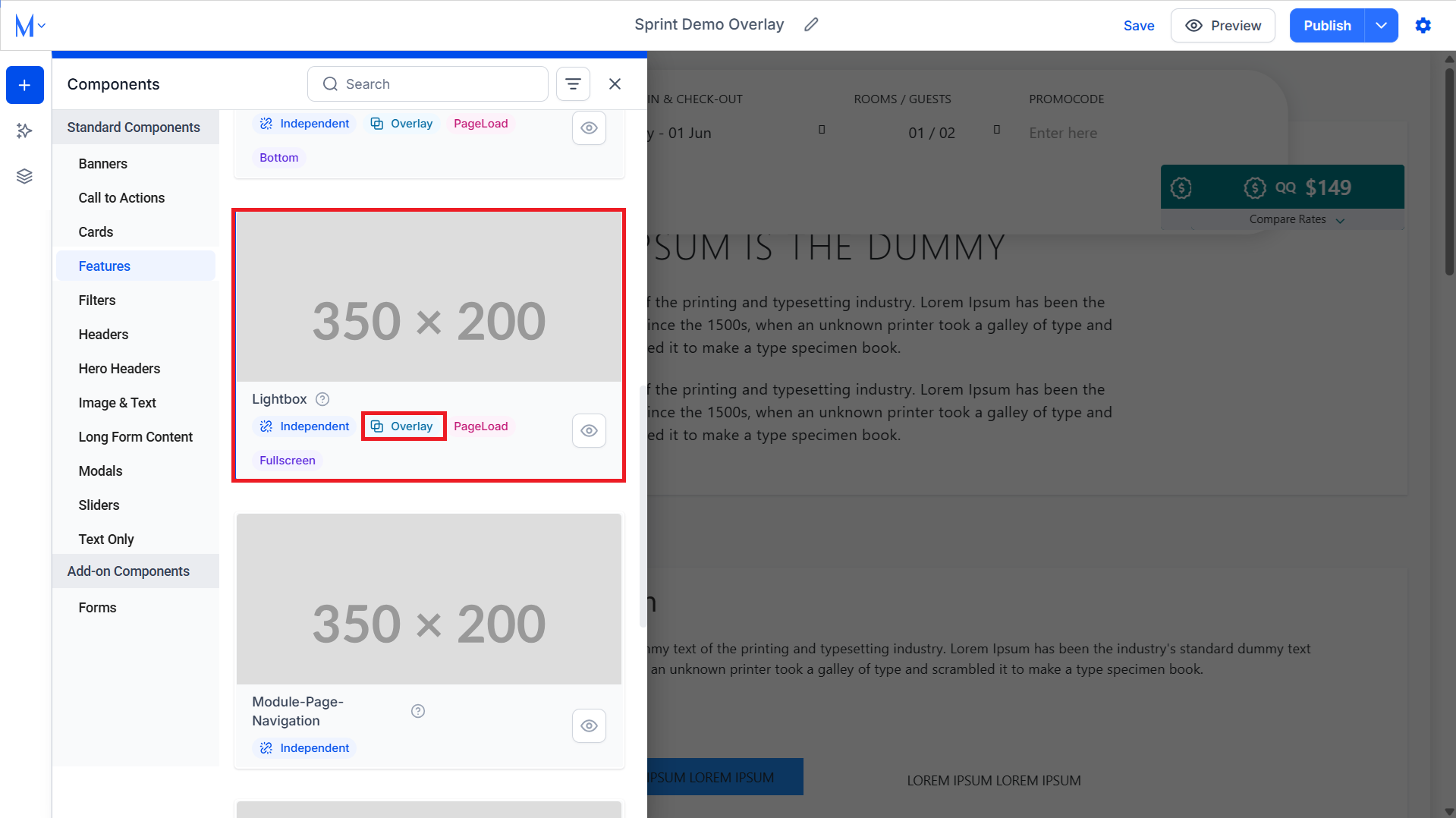
Step 2: Select the type of overlay component you want to add to the page. Overlay components will have the ‘Overlay’ tag attached to them.
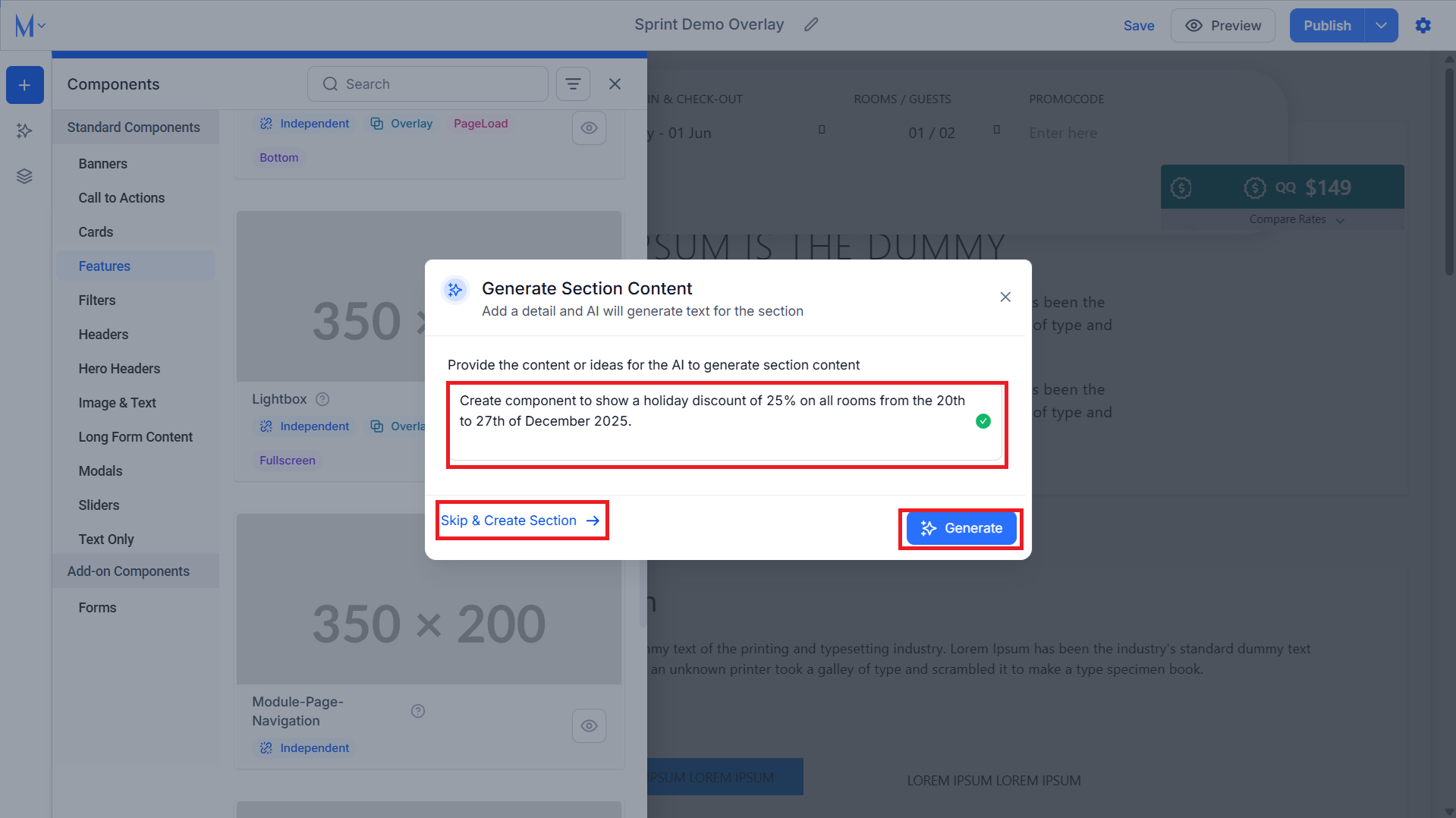
Step 3: You can use AI to generate content for the overlay by providing it an idea of what you want to use the overlay for or go ahead and click on ‘Skip & Create Section’ if you want to manually add content for this section.
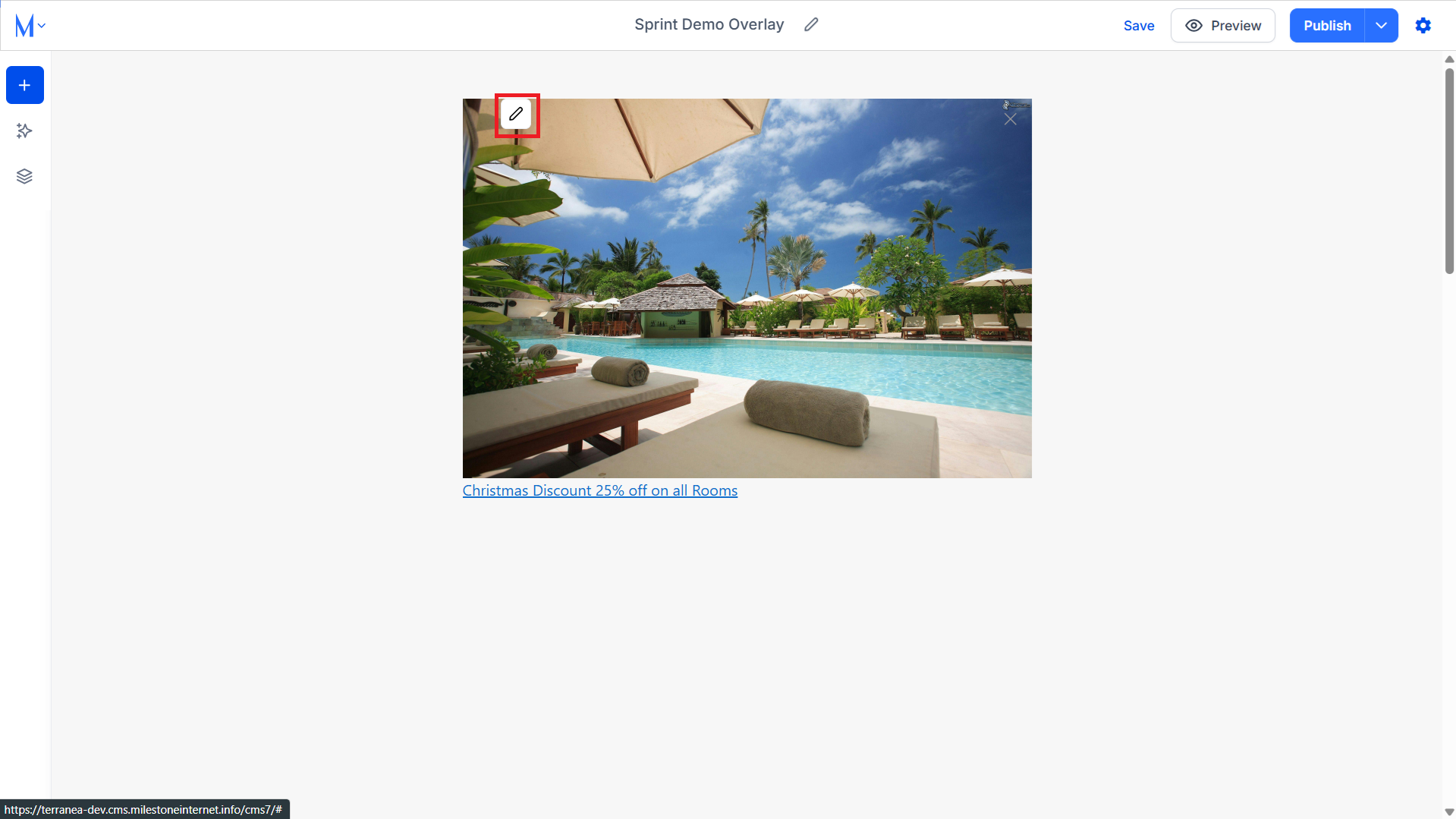
Step 4: Once the overlay is deployed you can click on the edit icon to change elements within it.
Editing Overlays on a Page
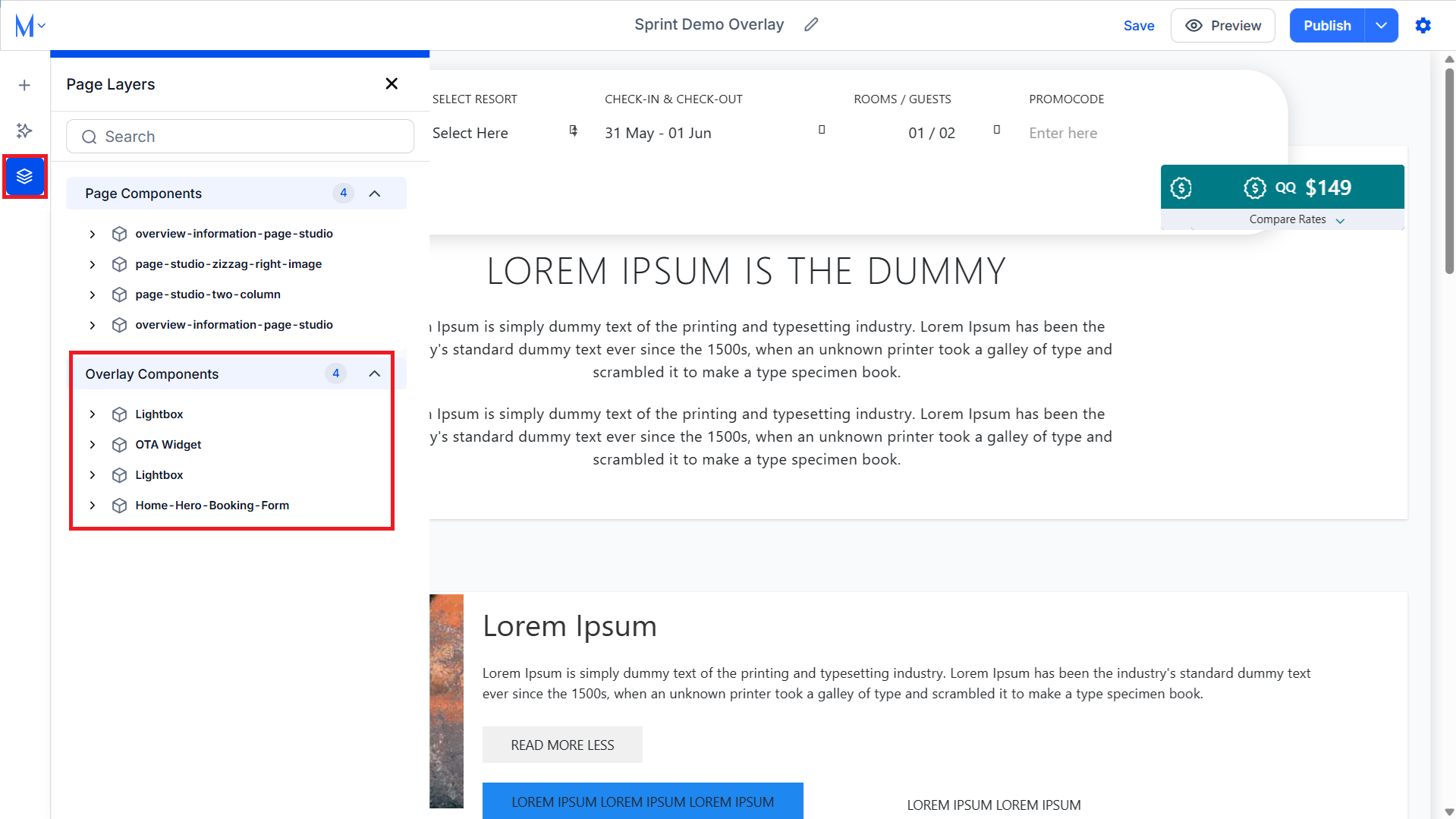
Step 1: To view the overlays deployed on a page click on the ‘Page Layers’ icon in the left menu.
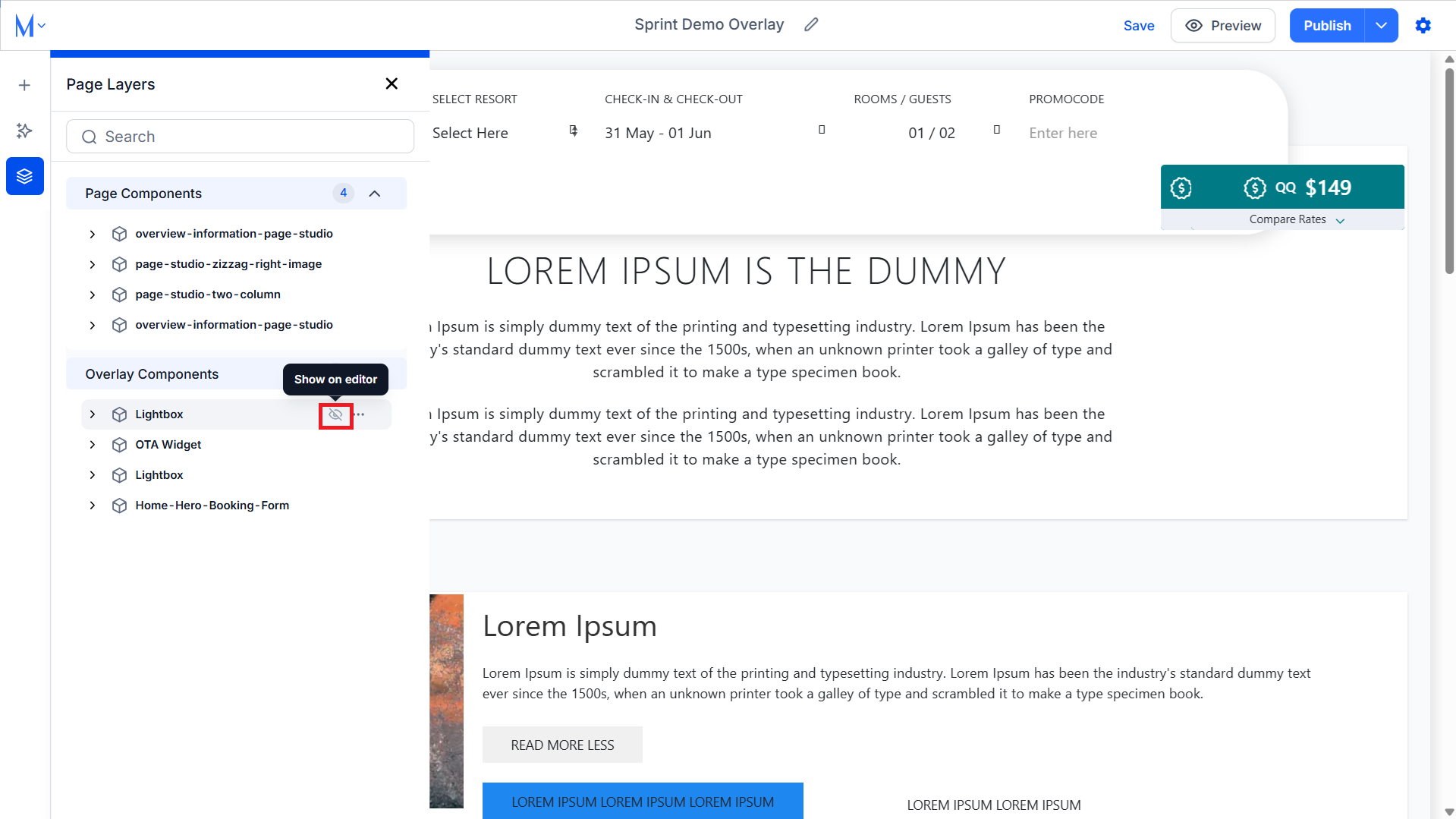
Step 2: Click on the ‘Show on Editor’ icon to surface the overlay in the editor.
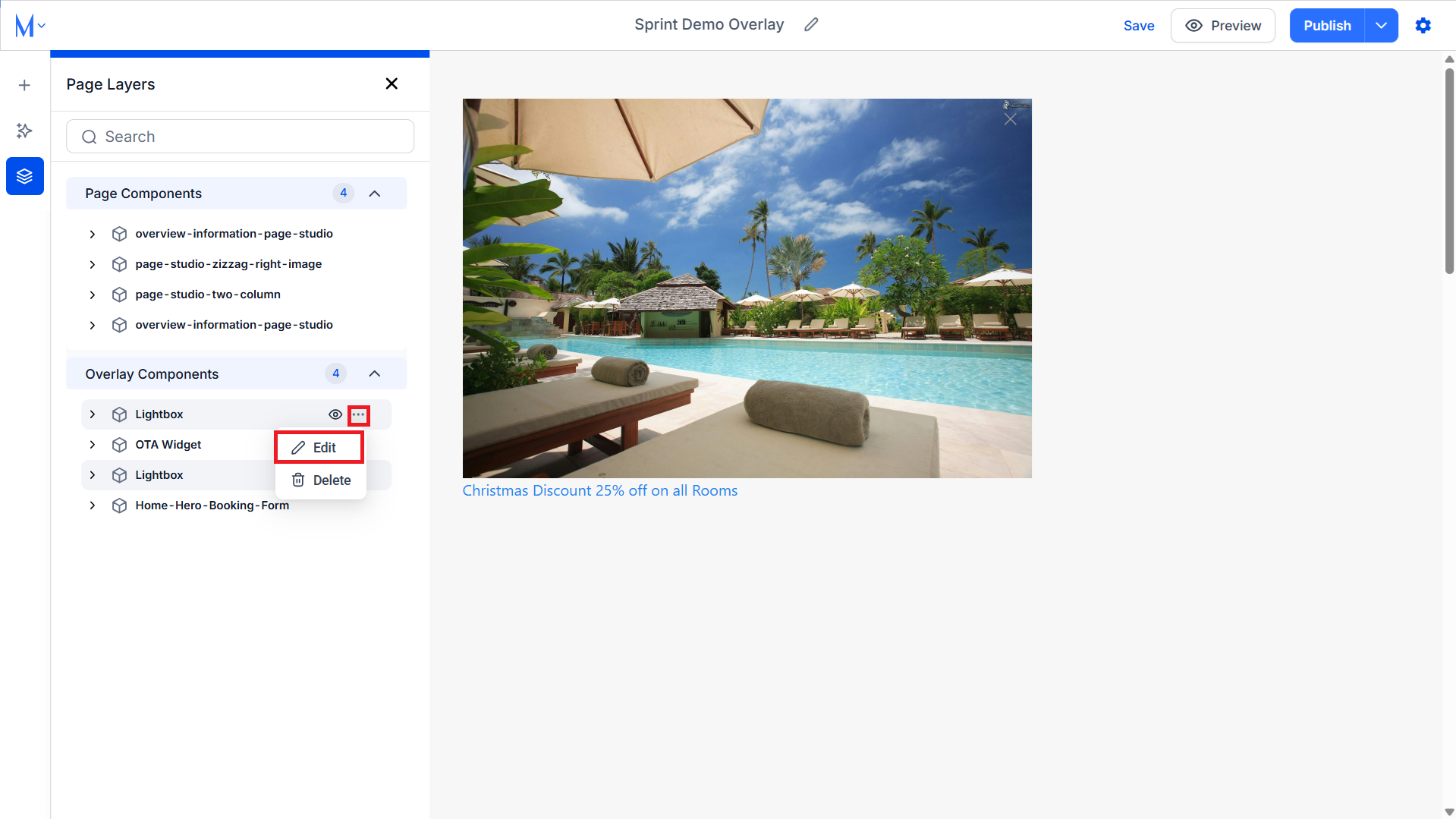
Step 3: Click on the three-dot menu to edit the elements of the overlay.
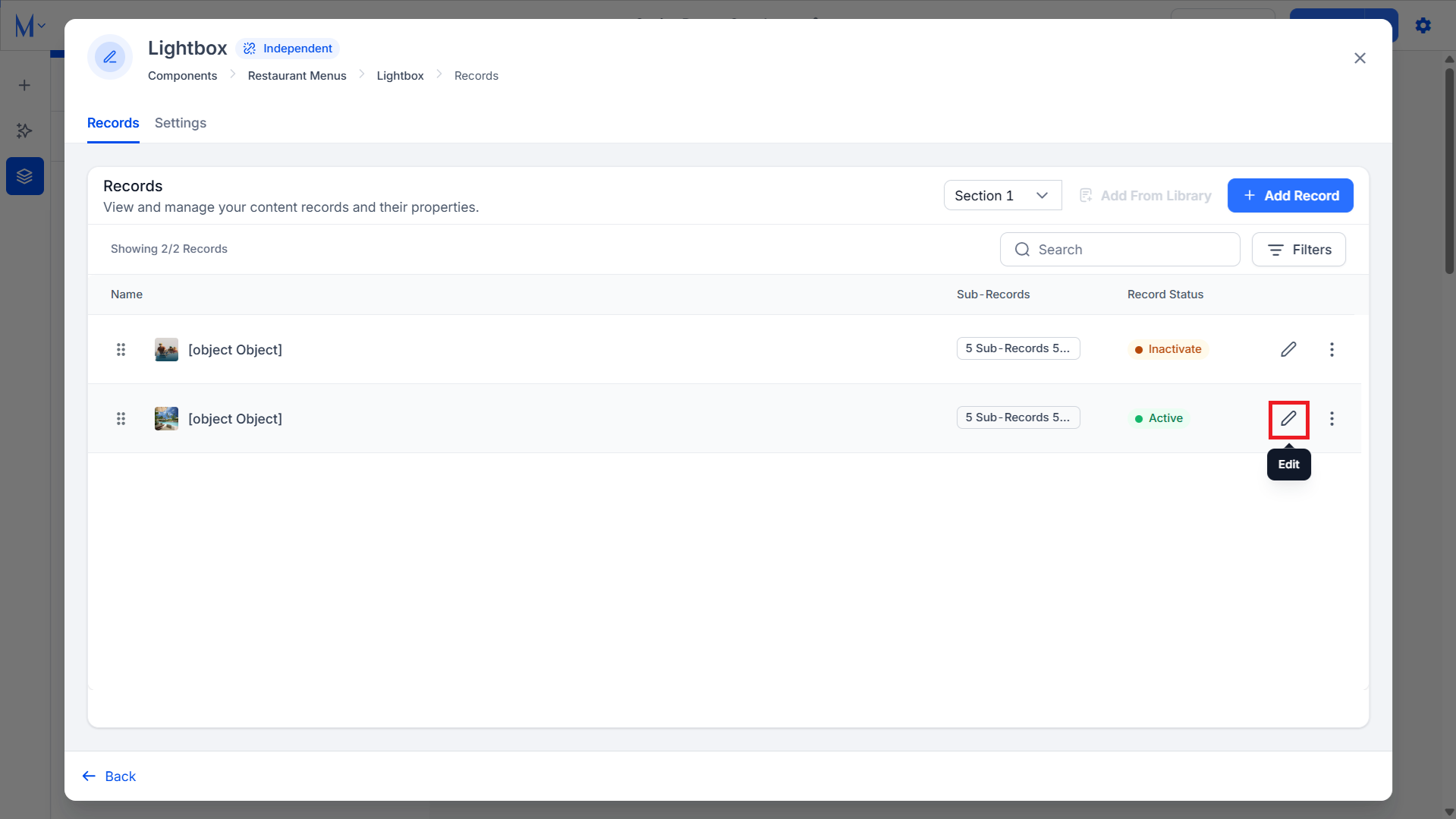
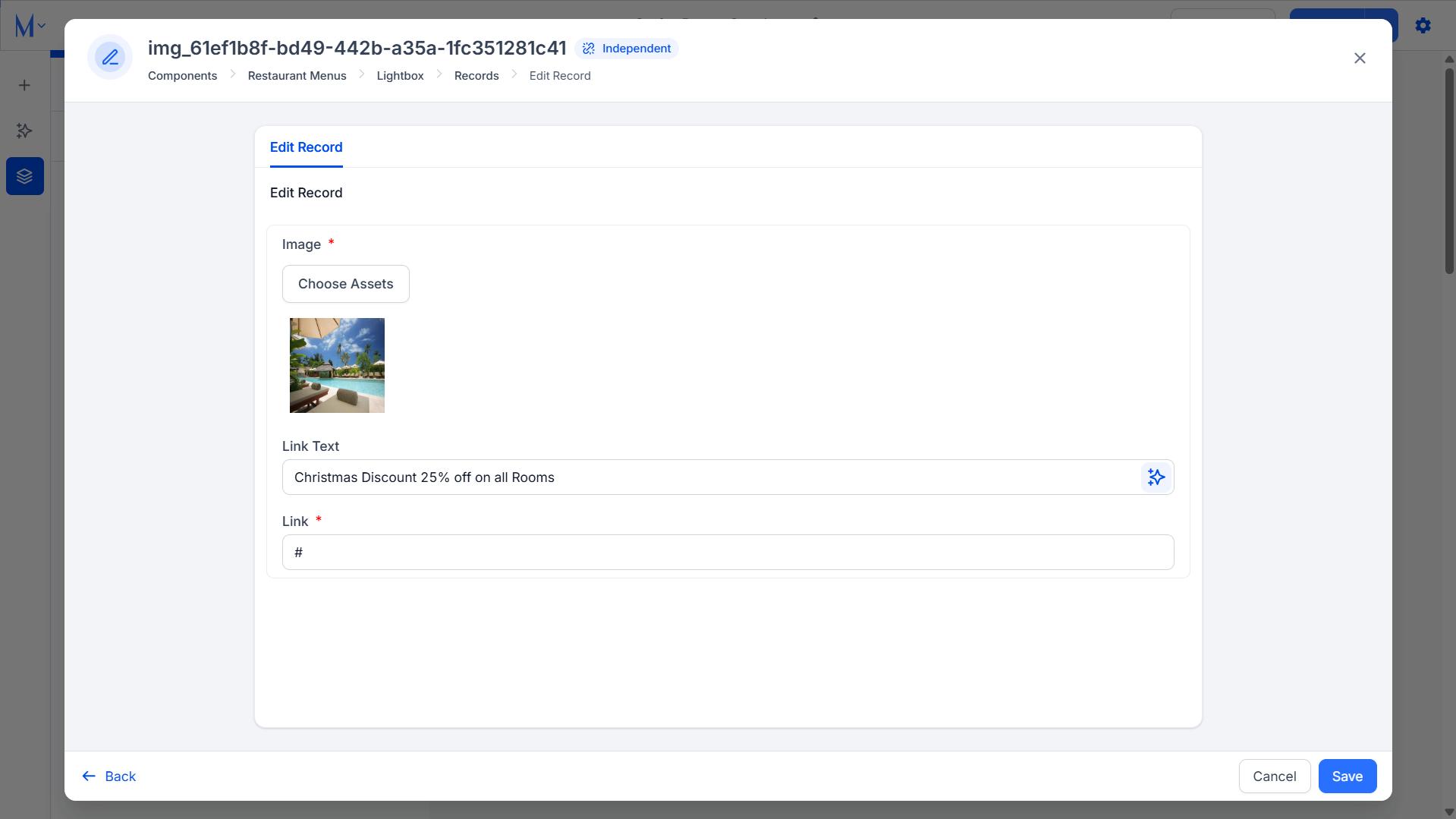
Step 4: You can view the records for the overlay and edit them here. Click on the edit icon corresponding to the record you want to edit.
Step 5: Here you can edit the record elements.
Was this article helpful?
That’s Great!
Thank you for your feedback
Sorry! We couldn't be helpful
Thank you for your feedback
Feedback sent
We appreciate your effort and will try to fix the article