In this article you will learn about the functionalities of the Blog Component within Milestone Page Studio and how to manage this component on page.
Adding a Blog Component
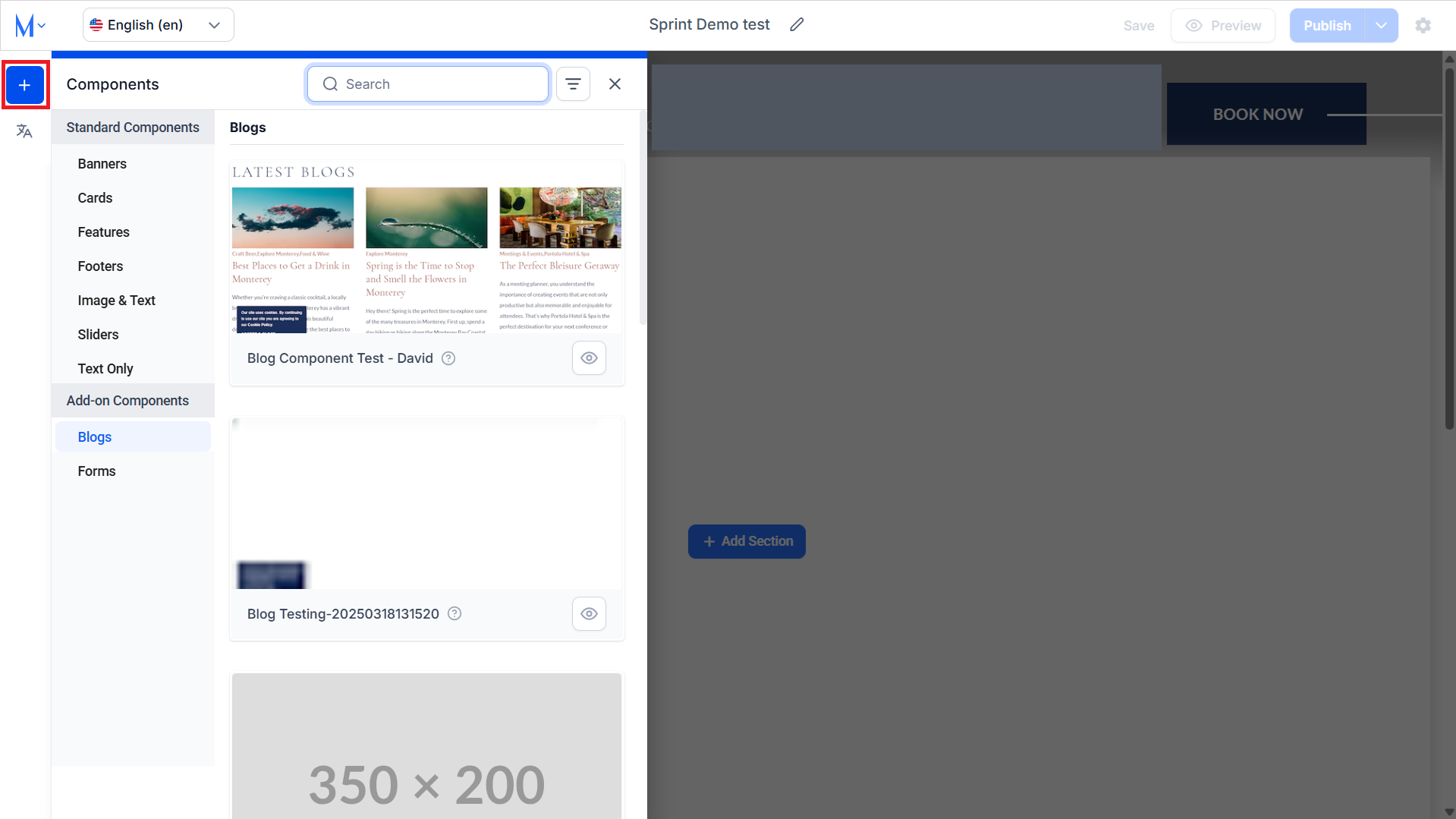
Step 1: Click on the ‘+’ icon in the left navigation panel of the Page Studio editor.
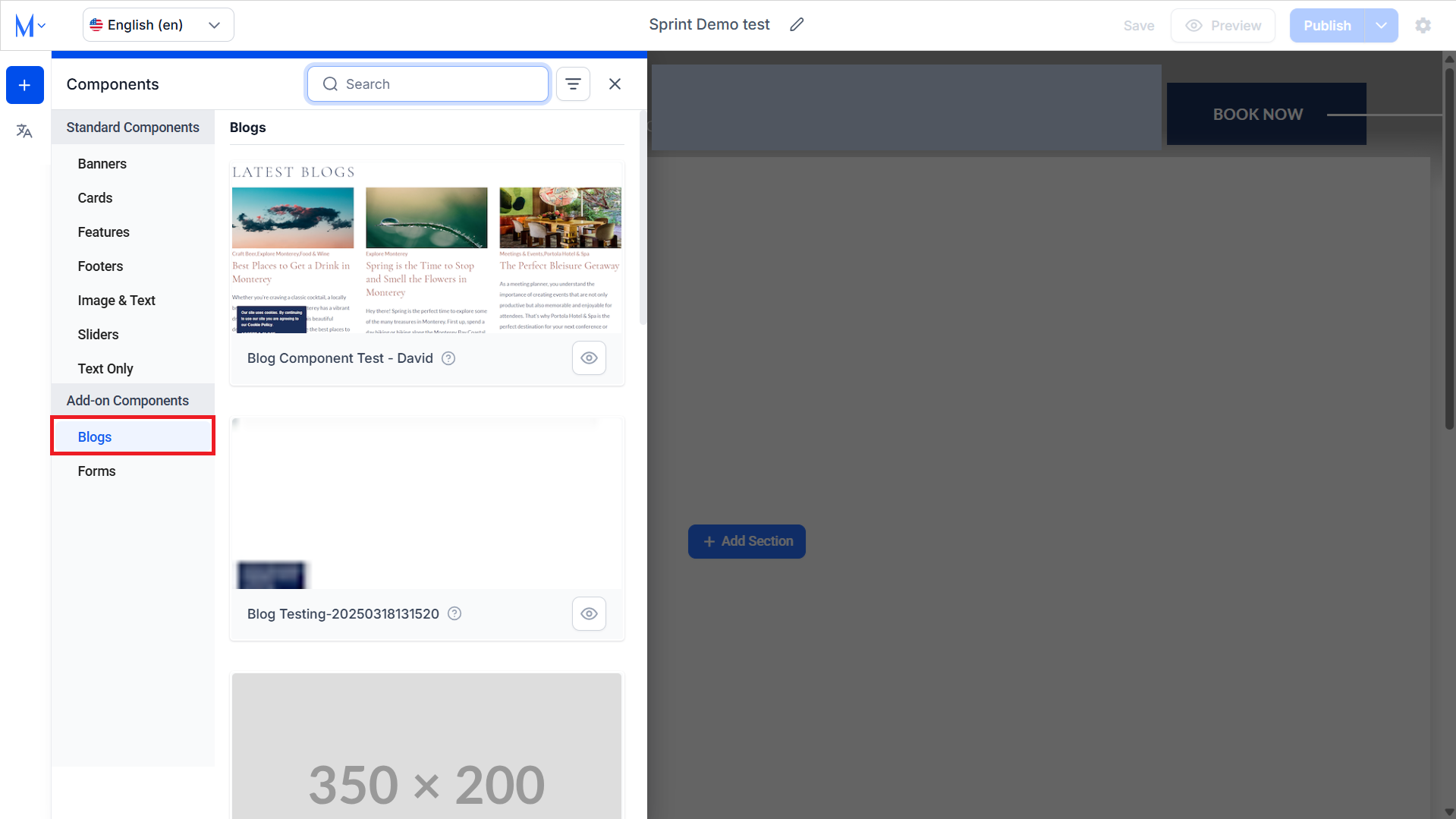
Step 2: Select ‘Blogs’ under ‘Add-on Components’.
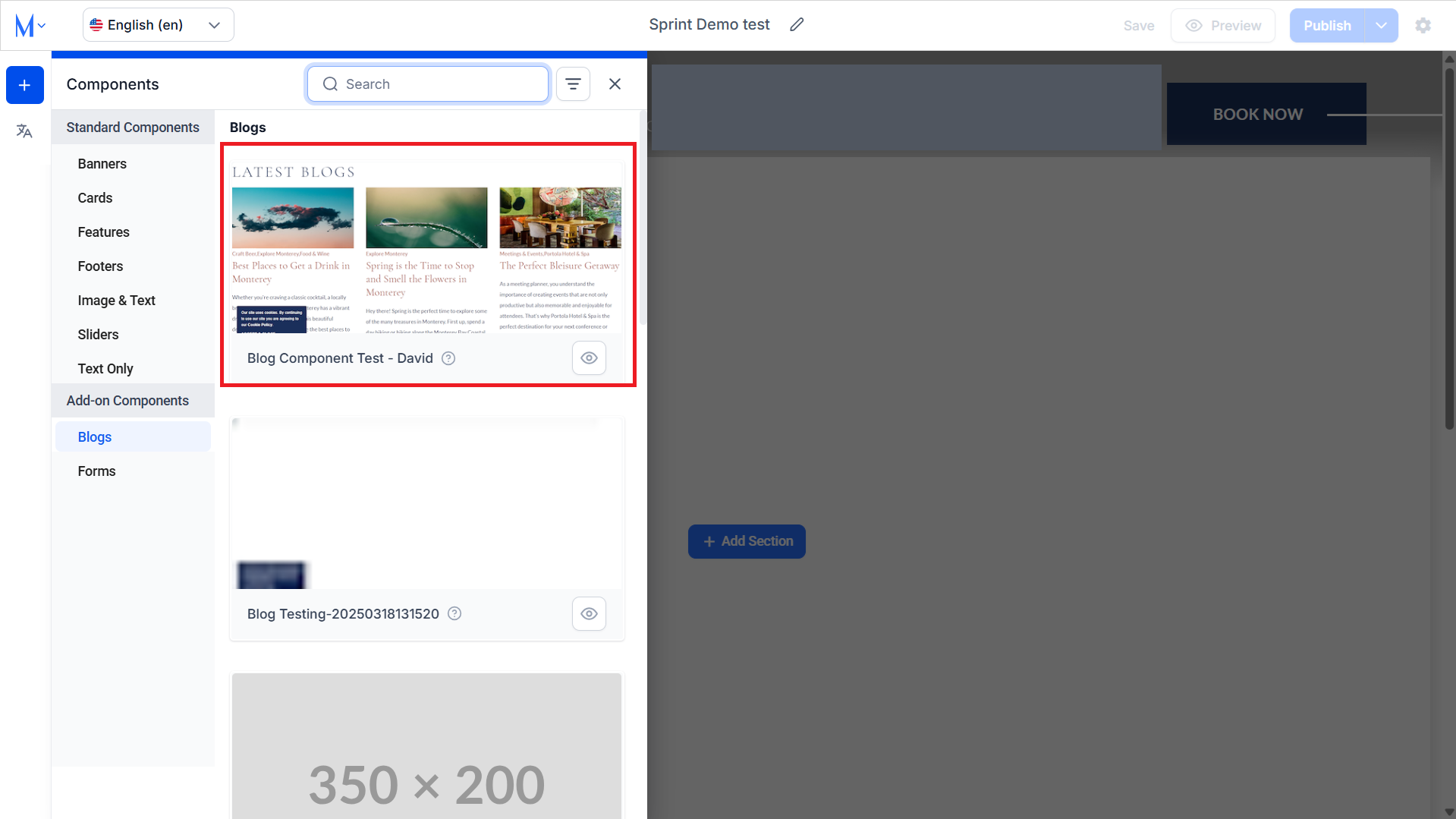
Step 3: Select the Blog Component type.
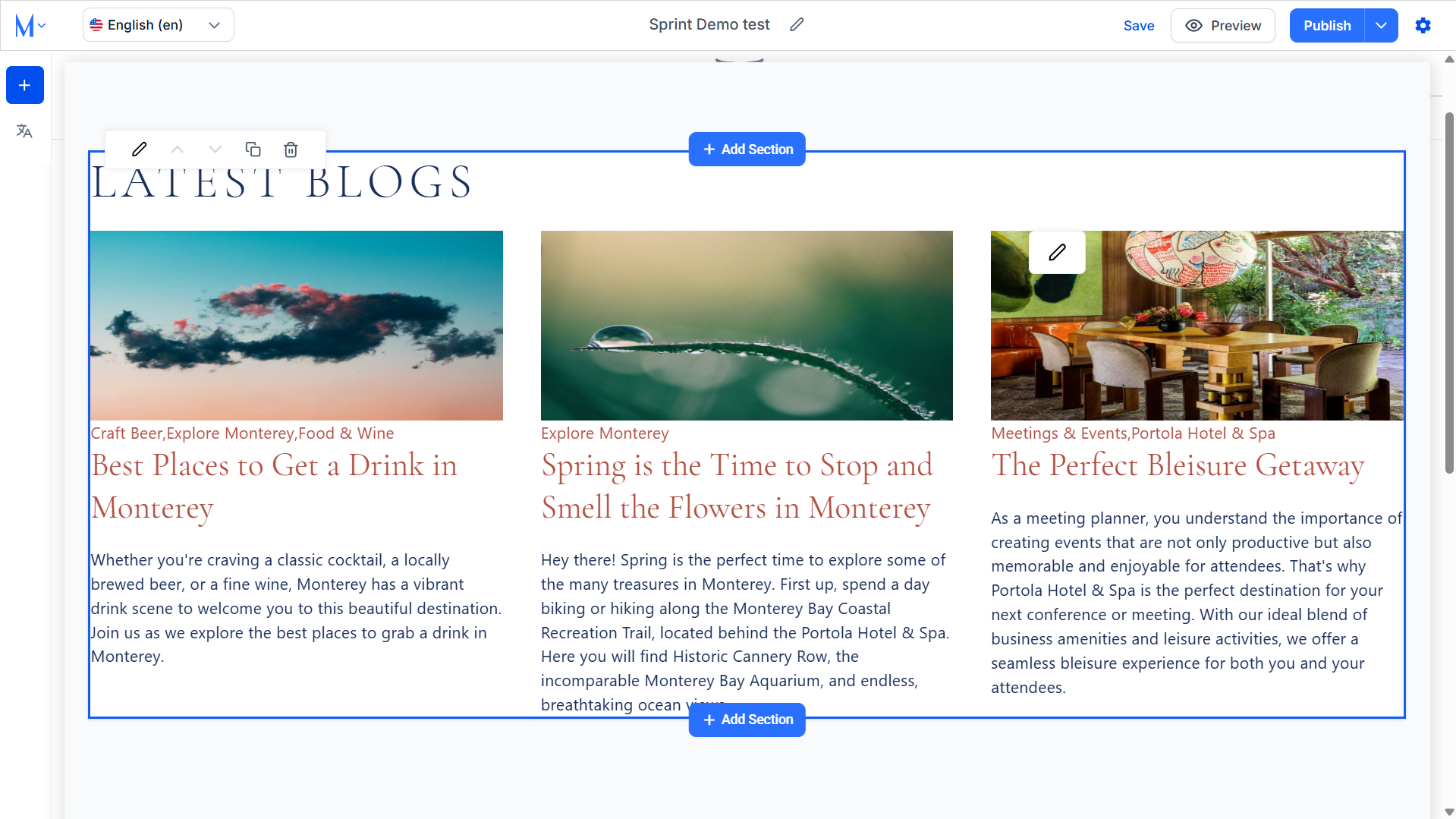
The blog component will be added to the page.
Managing Blog Components
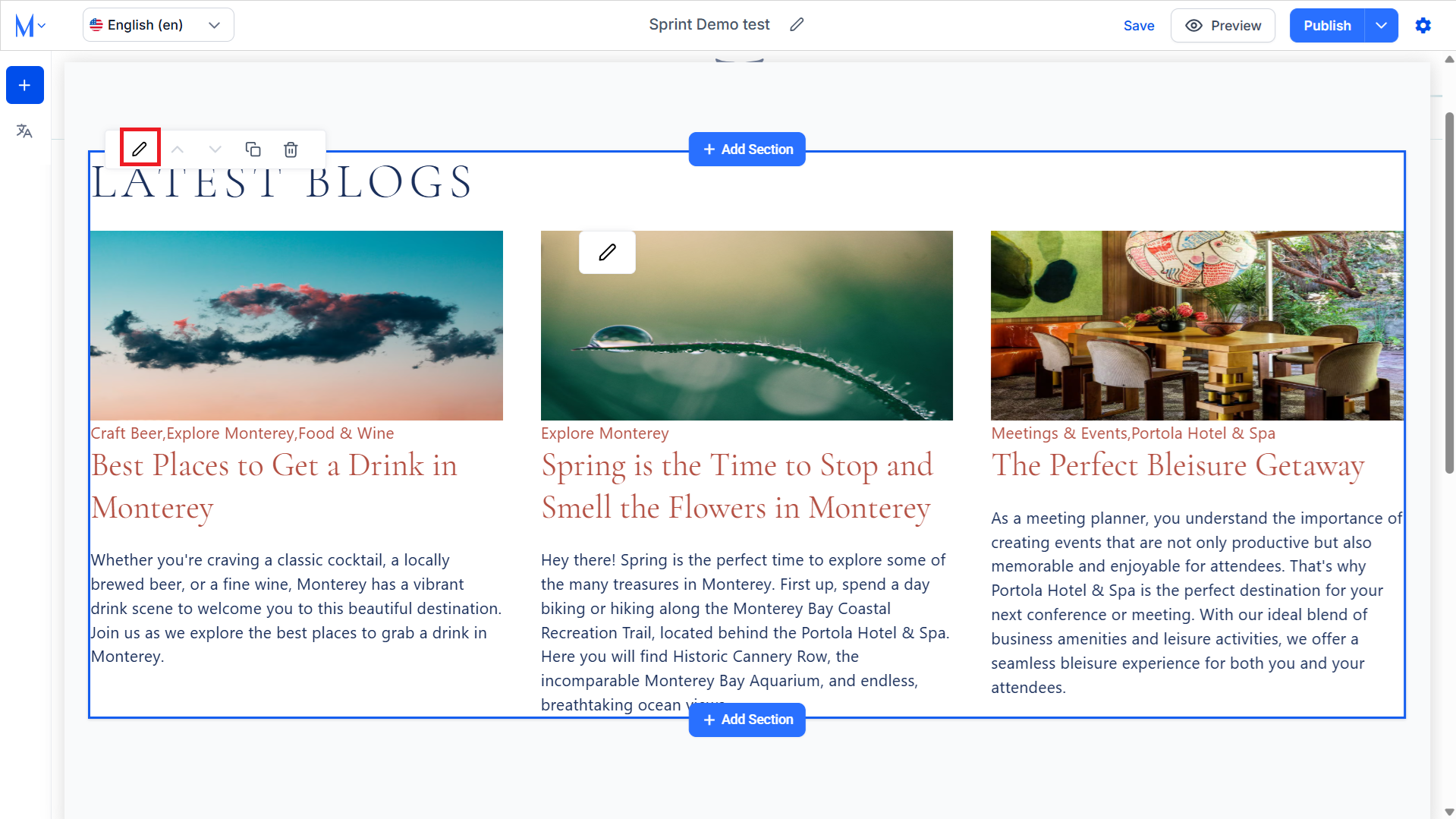
Step 1: Click on the edit icon within the component to manage elements of the blog component.
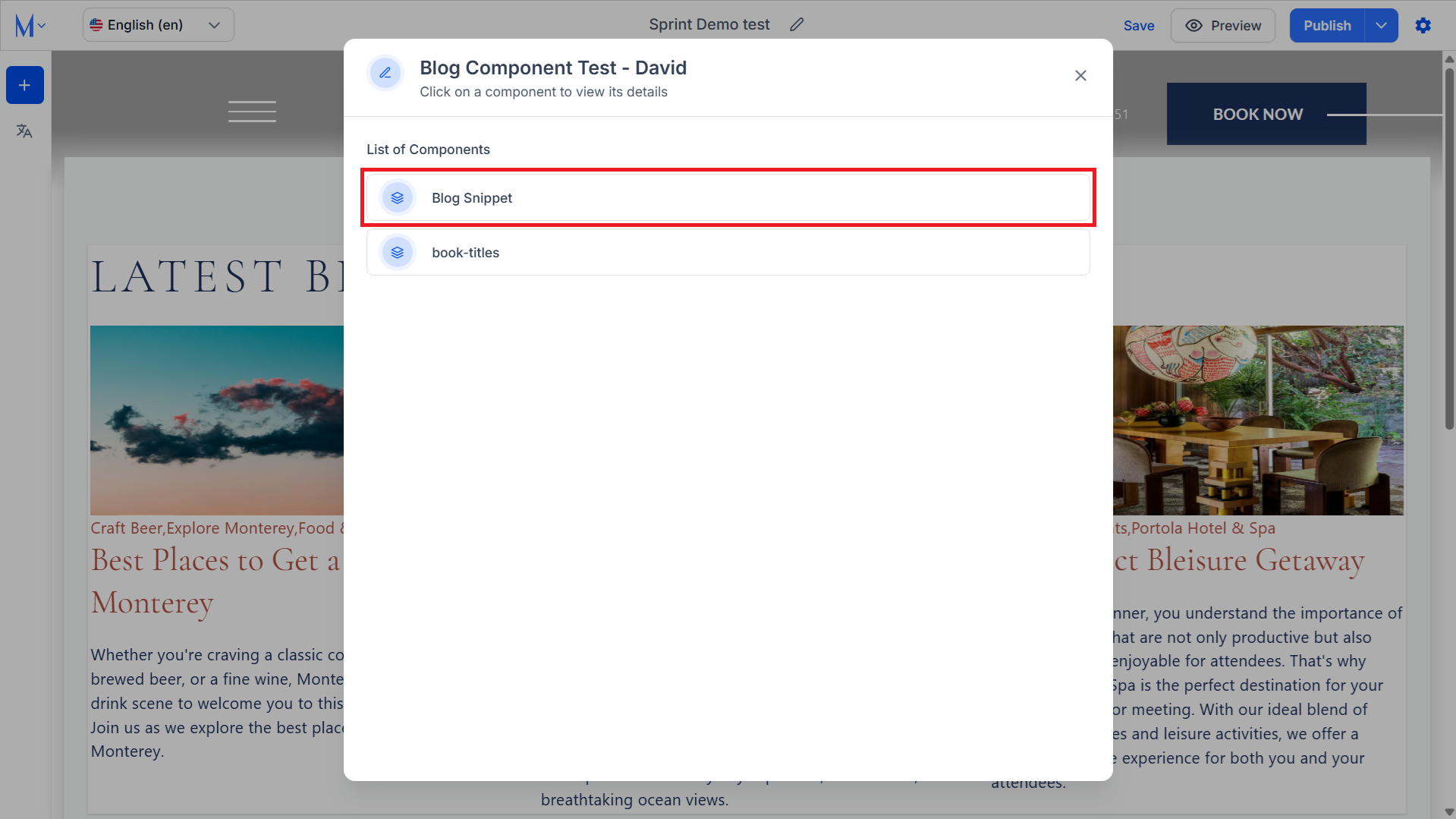
Step 2: Select the Blog Snippet component to edit.
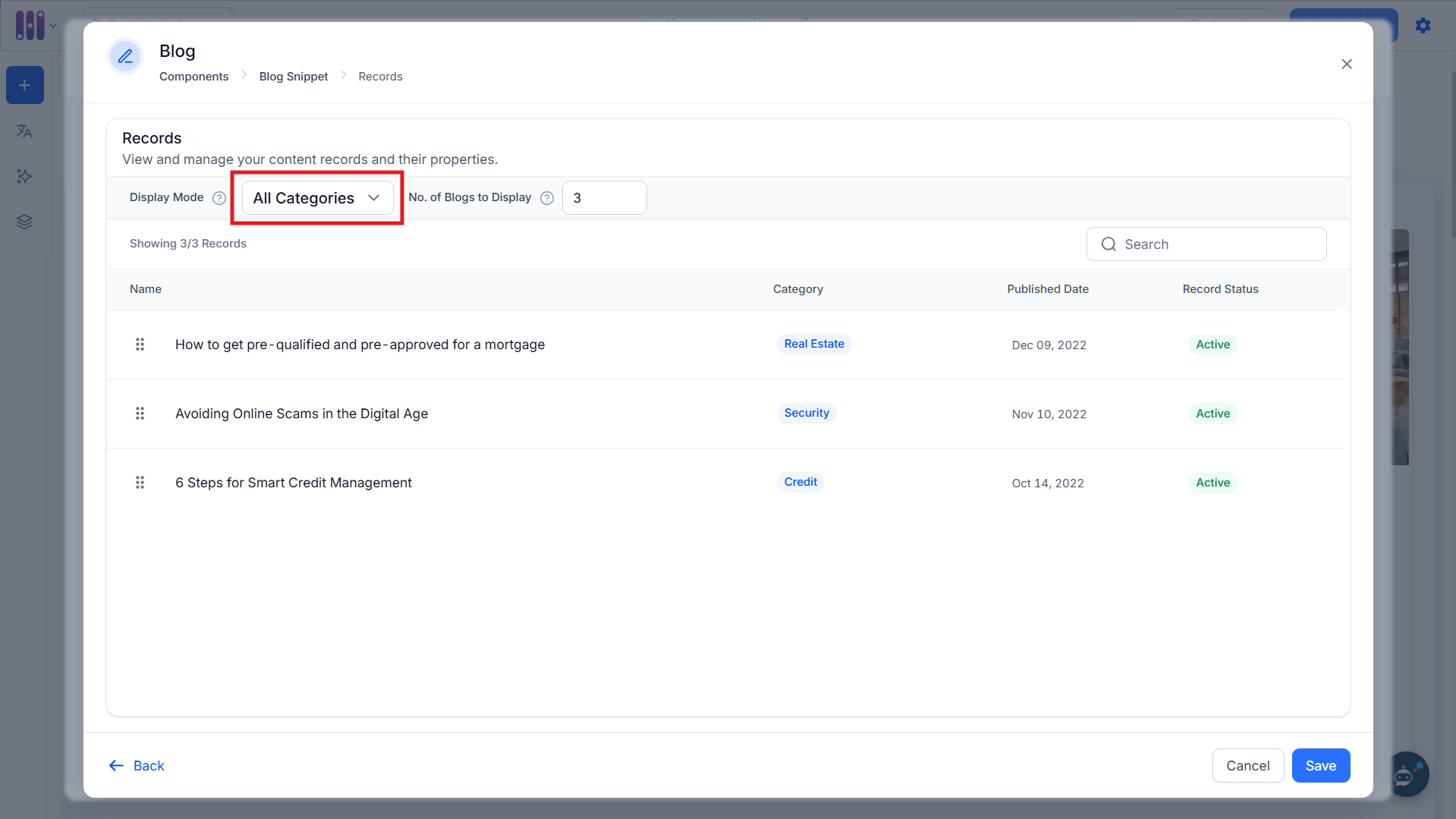
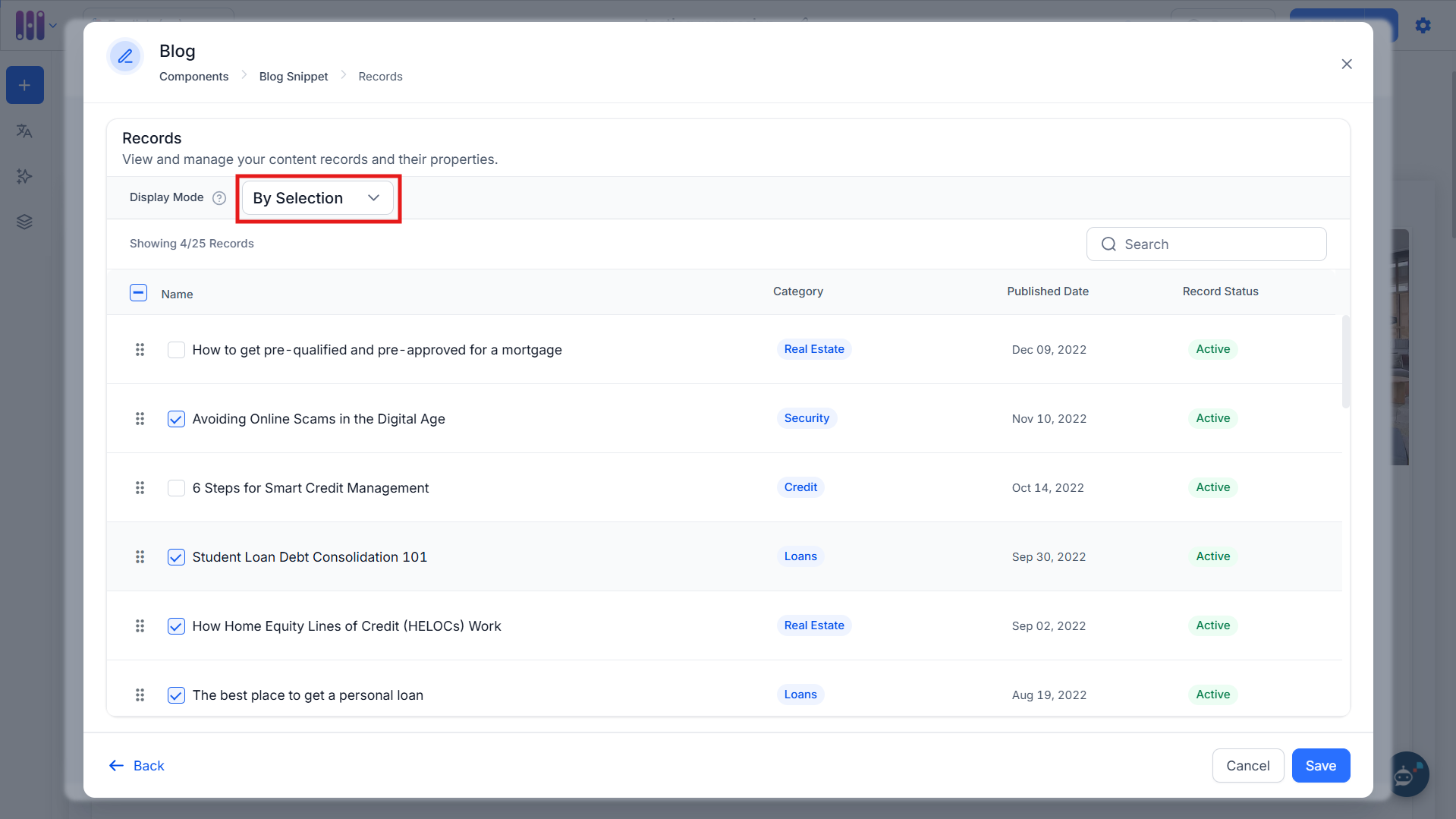
Step 3: Select the Display Mode:
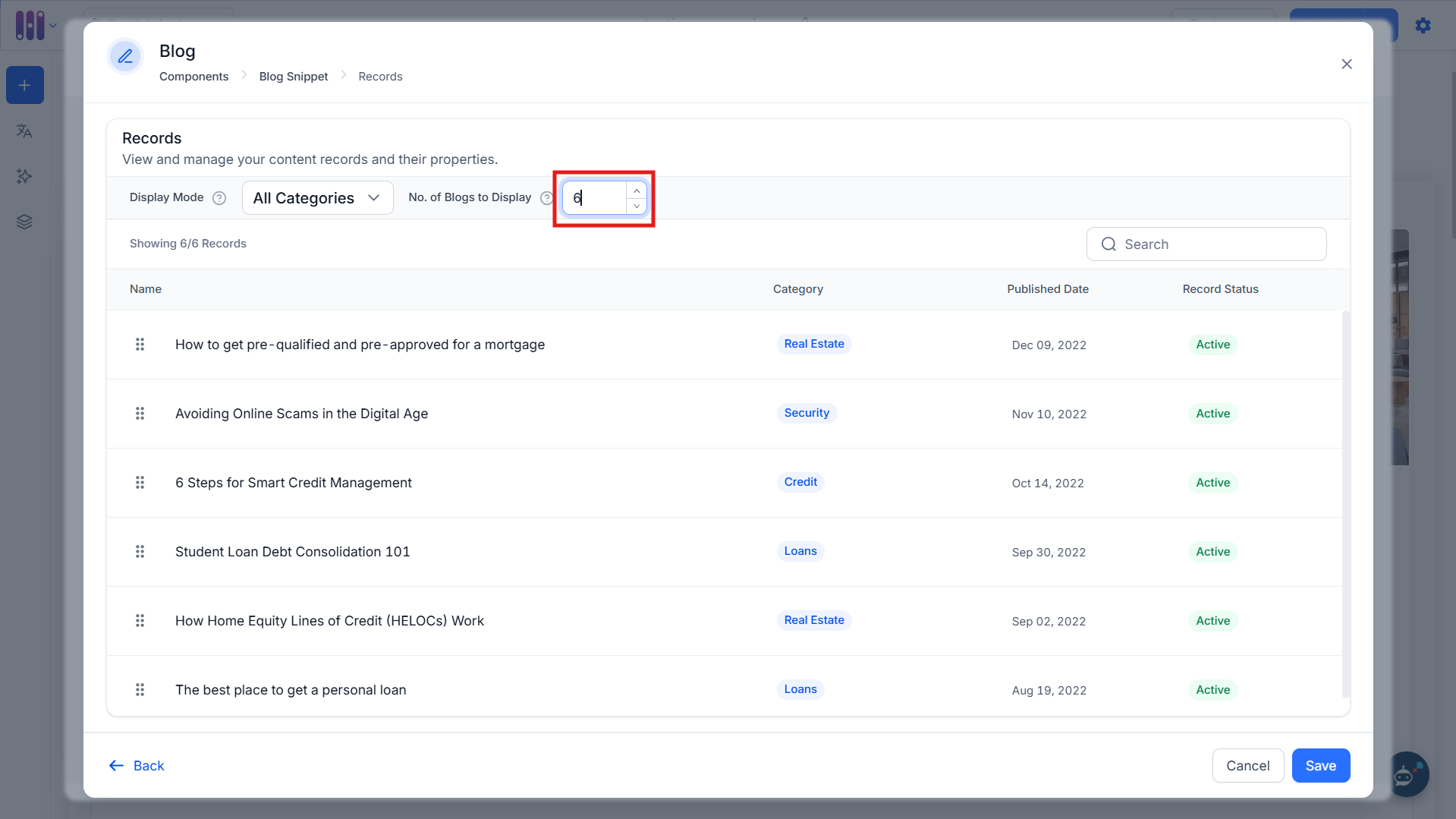
- All Categories: This option displays blogs from across categories on the page.
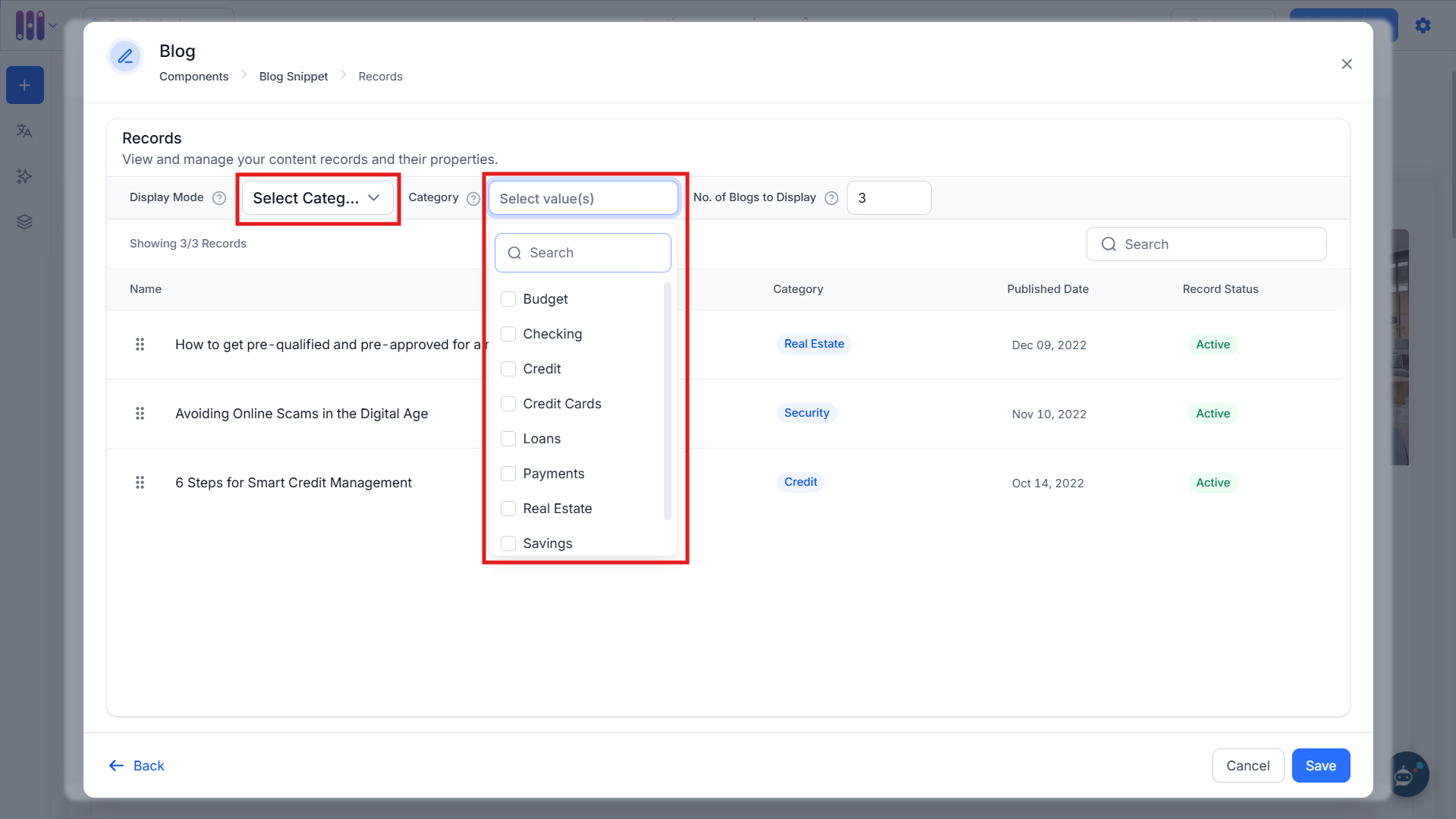
- Select Category: This option allows you to select specific categories of blogs you want to display on the page. It is recommended to select blog categories relevant to the page on which the component is deployed.
- By Selection: This option allows you to manually select the blogs you want to display on the page.
Step 4: Select the number of blogs you would like to display on the page. You can select upto 50 blogs to display.
Was this article helpful?
That’s Great!
Thank you for your feedback
Sorry! We couldn't be helpful
Thank you for your feedback
Feedback sent
We appreciate your effort and will try to fix the article