Resetting Password
If you encounter any difficulties logging into your MPC account, such as password forgetfulness or other access-related concerns, there is no need to worry. We are here to promptly assist you in resolving the issue. To help you troubleshoot, consider the following potential causes of login failure:
- Incorrect entry of email address or password.
- Accidental inclusion of extra spaces when pasting/entering the email address or password.
- Browser settings and plugins could be causing the problem. Rest assured that if your browser's settings remain at their default values, you should not encounter any issues.
Please review each of the points above to address the problem or continue reading to learn how to reset your password.
To follow the best security practices of the organization, you must change the password for your MPC account regularly.
To reset your password, follow the instructions below:
Step 1: On the Milestone Presence Cloud sign-in page, click the Forgot Your Password link.
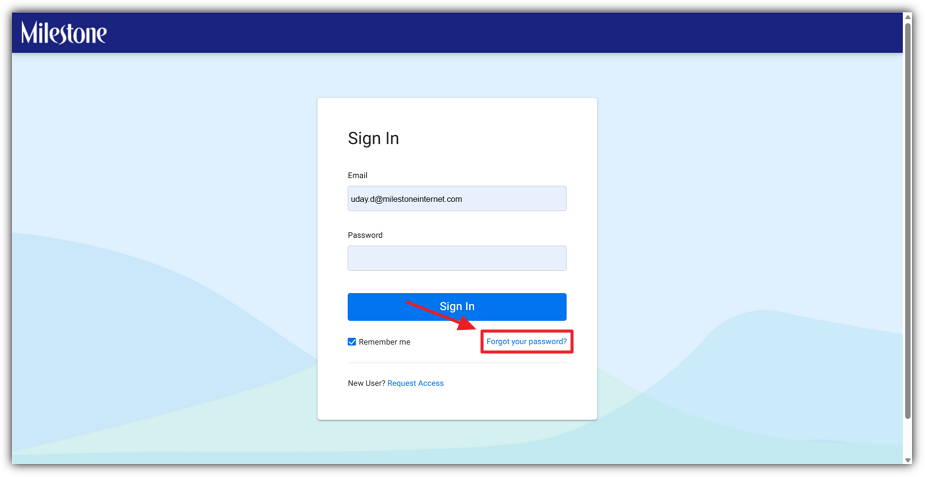
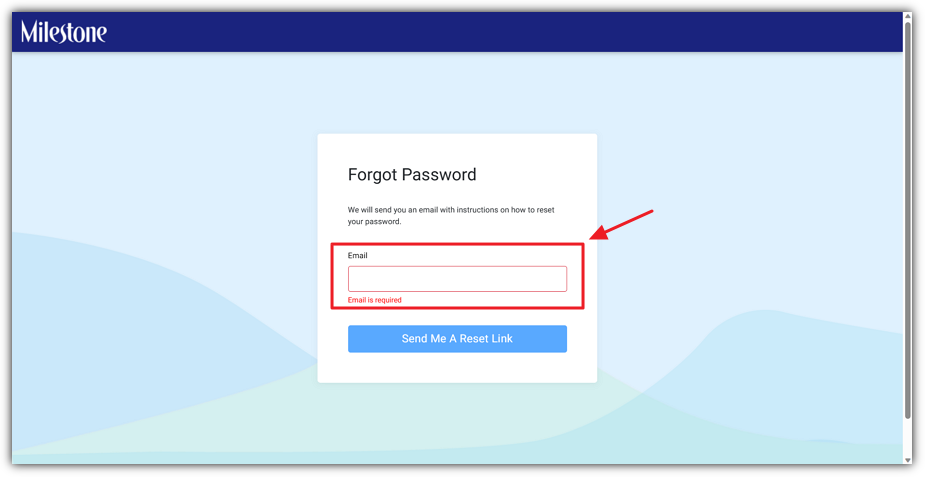
The Forgot Password page will load.
Step 2: Enter the email address associated with the MPC account.
Step 3: Click the Send Me A Reset Link button.
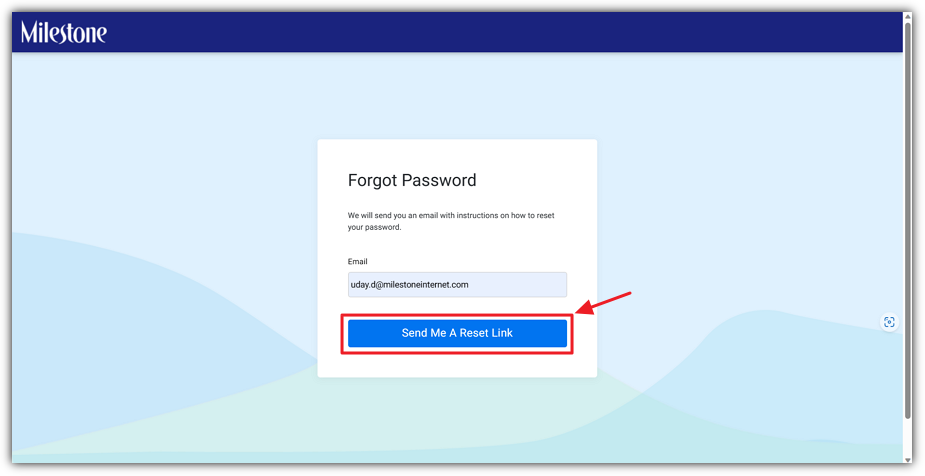
An email with instructions on how to reset the password will be sent to the email address entered.
Step 4: Check the email address's inbox for correspondence from no-reply@app.milestoneinternet.com with a subject “Reset Your Password.”
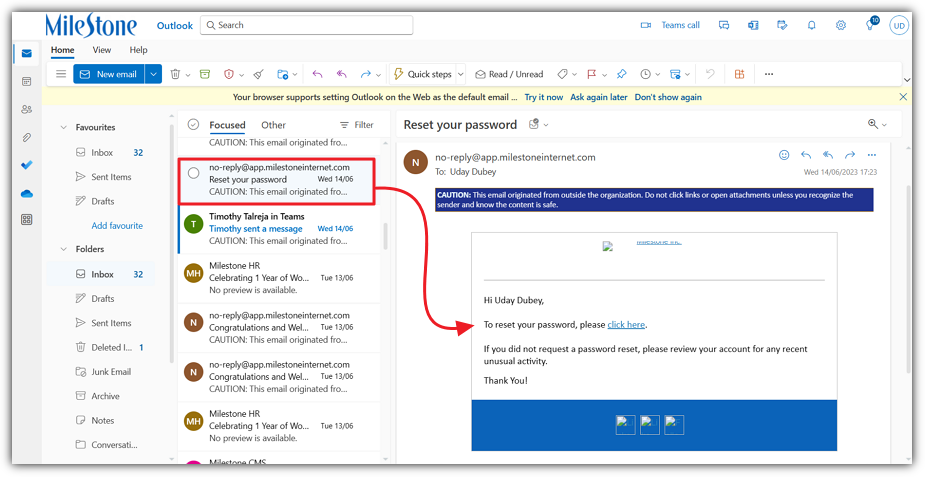
Step 5: To reset the password, access the mail. If you do not see an email from the above address in your inbox within a few minutes, check your spam or junk folder. In case you no longer have access to the email account, reach out to your Customer Success Manager for assistance.
Step 6: Click the text that says Click here once you open the email to enter the new password.
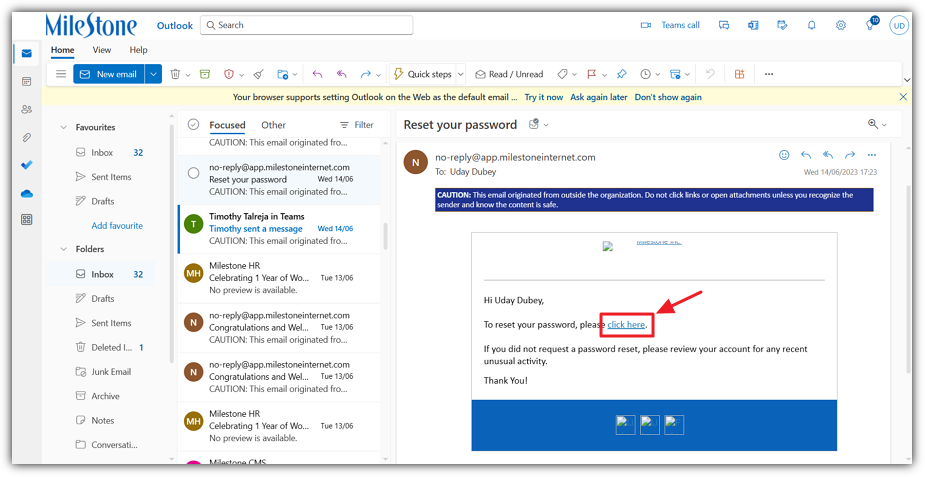
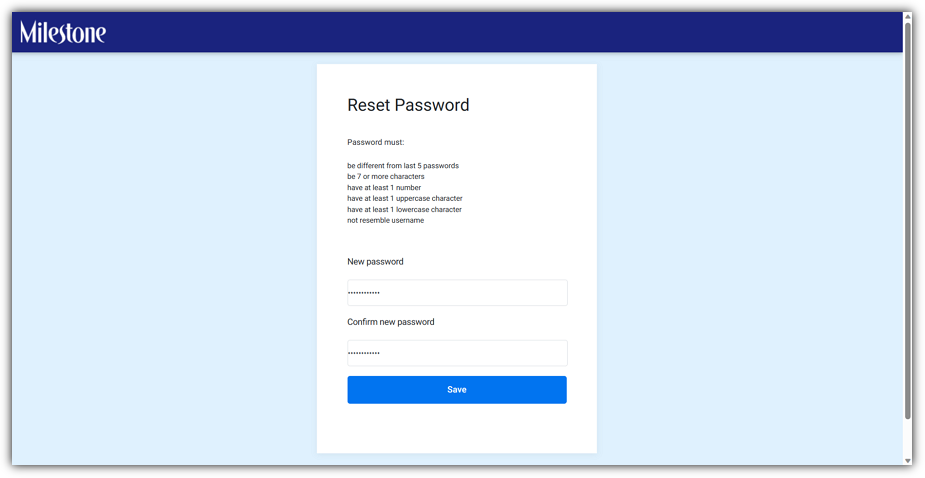
Step 7: Clicking on the said text will redirect you to the Reset Password page. While resetting the password, please keep the password security requirements in mind.
Step 8: Enter the password and reenter it for confirmation.
Step 9: Click the Save button. Once you click the save button, it will redirect to the Reset Password confirmation page which says that the password has been reset.
Step 10: To sign in with your new password, click the text Click here. It will navigate to the MPC login page.
Step 11: Enter the credentials and click the Sign in button.
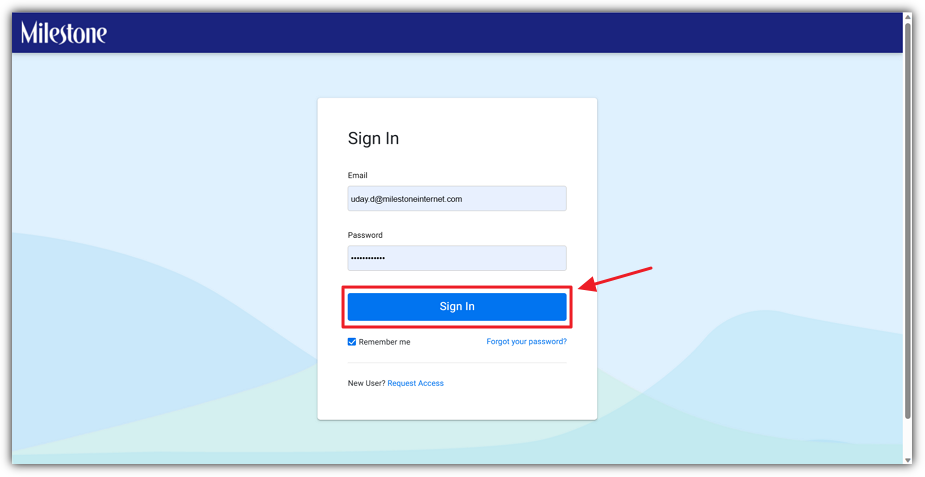
Step 12: After successfully logging in, you will be automatically redirected to the Milestone Presence Cloud Dashboard.
Congratulations! A new password has been updated.
After generating a password and logging into the MPC, you will be redirected to the Milestone Presence Cloud Dashboard.
Watch Video: https://help.milestoneinternet.com/getting-started-dashboard/reset-password-
Was this article helpful?
That’s Great!
Thank you for your feedback
Sorry! We couldn't be helpful
Thank you for your feedback
Feedback sent
We appreciate your effort and will try to fix the article