Milestone Local allows you to create and publish Google, Facebook, and Bing posts simultaneously, reducing the time and effort it takes to publish to multiple platforms drastically. This also helps you maintain high engagement across channels.
Path: Milestone Local > Post Summary
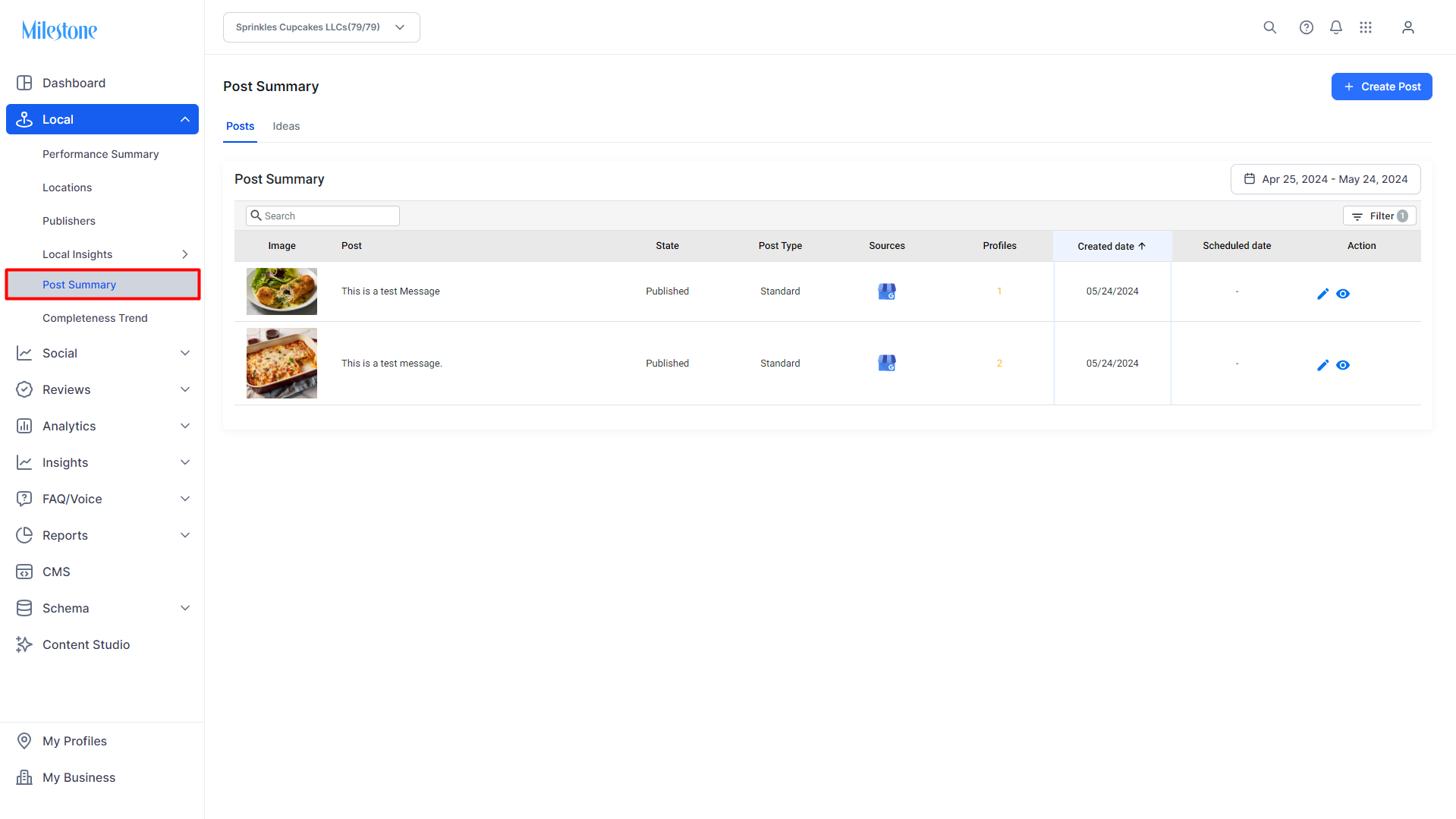
Step 1: Click on ‘Post Summary’ in the left navigation panel of Milestone Local.
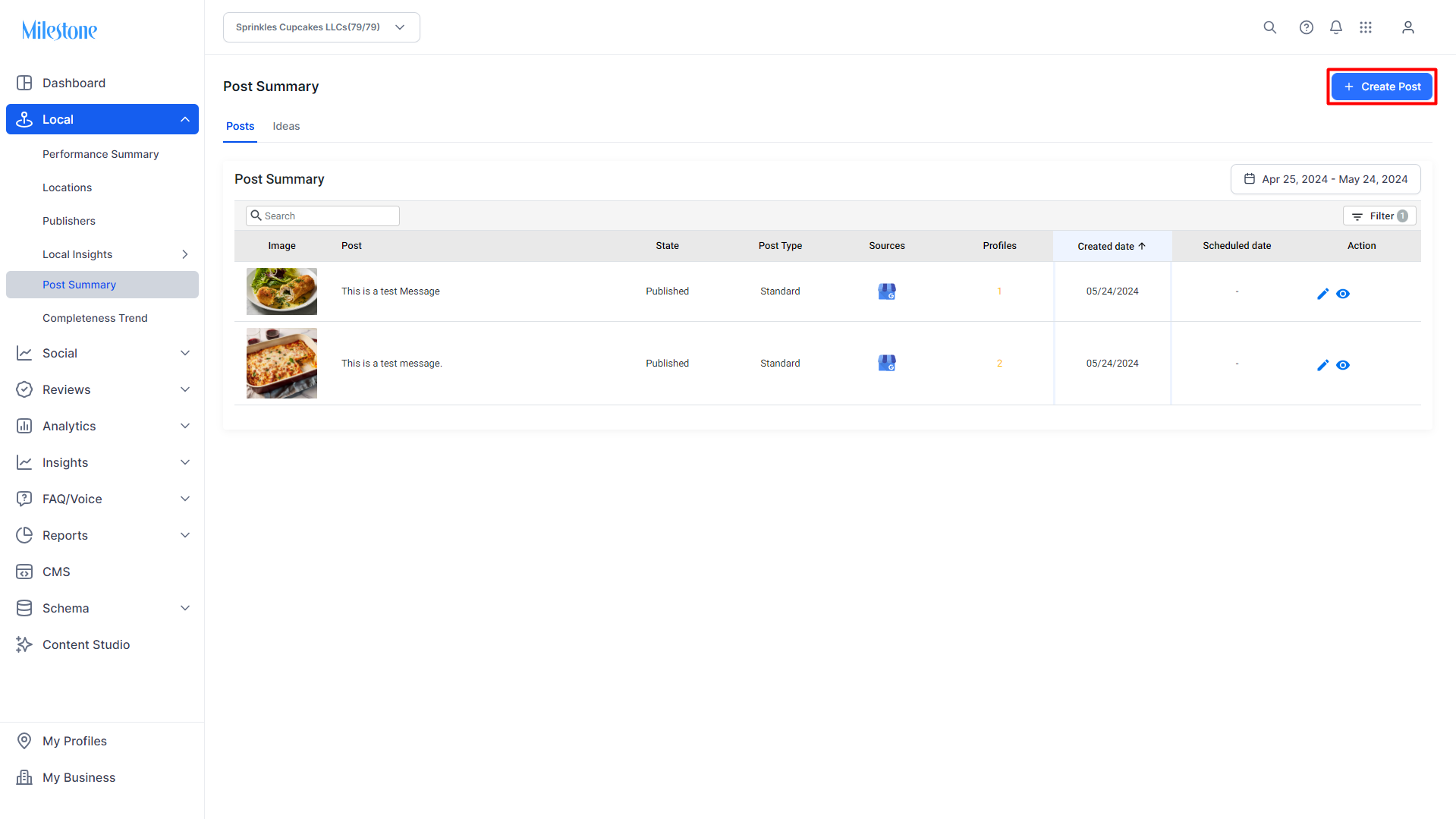
Step 2: To create a new post click on the ‘Create Post’ button at the top right.
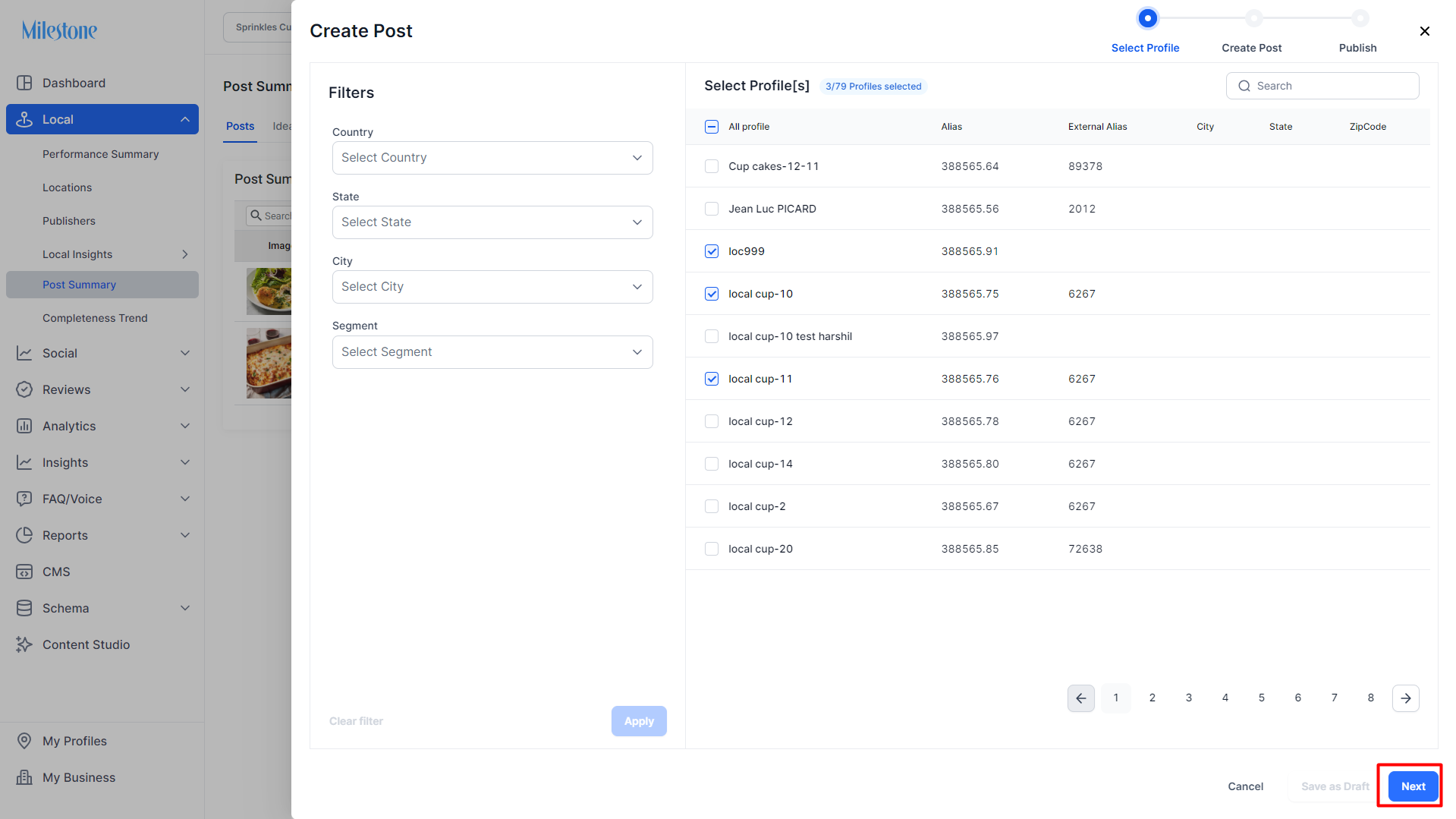
Step 3: Select the profile(s) you want to create the posts for and click on ‘Next’.
Step 4: Select ‘Google’, ‘Facebook’, 'Bing' as the channels. Please note, you cannot select Apple along with these are the post requirements for Apple differ.
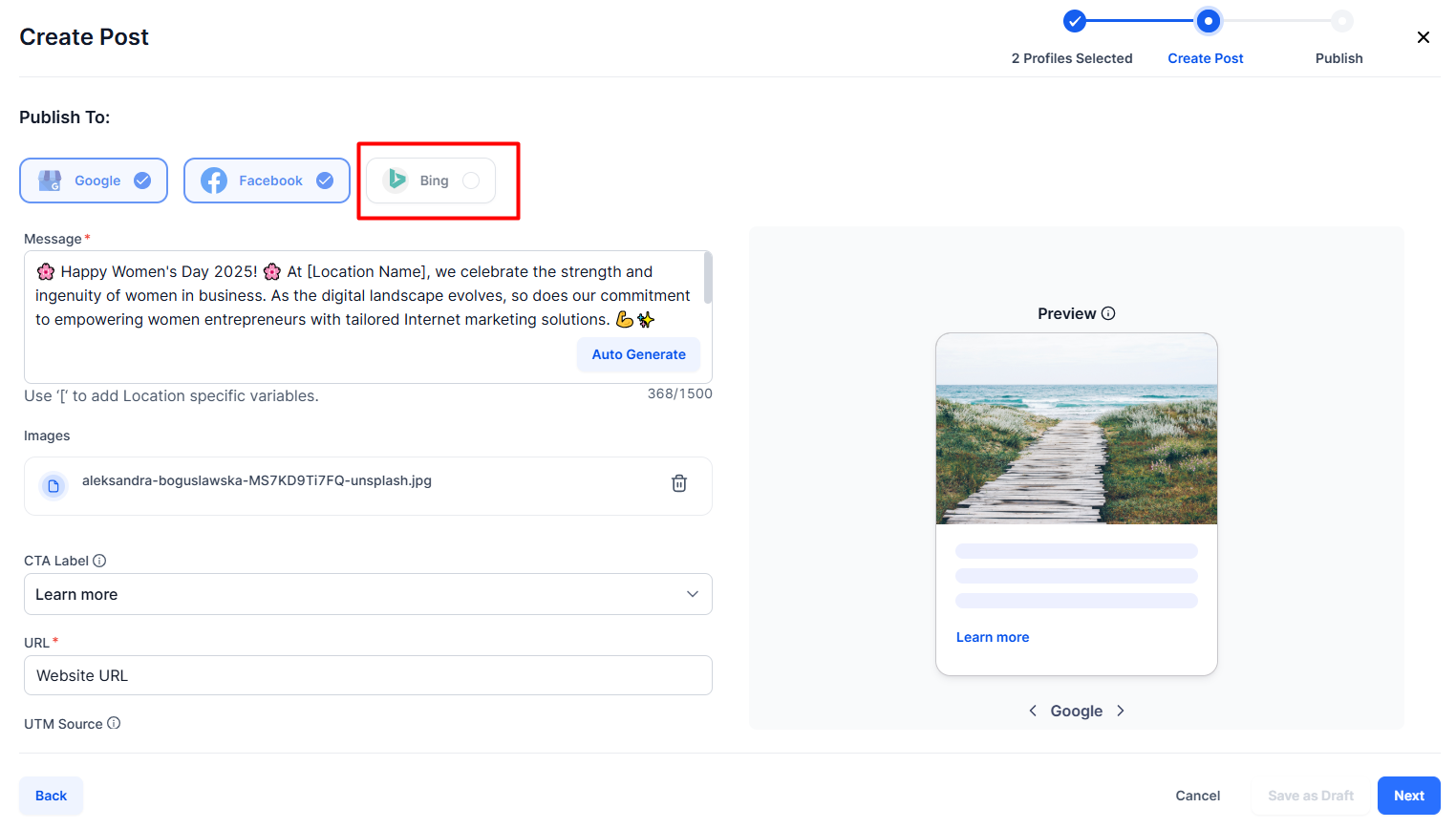
Step 5: Once you have created the post you can preview it for Google, Facebook, and Bing to the right.
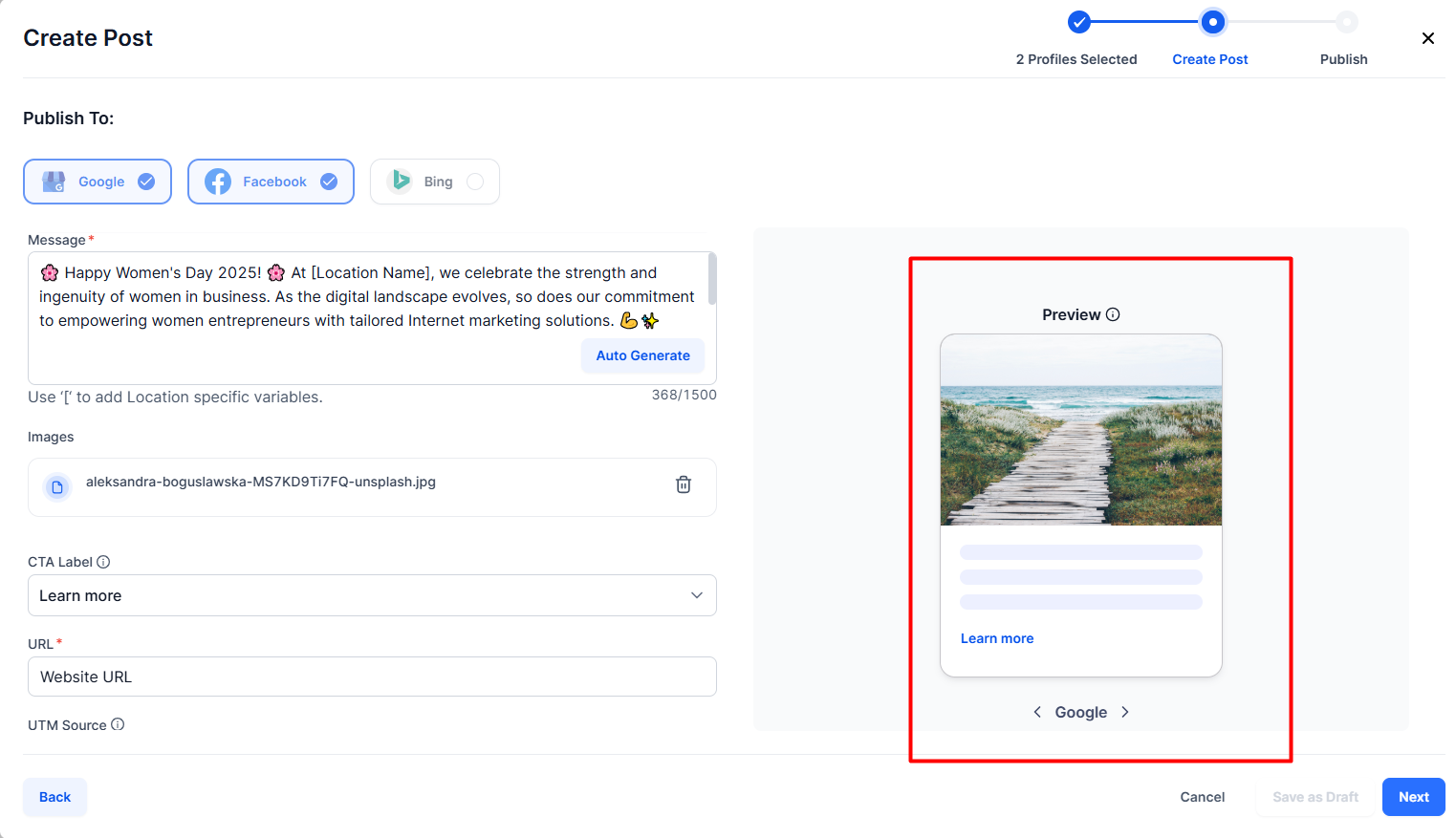
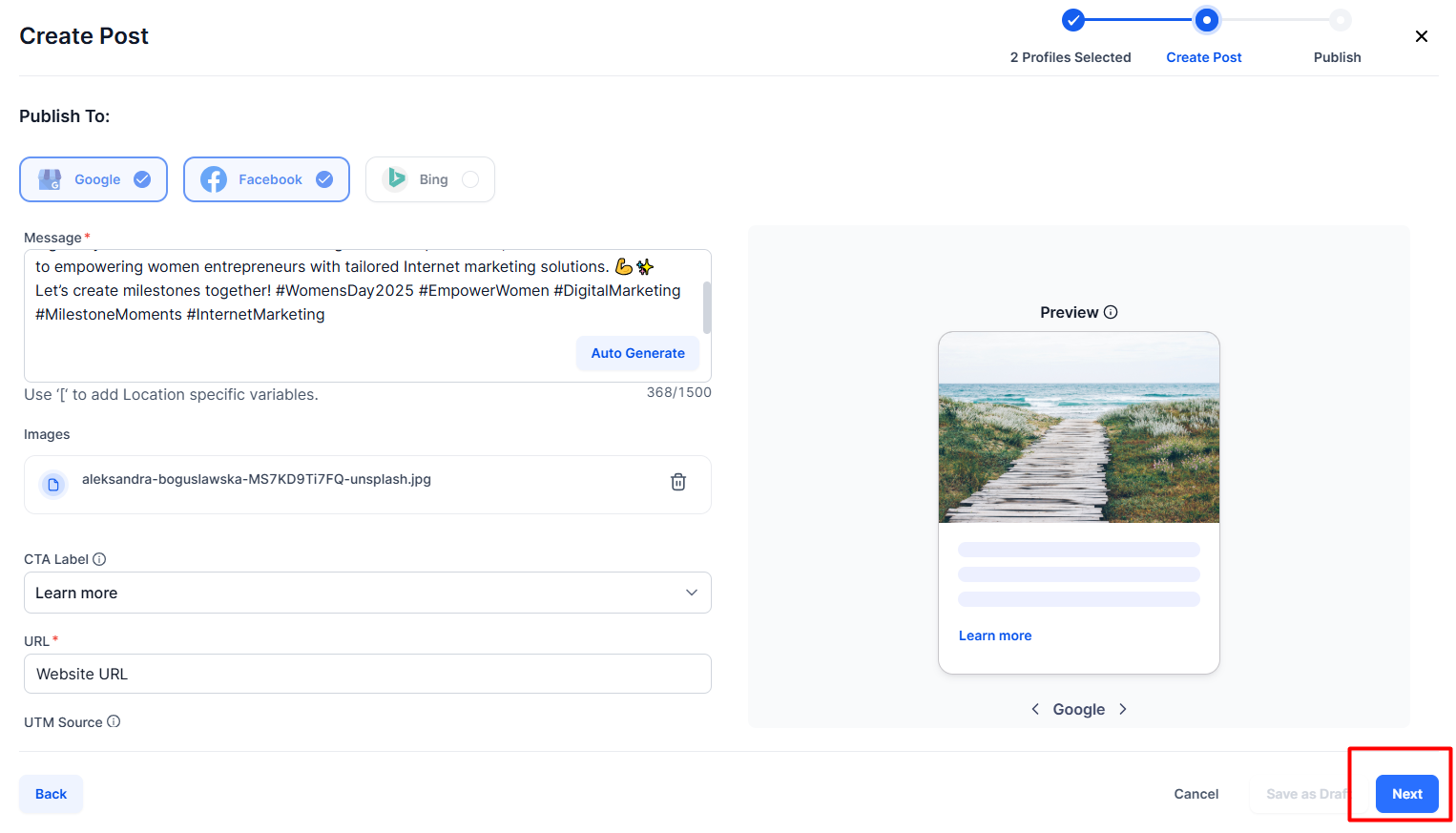
Step 6: Click on ‘Next’ if you wish to proceed.
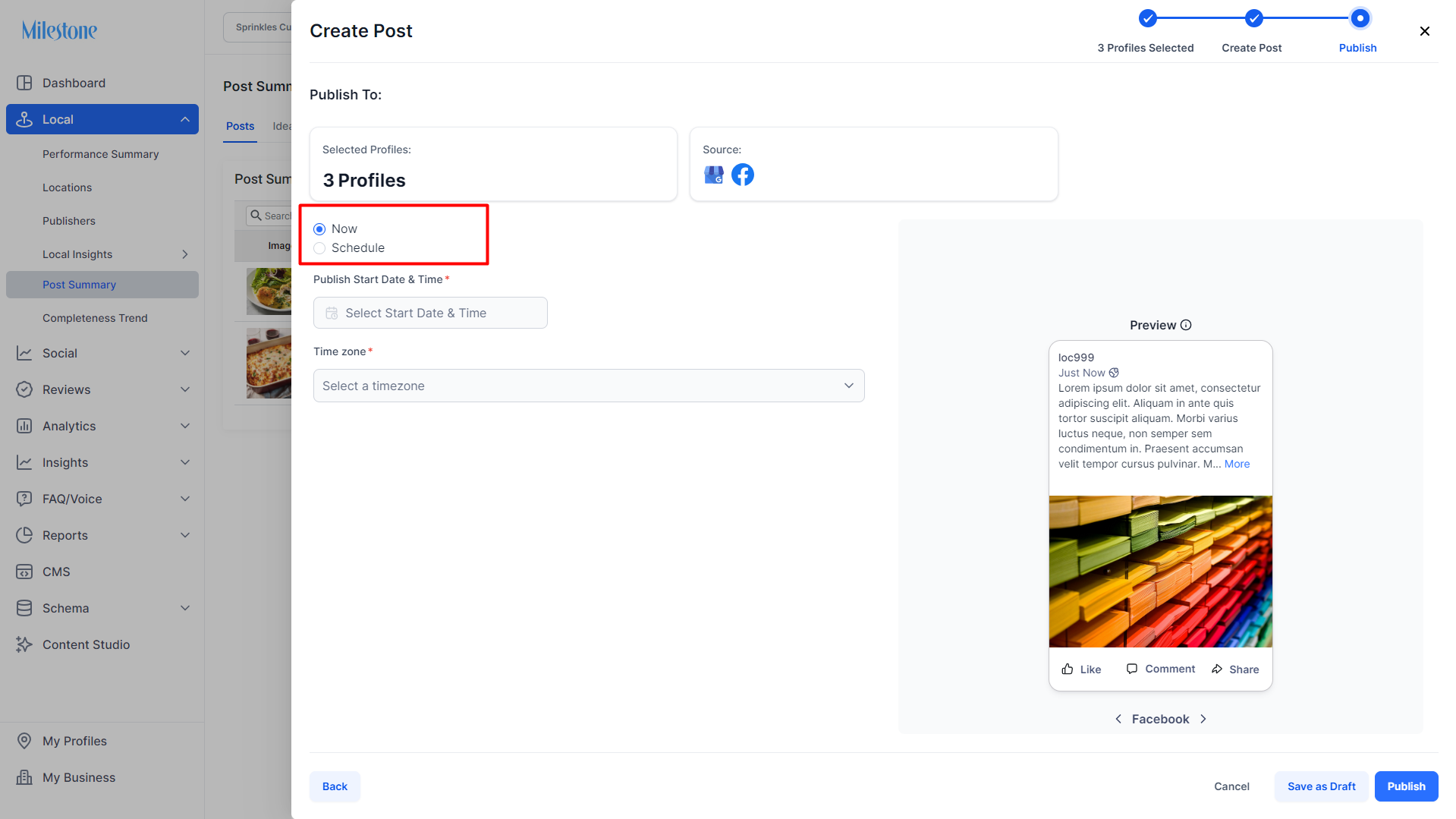
Step 7: You can choose to publish the post instantly or on a future date by scheduling it. Make your selection and click on ‘Publish’.
You will be notified if the post has been published successfully to Google and Facebook.
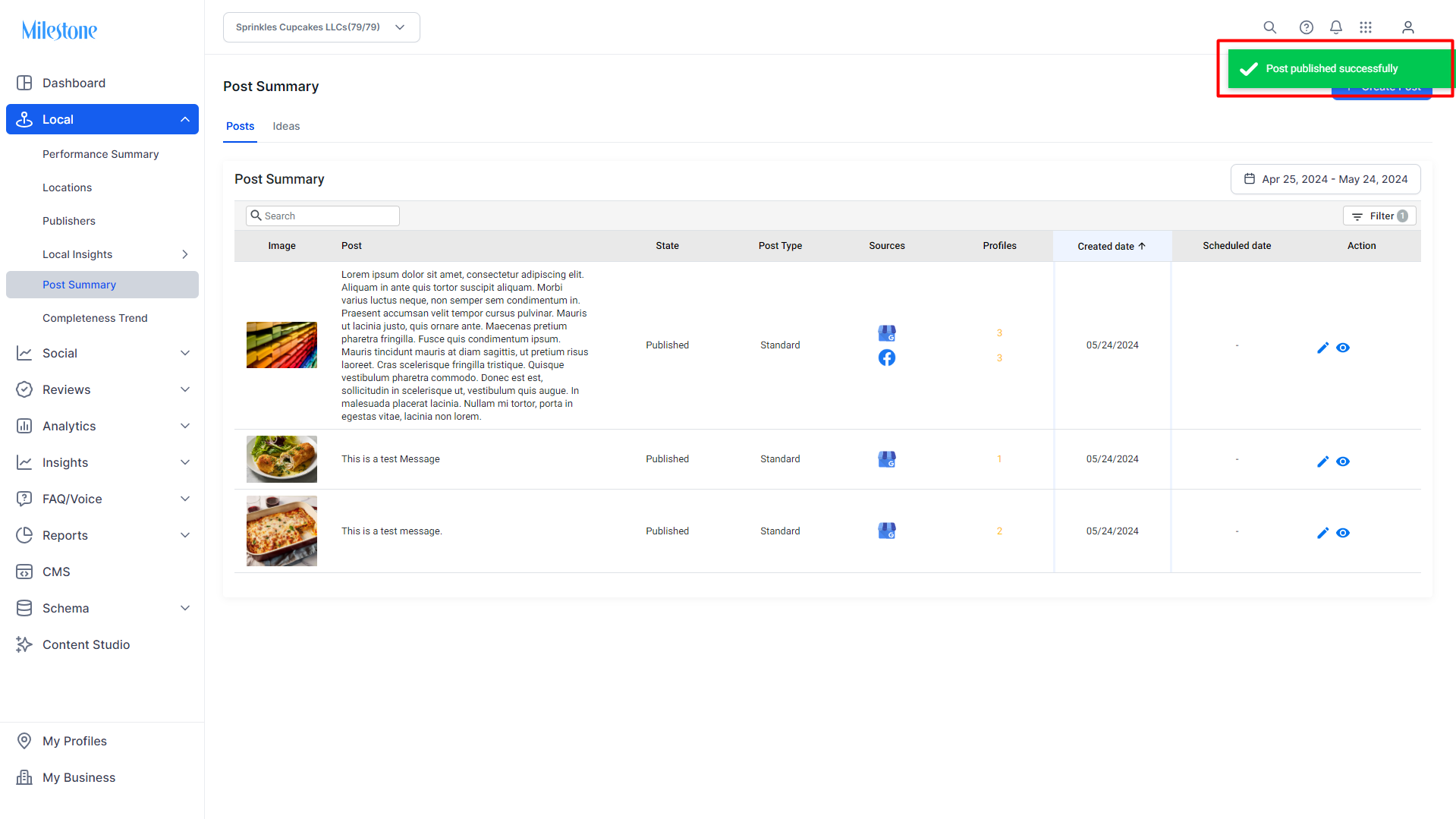
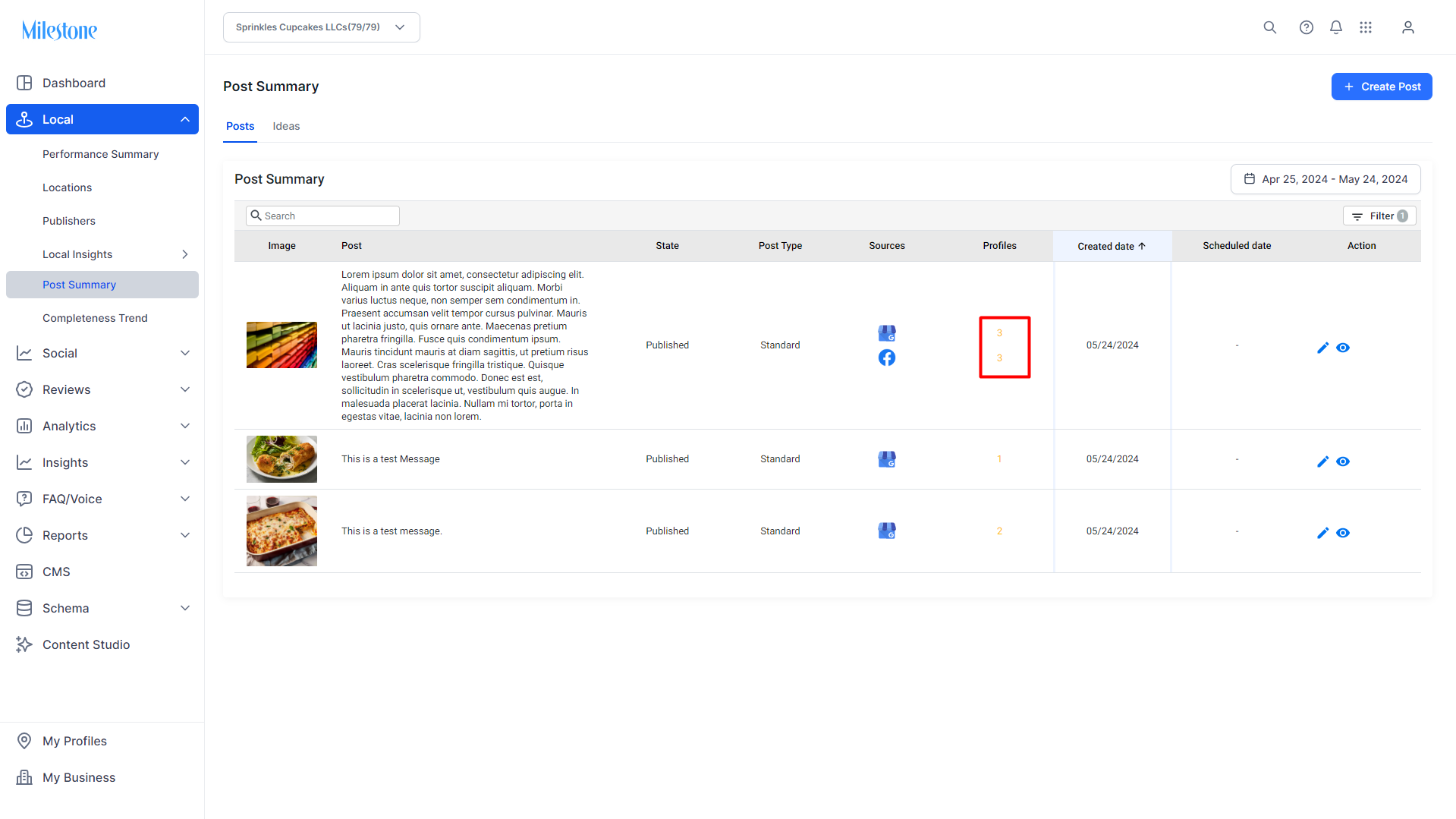
In the ‘Post Summary’ section you can view the post and its status in the ‘Profiles’ column.
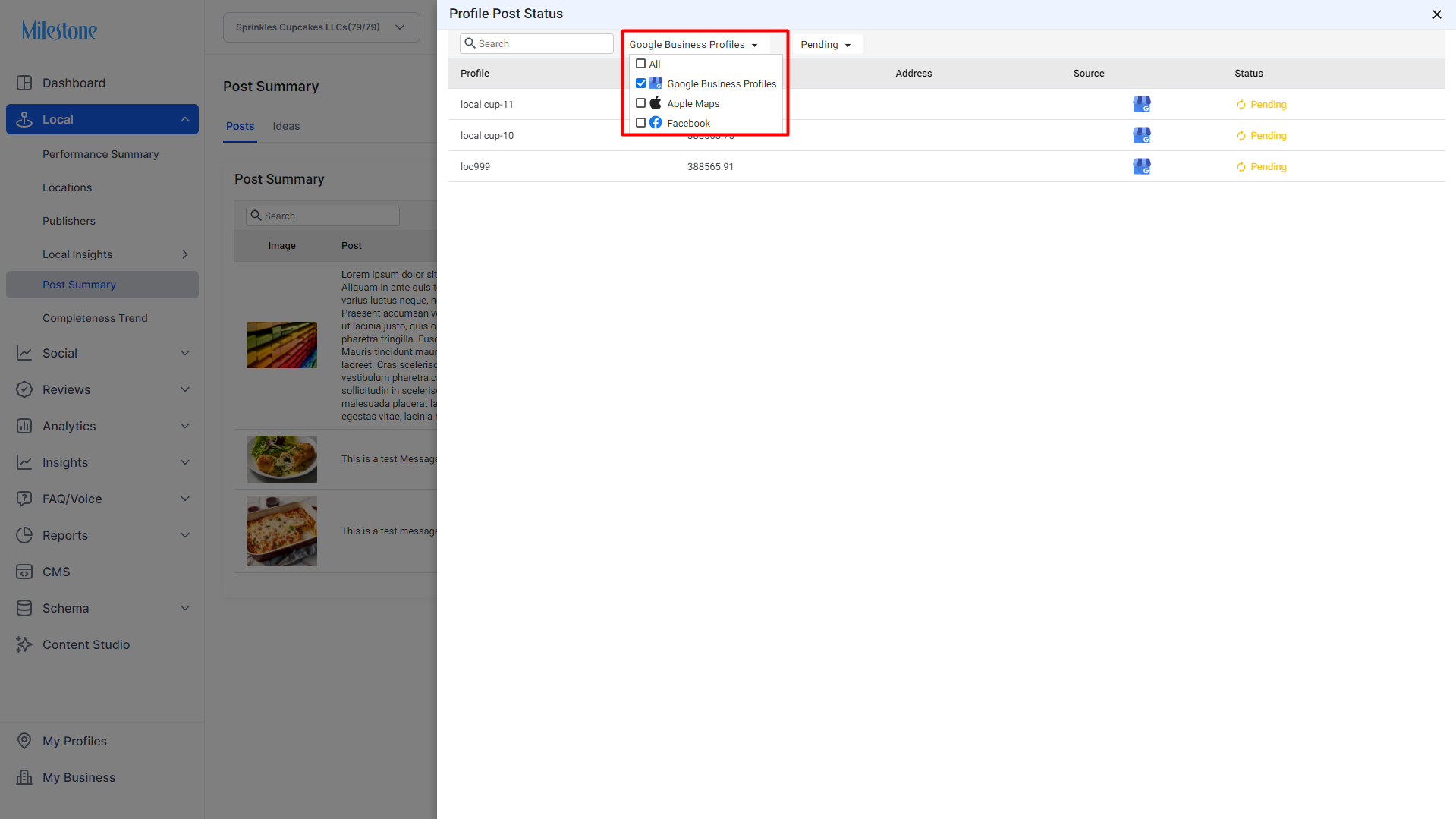
In the ‘Profile Post Status’ click on the channel dropdown menu to view the status of your Google and Facebook posts.
Was this article helpful?
That’s Great!
Thank you for your feedback
Sorry! We couldn't be helpful
Thank you for your feedback
Feedback sent
We appreciate your effort and will try to fix the article