With Milestone Local you can update the items on your menu across multiple locations from a single dashboard. This data is submitted to Google Business Profiles and Apple, allowing you to take advantage of the new rich results generated on Google.
Path: Milestone Local > Locations > Profile Summary
Step 1: Navigate to 'Locations' in Milestone Local.
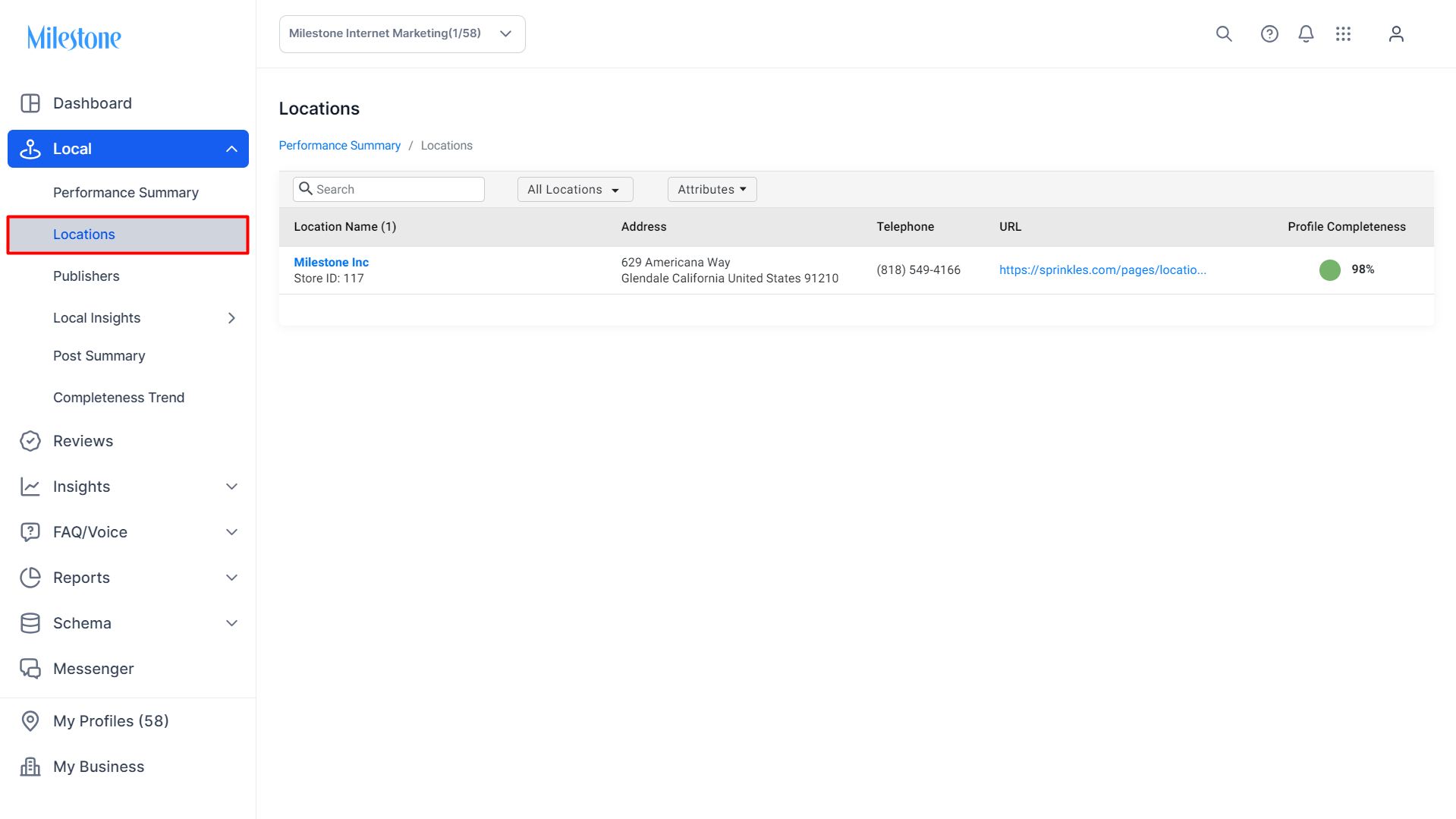
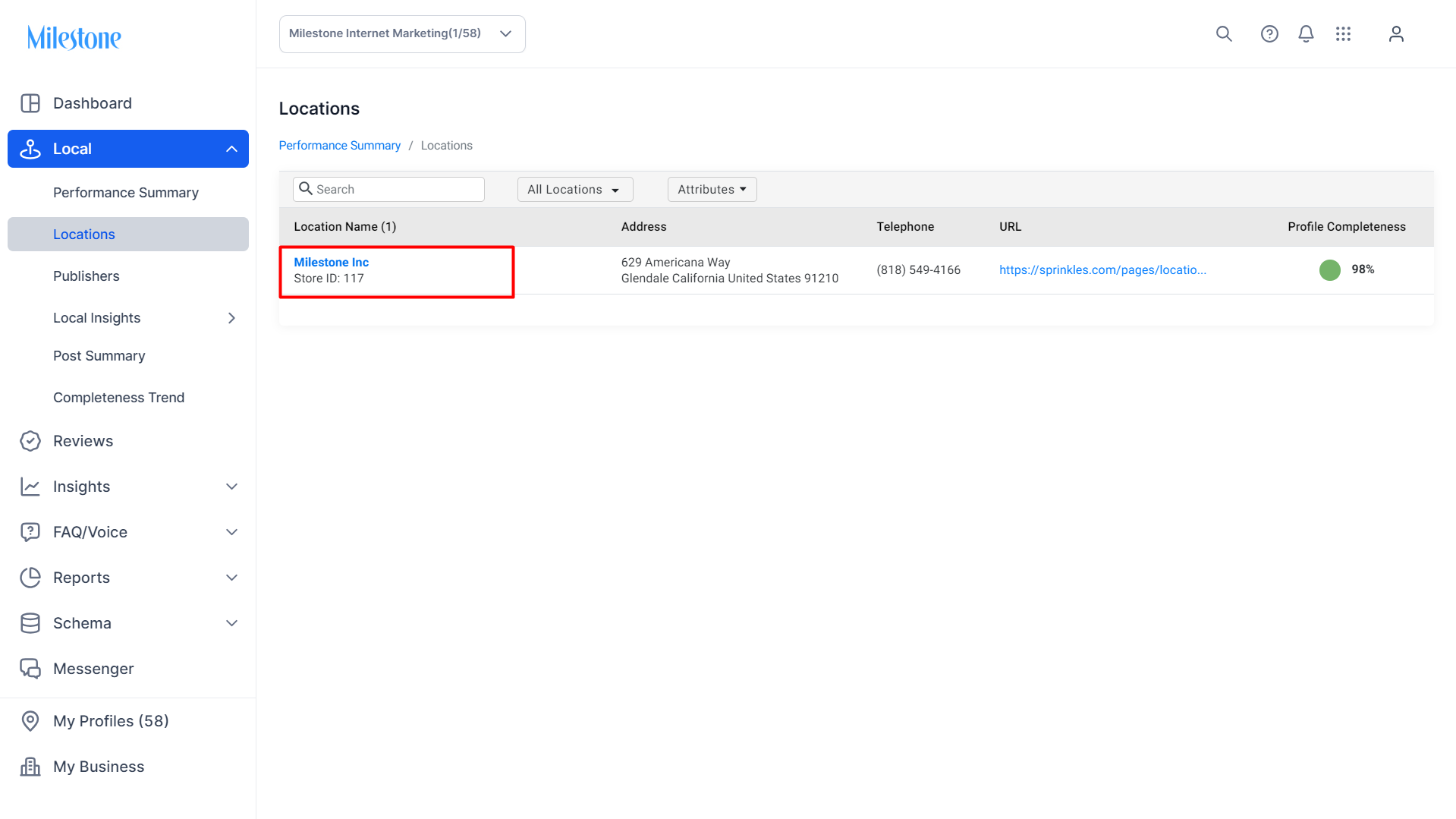
Step 2: Select the profile for which you would like to update menu information to enter the ‘Profile Summary’ screen.
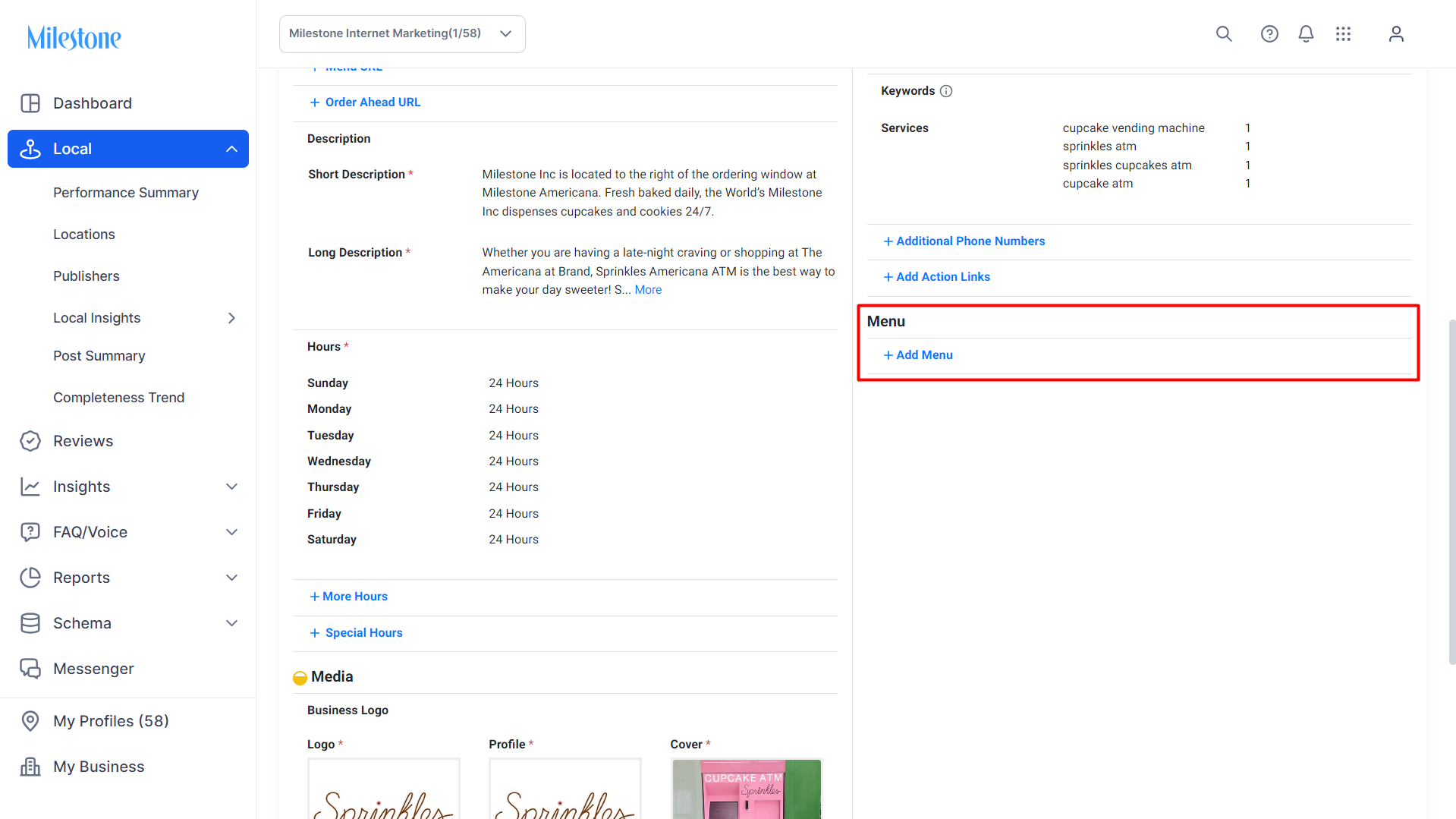
Step 3: To the bottom right of the ‘Profile Summary’ screen you will find the ‘Menu’ option. Click on ‘Add Menu’ to update menu items to your local listing.
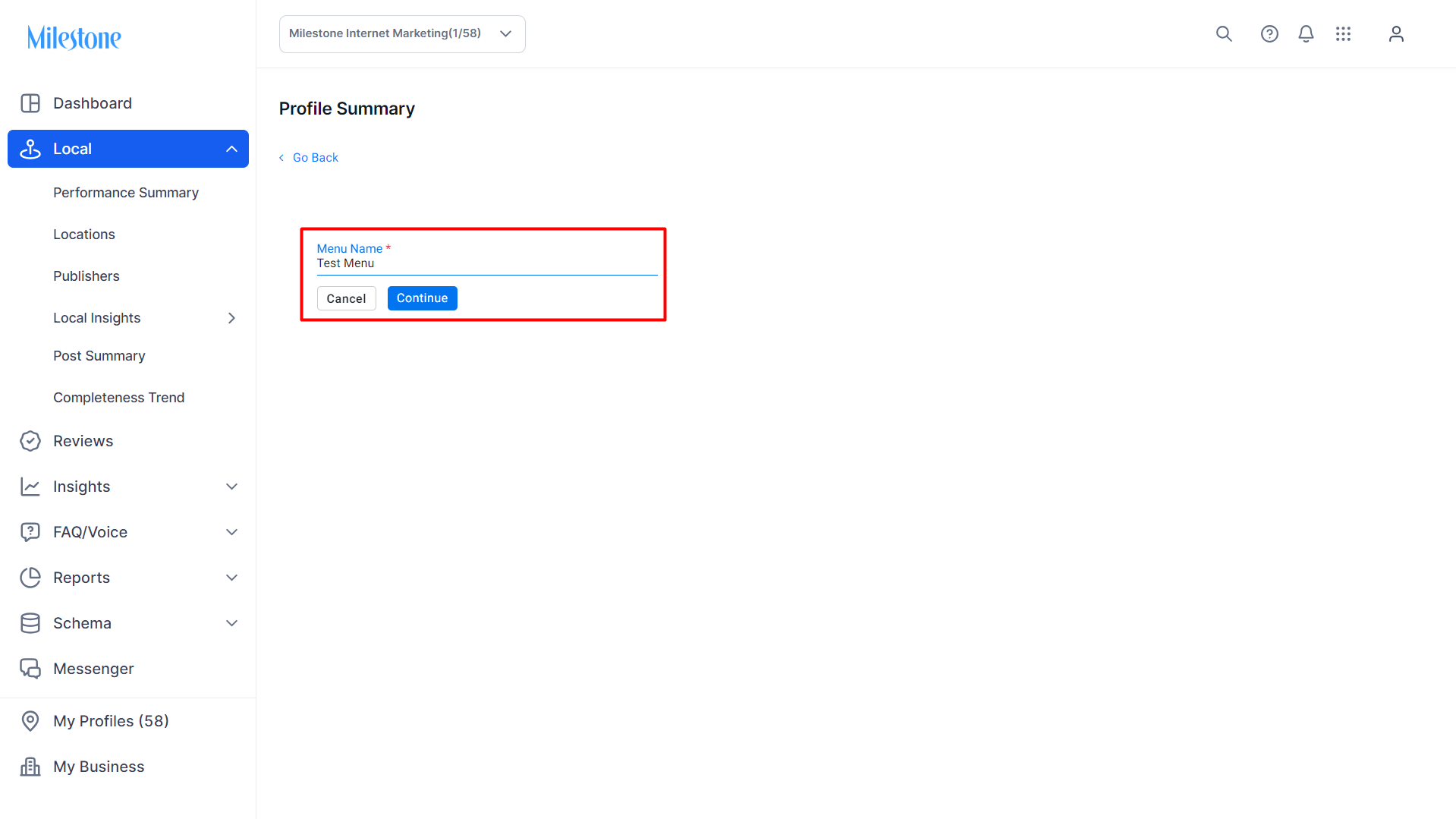
Step 4: Add a name for the menu.
Step 5: A name for the menu section (example: Starters, Main Course, Beverages, Dessert) and enter the name and details of the menu items.
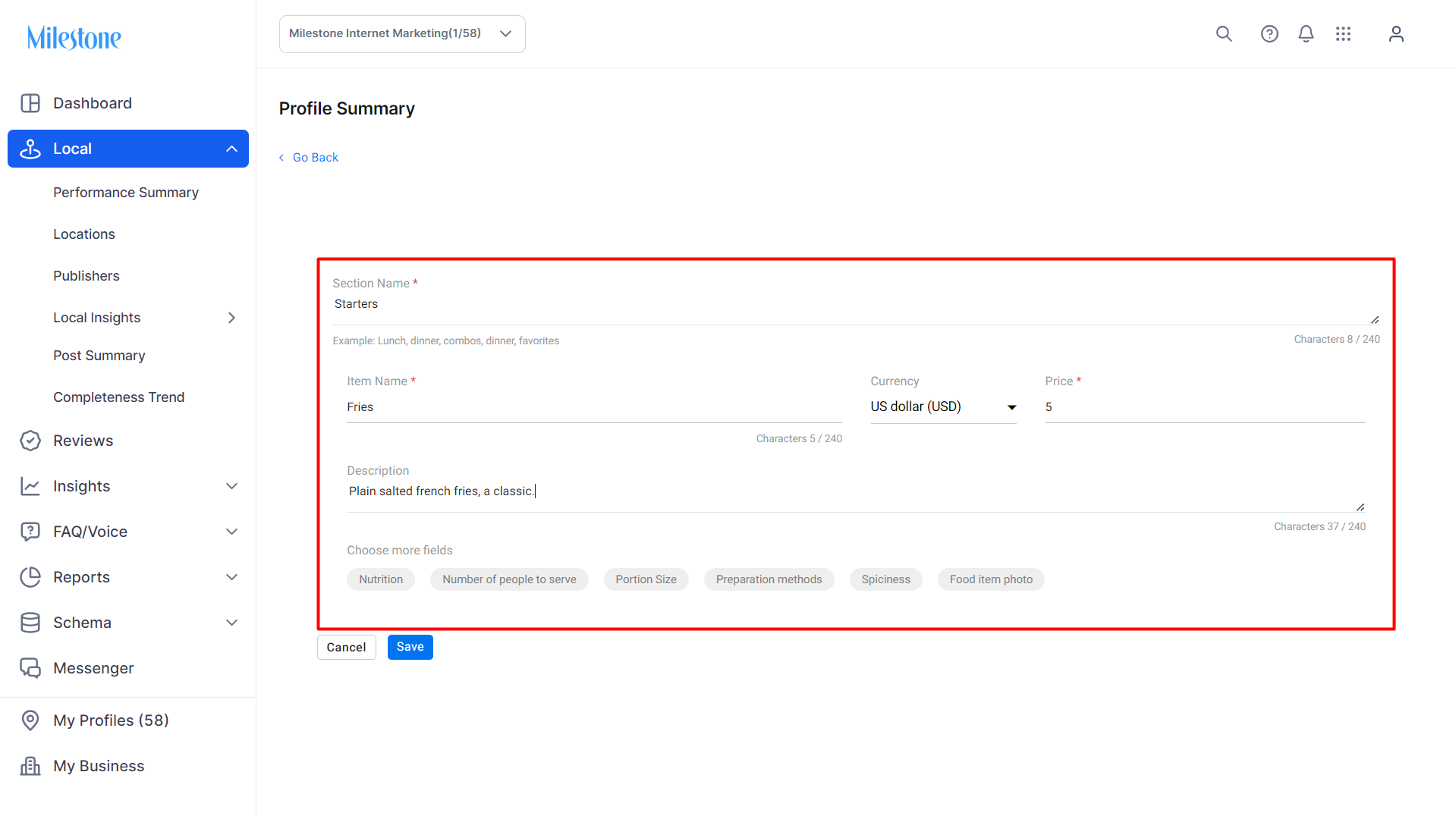
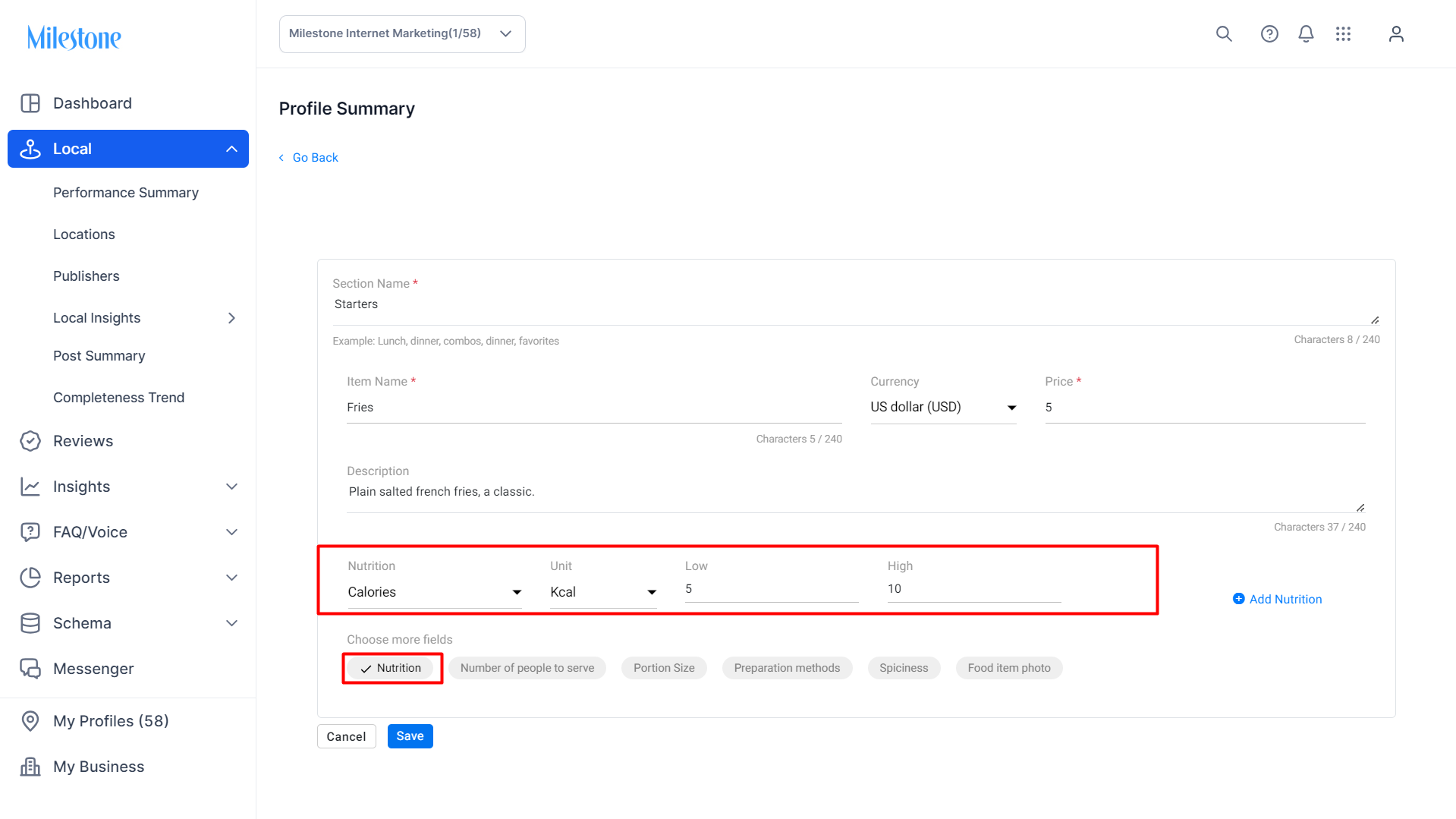
Step 6: You can also add additional information about the menu item to provide greater detail to your listing and help you appear in relevance results for a larger variety of searches.
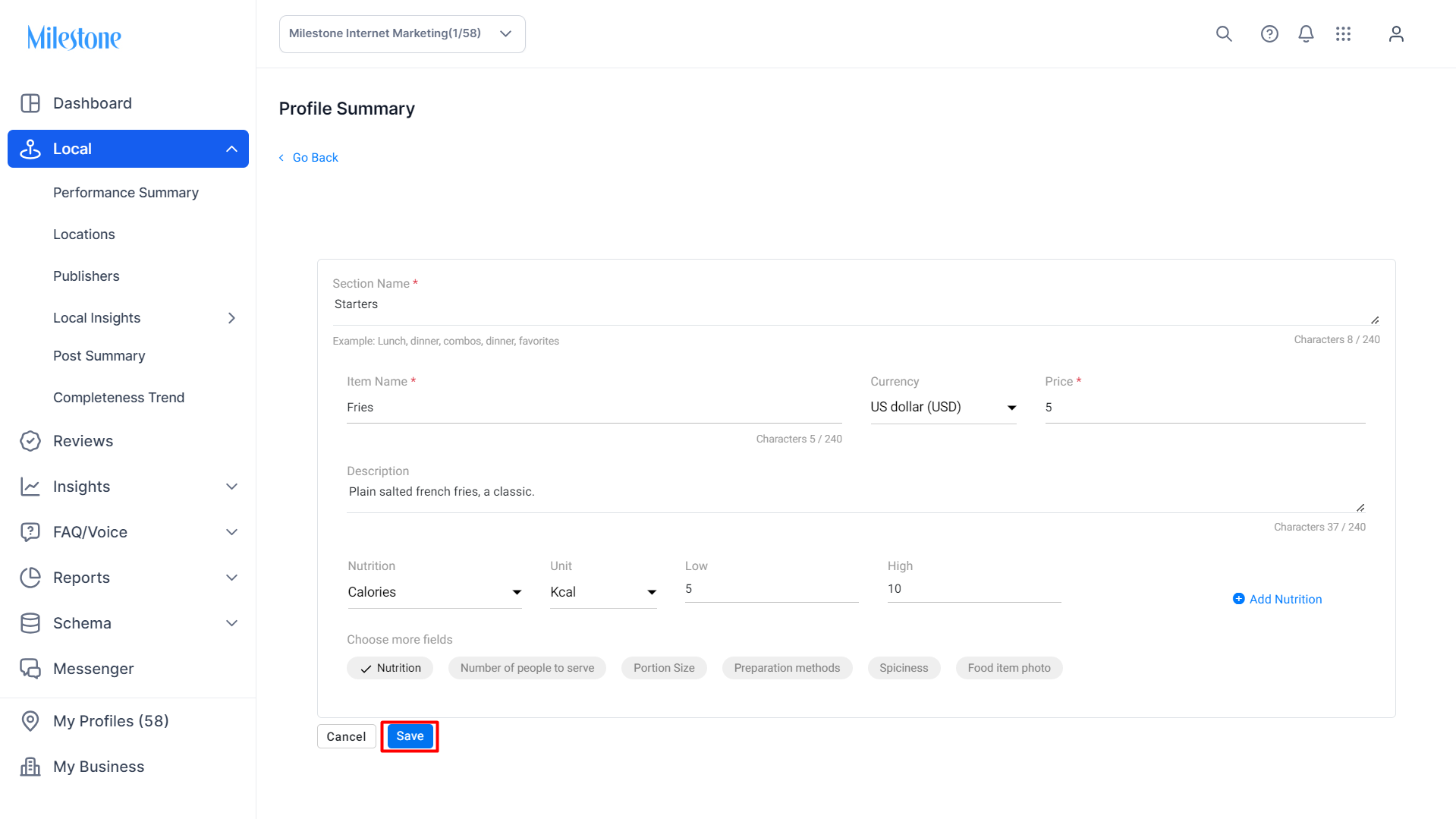
Step 7: Click on Save once you have created the first item in your local menu.
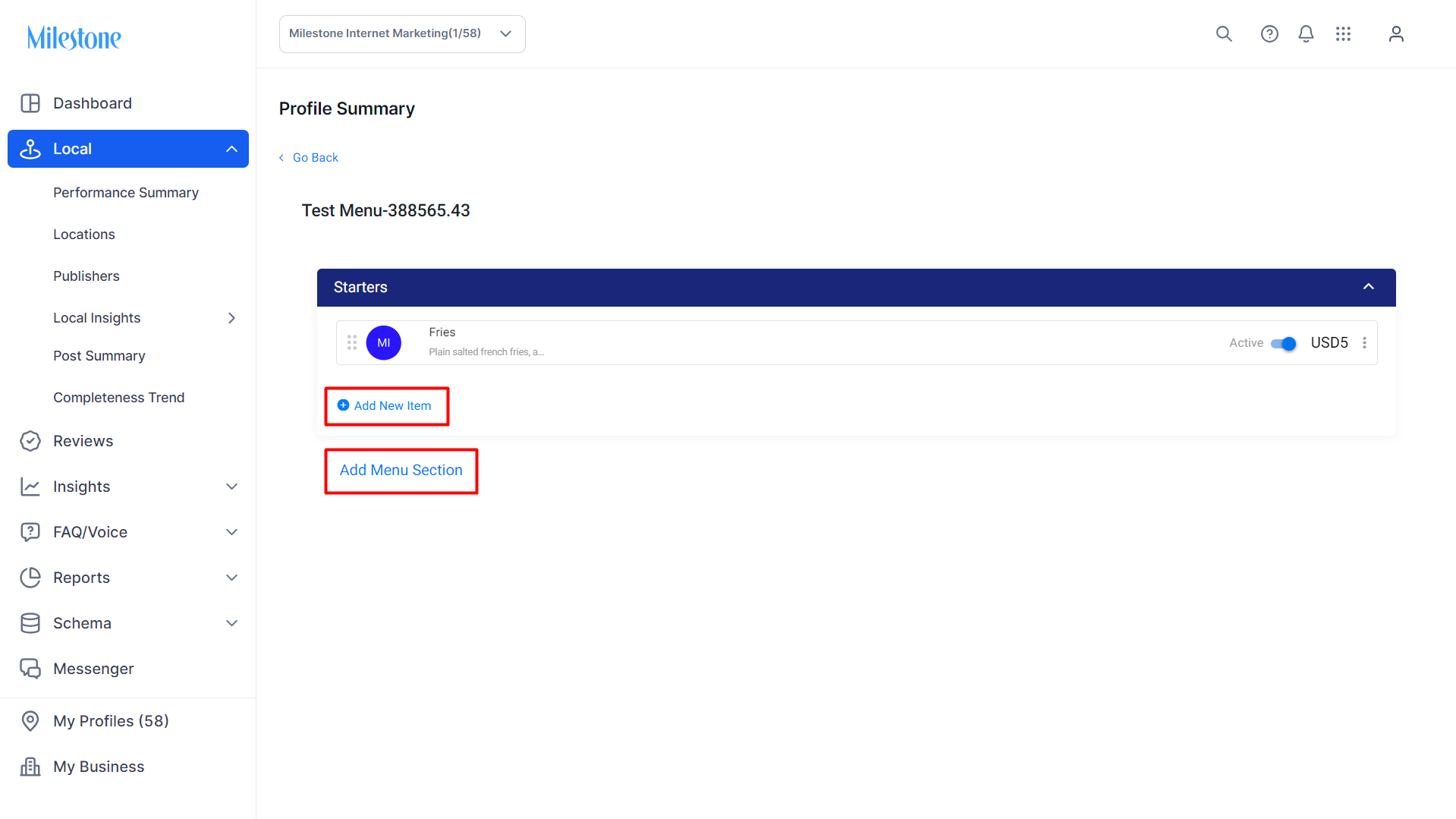
Step 8: To add more items to the menu simply click on ‘Add New Item’. To add a new section to the menu, click on ‘Add Menu Section’.
Was this article helpful?
That’s Great!
Thank you for your feedback
Sorry! We couldn't be helpful
Thank you for your feedback
Feedback sent
We appreciate your effort and will try to fix the article